
Audit log
For admins
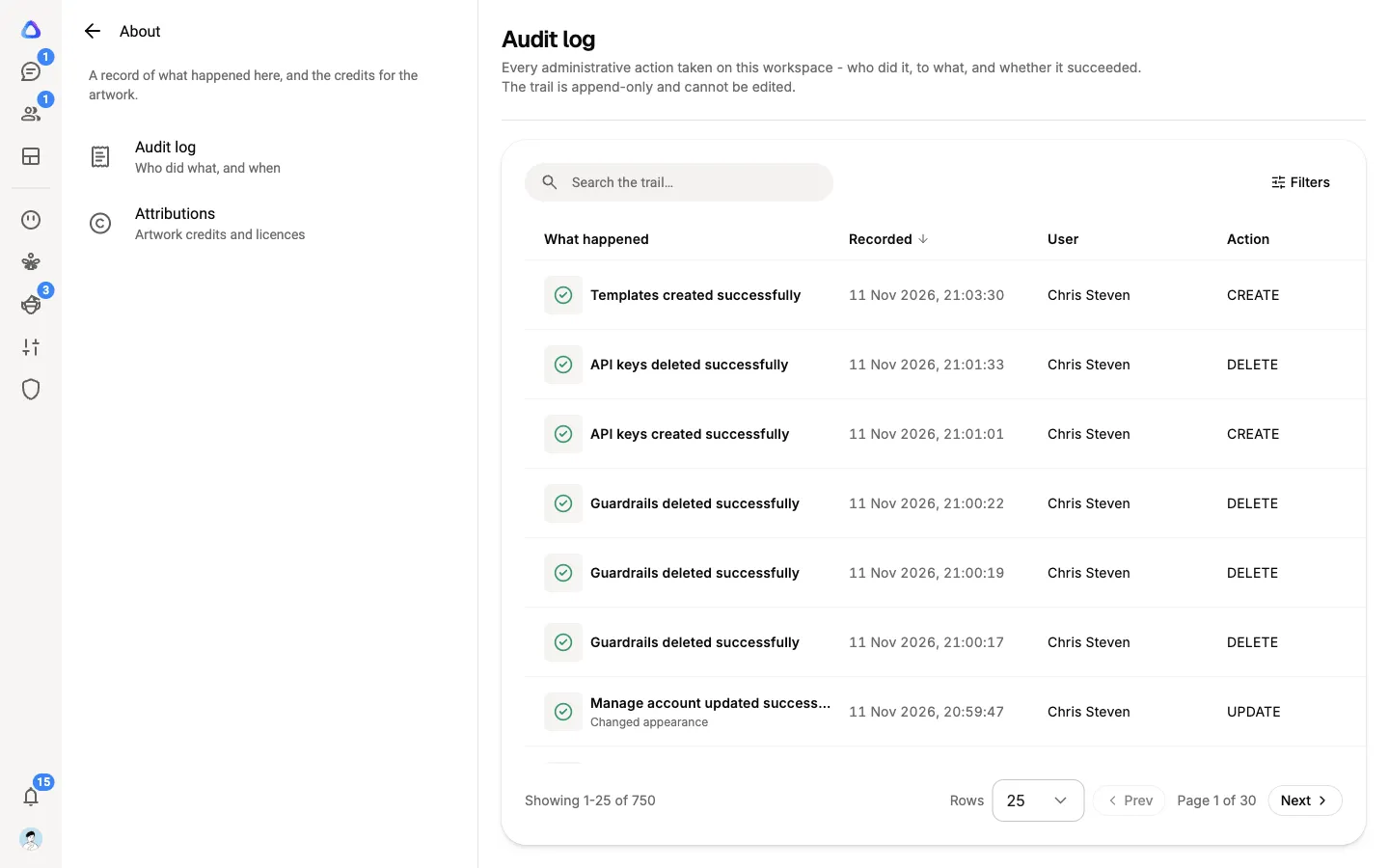
The audit log is the workspace’s record of who did what, to what, and whether it worked. Use it to answer questions like “who changed this member’s role?”, “who approved that connector?” or “was this API key used last Tuesday?”. Entries can’t be edited or deleted, by anyone.
Before you begin
Section titled “Before you begin”- The audit log is open to the Owner and to people with workspace administration, such as members on the built-in admin role template. See Workspace administration.
Open the audit log
Section titled “Open the audit log”The audit log lives in Settings, not in the Admin column.
- Select your photo in the rail, then Settings.
- Select About, then Audit log.
If you don’t see Audit log under About, your role doesn’t include it.
What it records
Section titled “What it records”Administrative and important actions across the workspace, including:
- Members: invitations, joins, edits to details and role templates, removals.
- Roles and approvals: role templates created, edited or deleted; approval requests decided.
- Workspace: renaming, its picture, and deleting it.
- Billing: plan changes, cards, the billing address, top-ups and credit limits.
- API keys: keys created, renamed and revoked, including failed attempts.
- Personalization: skills, plugins, connectors, web search tools, templates and memory.
- Work: tasks, chats, breakaways, Teams, file uploads, workflows published, run or stopped, Atlato One runs, and elves’ approvals and connected app decisions.
- Accounts: password changes, profile edits and signing out other sessions. These are recorded in the workspace the person owns, if they own one, rather than in a workspace they were invited to.
Each entry shows when it was Recorded, the User, the Action, the Entity it was about and its Status, plus more detail you can show, such as the Duration and IP address.
Search and filter
Section titled “Search and filter”- Type in Search the trail… and press Enter to find entries by any word, such as a name or an email.
- Select Filters to narrow by date range, Action, Entity, Status or user (All users by default). The button shows how many filters are on.
- Select Clear to remove every filter.
- Use the sort and column menus to change the order and choose which columns show.
Reading the audit log doesn’t add entries to it.