
Admin
For admins
Admin is where you run the workspace: who is in it, what each person can do, how it pays, and the keys and rules everyone works with. Each area opens only for people whose role template allows it, so two admins can see different lists.
Open Admin
Section titled “Open Admin”Select Admin in the rail. The Admin column lists the areas your role template opens. Pick one to open it beside the column.
If you don’t see Admin in the rail, your role template opens none of its areas. Ask the workspace Owner, or someone who can edit roles, to give you the ones you need.
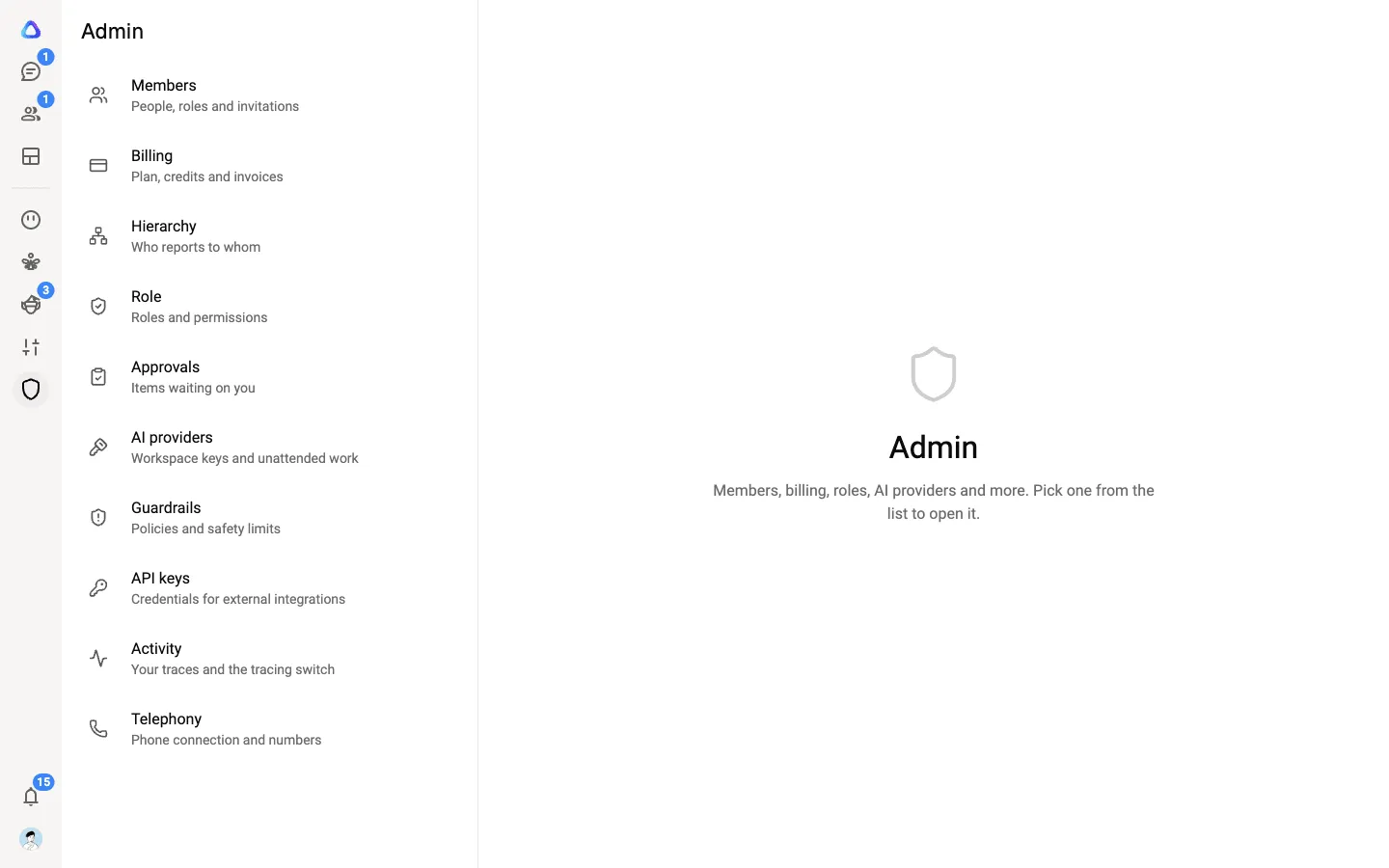
What each area is for
Section titled “What each area is for”| Area | What you do there |
|---|---|
| Members | Invite people, edit their details and role, and remove members. |
| Billing | Choose a plan, buy credits, set member credit limits, and see usage and invoices. |
| Hierarchy | See the org chart of who reports to whom. |
| Role | Create role templates that decide what people can see and do. |
| Approvals | Approve or reject what members ask to add, change or delete. |
| AI providers | Add AI keys the workspace owns, and choose the keys unattended work runs on. |
| Guardrails | Write rules that every AI chat and agent follows. |
| API keys | Create keys so other systems can start and track work. |
| Activity | See your own chats and agent runs step by step, and switch tracing on or off. |
| Telephony | Connect the workspace’s phone account and numbers for pixies. |
Who sees each area
Section titled “Who sees each area”Every workspace has one Owner, usually the person who created it. The Owner sees every Admin area and can do everything in each one.
Everyone else has a role template. Each Admin area is its own setting in the template, switched to enable or disable. Two role templates come with every workspace:
- admin turns on every area and includes workspace administration (below).
- Member turns every Admin area off. New invitations start on it.
You can create your own templates to open just the areas someone needs, for example Members and Approvals but not Billing. See Role templates.
Some actions need a second setting on top of the area itself:
- Changing the plan, cards, top-ups or credit limits needs permission to manage billing, not just to view it. The built-in admin template has it; Member doesn’t.
- Turning activity tracing on or off needs activity-manage as well as activity.
- Telephony also needs workspace administration.
Workspace administration
Section titled “Workspace administration”Workspace administration lets someone see and manage everyone’s work in the workspace: tasks, workflows, Personalization items and dashboards, not only their own and what is shared with them. The built-in admin template includes it.
Only the Owner and people who already have workspace administration can give it to anyone else. For everyone else, role templates that include it appear grayed out when they invite or edit a member.
What only the Owner can do
Section titled “What only the Owner can do”- Delete the workspace. See Workspaces.
- Connect or disconnect the workspace’s phone account, buy phone numbers and release them. See Telephony.
- Keep full access whatever role templates say. The Owner can’t be removed and has no role template.
Ownership can’t be handed over through a role template or an invitation. If the workspace’s ownership needs to move to someone else, contact support.