
API keys
For admins
An API key lets another system, such as your CRM, a scheduler or an internal tool, work with Atlato ABC without anyone signing in. With a key it can start workflows and Atlato One runs, and follow how they’re going. You create keys in Admin → API keys, and your developers use them.
Before you begin
Section titled “Before you begin”- Your role template needs api-keys. The Owner always has it.
- A key acts as you. Create keys from an account whose access suits the job.
What a key can do
Section titled “What a key can do”A key isn’t a separate user. It acts as the member who created it, in the workspace it was created in:
- It can never do more than its creator’s role allows, and never more than they could when the key was created, even if they get more access later.
- It stops working when its creator leaves or is removed from the workspace.
- It works only in its own workspace.
You also choose its Permissions:
| Permissions | What the key can do |
|---|---|
| All | Read and change things, up to what your own role allows. |
| Read only | Read workflows, runs and schedules. It can’t change anything, or start a run. |
Runs started with a key are unattended work: they run on the workspace’s keys for unattended work, not on yours, and their credits show as Workspace (background). See Workspace AI providers.
Create a key
Section titled “Create a key”-
Select Admin in the rail, then API keys.
-
Select Create new secret key.
-
Give it a Name that says where it will be used, such as “CRM sync”.
-
Choose its Permissions: All or Read only.
-
Choose an Expiration: 7, 30, 60, 90, 180 or 365 days, or No expiration. It starts at 90 days.
-
Select Create secret key.
-
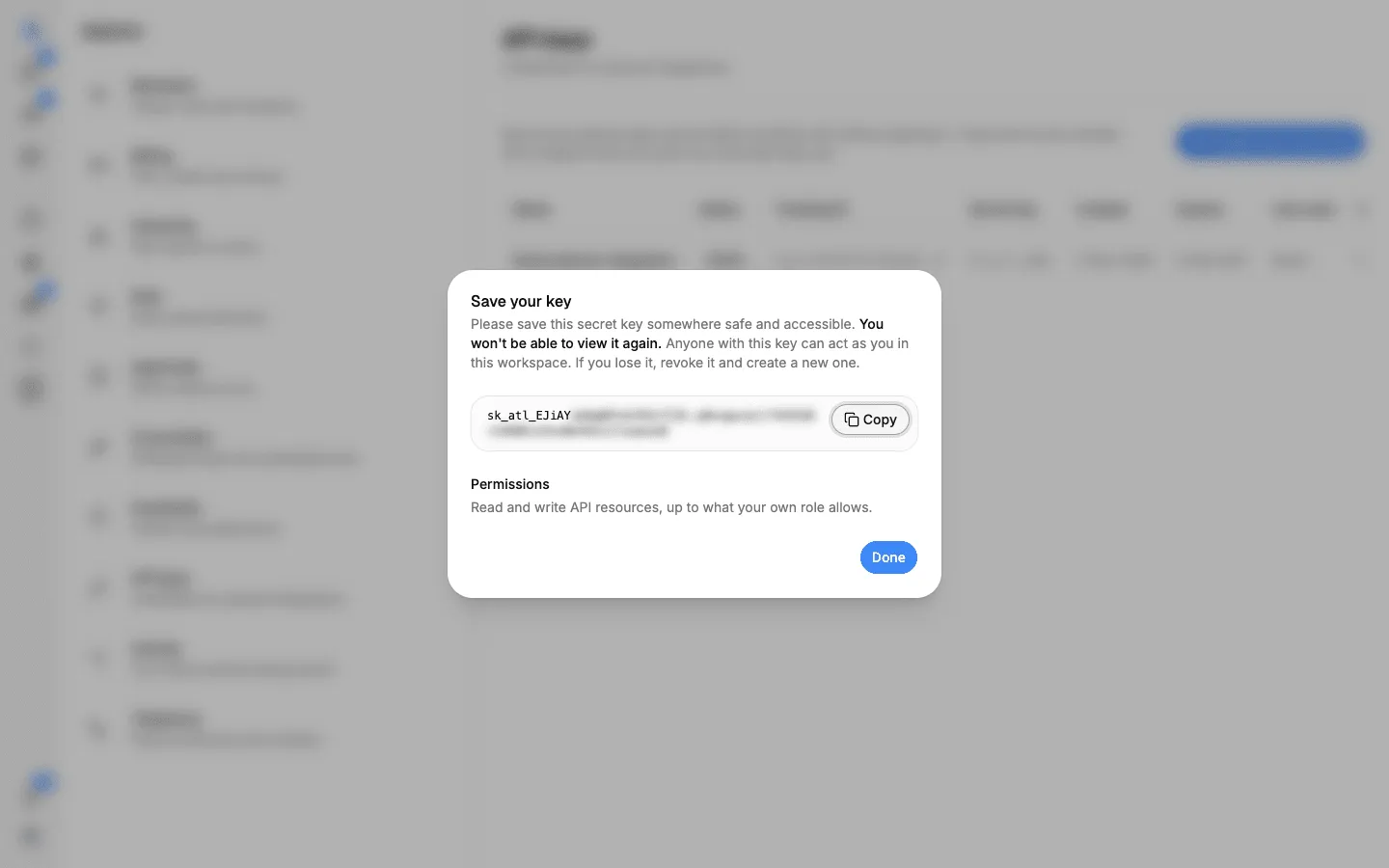
On Save your key, select Copy and store the key somewhere safe, such as your company’s password or secrets manager. Then select Done.
The keys list
Section titled “The keys list”Every key stays in the list, including expired and revoked ones, so you can always check what was live and when. For each key you see:
| Column | Shows |
|---|---|
| Name | The name you gave it. |
| Status | Active, Expired or Revoked. |
| Tracking ID | A public ID for the key. It’s safe to quote to support or in your own logs. |
| Secret key | The key with all but its last four characters hidden. |
| Created, Expires, Last used | Dates, or Never. |
| Created by | The member the key acts as. |
| Permissions | All or Read only. |
Rename or revoke a key
Section titled “Rename or revoke a key”Open the ⋯ menu on an active key:
- Rename lets you edit its name in place. Press Enter to save.
- Revoke stops it working at once. An Atlato One run started with the key stops when the key is revoked or expires.
Revoked and expired keys can’t be used again. Create a new key instead.
Keep keys safe
Section titled “Keep keys safe”- Create a separate key for each system, so you can revoke one without breaking the others.
- Use Read only for anything that only needs to check on runs, such as a status dashboard.
- Prefer an expiry. Replace keys before they run out.
- If a key may have leaked, revoke it straight away and create a new one.