
Activity
For admins
Admin → Activity shows your own chats, agent runs and elf work step by step: which model and tools each one used, how long each step took and how many tokens it used. It helps you see why an answer came out the way it did, or why a run was slow.
Activity is private. Each person sees only their own history. Nobody else in the workspace can see yours, the Owner and admins included.
Before you begin
Section titled “Before you begin”- To open Activity, your role template needs activity. The Owner always has it.
- Activity tracing must be switched on for the workspace. It’s off until someone turns it on, because it uses credits.
Turn tracing on for the workspace
Section titled “Turn tracing on for the workspace”To switch tracing on or off, your role template needs activity-manage as well as activity. The Owner can always do it.
-
Select Admin in the rail, then Activity.
-
At the top, the card says Tracing is off. Turn on its switch.
-
Read Turn on activity tracing?. It explains the rate and what typical work costs at it.
-
Select Turn on and use credits.
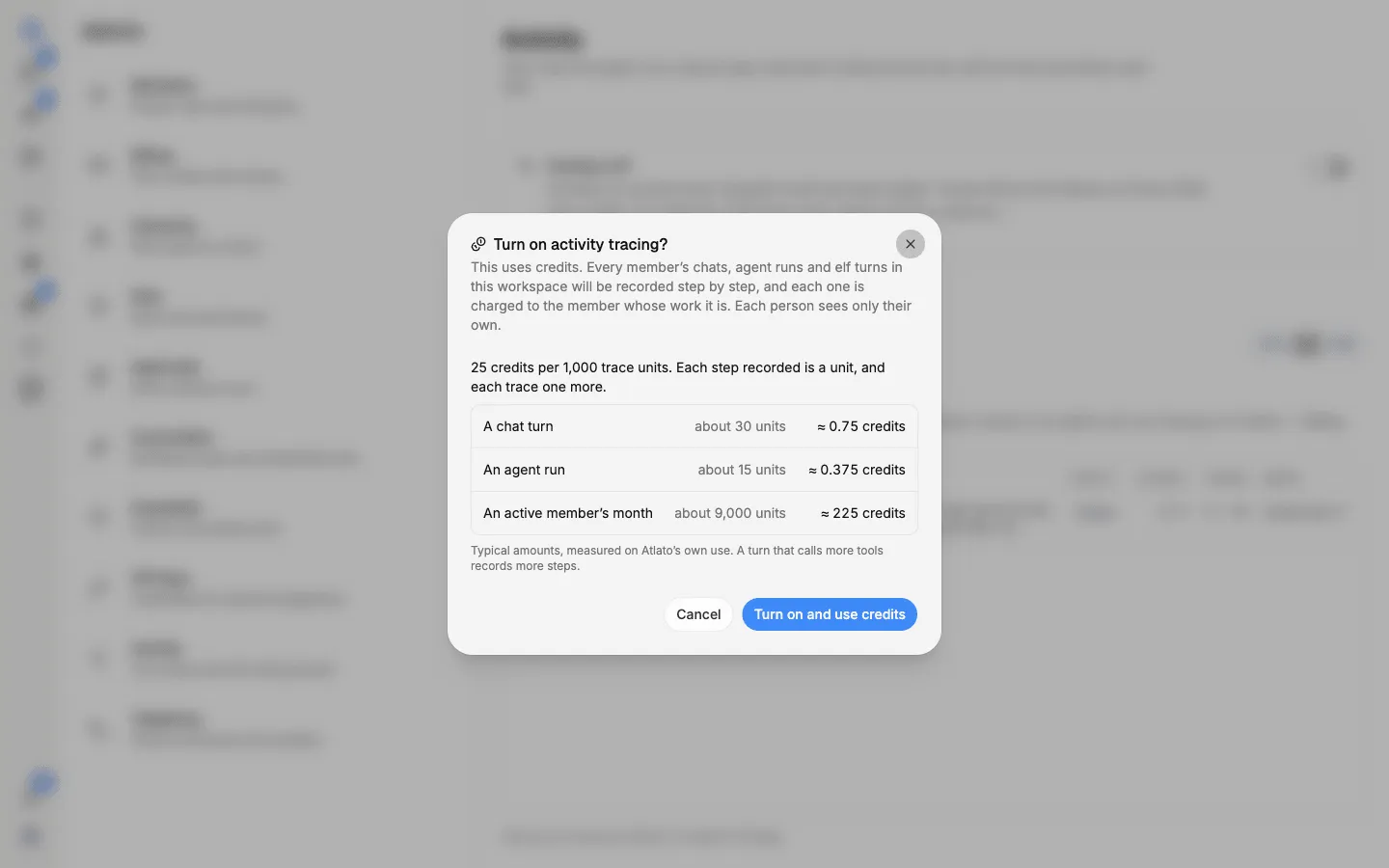
From then on, every member’s chats, agent runs and elf work in the workspace is recorded step by step, and each one uses credits from the member whose work it is. The card shows who turned tracing on and when. To stop, turn the switch off.
Admin → Billing shows the same setting, read only, beside the credits it uses. See Credits and top-ups.
Find a run
Section titled “Find a run”The Tracing tab lists your recent work, newest first. A run appears a few seconds after it finishes.
Use the controls above the list to narrow it down:
- View: Table, or Chart to see the same runs over time.
- Rows: Runs shows one row per chat turn or run; All steps shows every model call and tool use on its own row.
- Time range: the last 24 hours, 7 days or 30 days.
- Kind: All, Chats, Agents or Elves.
Each row shows its Start time, Type, Name, Input, Output, Status, Latency, Tokens, Model and Tags.
Open a trace
Section titled “Open a trace”Select a row to open its trace: the run from start to finish, with each step in order, what went in and came out, and the time and tokens each step took. Select Activity at the top to go back to the list.
You can also jump straight to a trace from your work:
- In an AI chat, open the chat’s menu and select View activity to see your turns in that chat.
- On an agent’s reply, open the message menu and select View trace to open that run.
These options appear only while tracing is on.
Dashboards
Section titled “Dashboards”The Dashboards tab has ready-made charts of your own activity over time. Select a chart to open it large, with its numbers as a table, and select a bar or point to see the runs behind it.