
Telephony
For admins
Pixies make and answer phone calls through your workspace’s own Twilio account. Admin → Telephony is where you connect that account and manage its phone numbers: which pixie answers each one, what it’s called, and whether it’s switched on. Twilio bills calls and numbers to your Twilio account.
Before you begin
Section titled “Before you begin”- The Owner connects and disconnects the Twilio account, changes its auth token, and buys and releases numbers.
- The Owner and workspace administrators whose role template has telephony can open this page, add numbers the account already has, choose which pixie answers each number, label numbers and switch them on or off.
- You need a Twilio account, with its Account SID and Auth token from the Twilio console.
- Pixies speak using OpenAI’s realtime voice, on an OpenAI API key. Subscriptions and OpenRouter can’t run a call. See Workspace AI providers or Your AI providers.
Connect your Twilio account
Section titled “Connect your Twilio account”-
Select Admin in the rail, then Telephony.
-
Under Phone connection, paste the Account SID. It starts with AC and is on your Twilio console’s home page.
-
Paste the Auth token. It’s stored encrypted and never shown again.
-
Select Connect.
The card now says Connected to Twilio with the last four characters of the account, and a Phone numbers card appears below it.
Add phone numbers
Section titled “Add phone numbers”A pixie needs a number to answer calls or ring phones.
Buy a new number
Section titled “Buy a new number”Only the Owner can buy numbers.
-
On Phone numbers, select Buy a number.
-
Enter the Country as a two-letter code, such as US or AU. Optionally narrow the search with an Area code or digits the number Contains. Select Search.
-
Select Choose next to the number you want. Numbers that can’t take voice calls say No voice.
-
Optionally give it a Label, such as “Sales line”.
-
Select Buy number.
Use a number you already have
Section titled “Use a number you already have”If the number is already in your connected Twilio account:
-
On Phone numbers, select Use a number we have.
-
Choose the Country, type the Number and optionally a Label.
-
Select Add number. Its calls are now pointed at Atlato ABC.
Choose which pixie answers a number
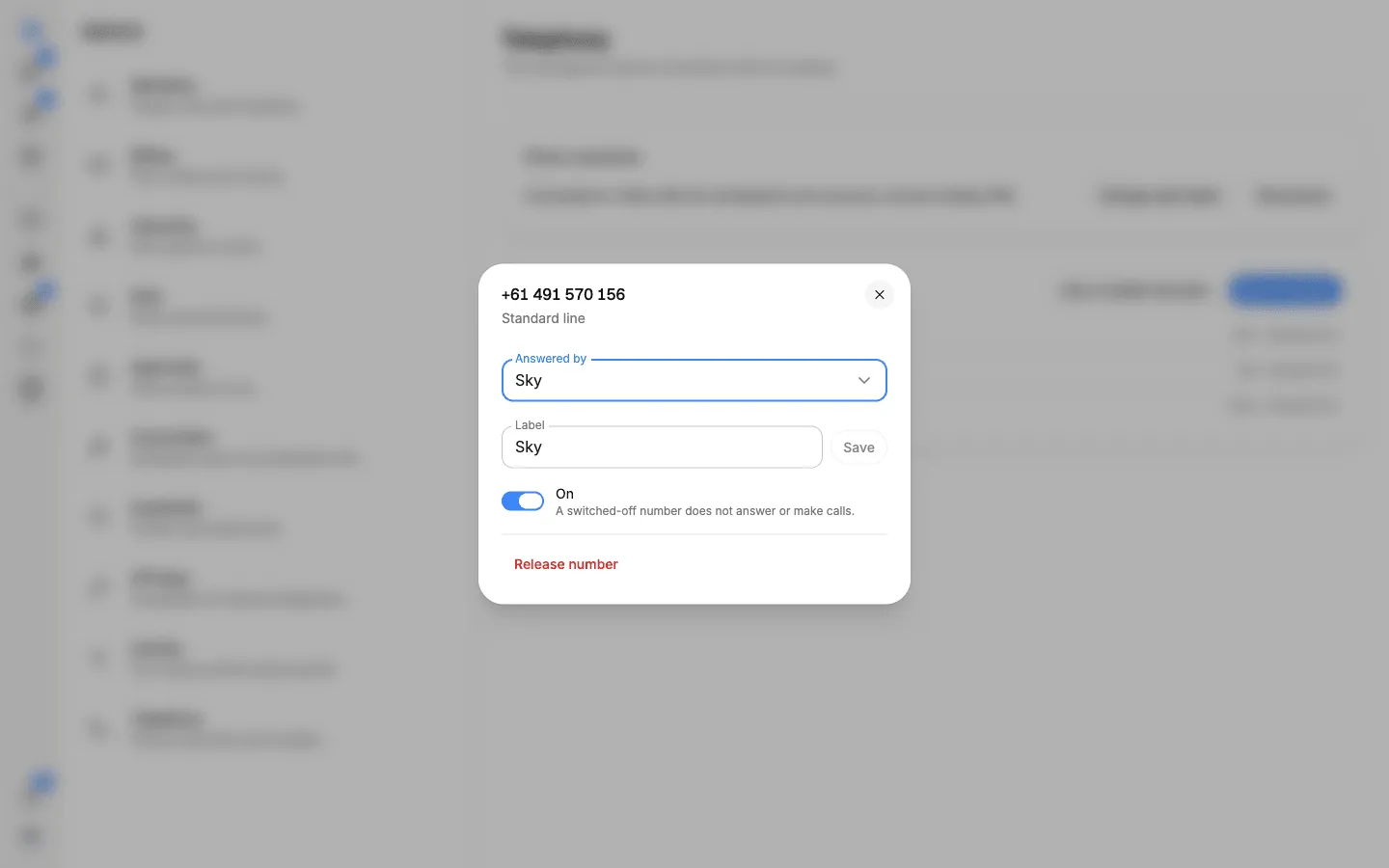
Section titled “Choose which pixie answers a number”-
On Phone numbers, select the number.
-
Under Answered by, choose a pixie, or No pixie.
-
To rename it, change its Label and select Save.
-
Use the switch to turn the number on or off. A number that’s off shows Switched off and takes no calls.
Release a number
Section titled “Release a number”Only the Owner can release numbers. Open the number, select Release number, type the number in Type the number to confirm, then select Release number again. Calls to it stop at once, and the number goes back to Twilio, which may give it to someone else. You can’t undo this.
Change the auth token or disconnect
Section titled “Change the auth token or disconnect”- Change auth token: after you change the token in Twilio, select Change auth token, paste the New auth token and select Save. It’s checked with Twilio before it’s saved. If Twilio stops accepting the saved token, the card tells you, and pixies can’t make or answer calls until you enter the current one.
- Disconnect: select Disconnect and confirm. Pixies stop answering and making phone calls until you connect again. Past calls stay in Calls.
What calls cost
Section titled “What calls cost”- Twilio bills your Twilio account for numbers and call minutes.
- Your OpenAI key pays OpenAI for the pixie’s voice.
- Atlato credits count the pixie’s call minutes and speech, under Pixies in your usage. See Credits and top-ups.