
Hierarchy
For admins
Admin → Hierarchy draws your workspace as an org chart: one card per person, under the person they report to. It is built from the Manager you set for each member, so it stays in step with the members list without any extra work.
Before you begin
Section titled “Before you begin”- Your role template needs hierarchy to open the chart. The Owner always has it.
- To change who reports to whom, you also need members, because reporting lines are set on the members list.
Read the chart
Section titled “Read the chart”Select Admin in the rail, then Hierarchy.
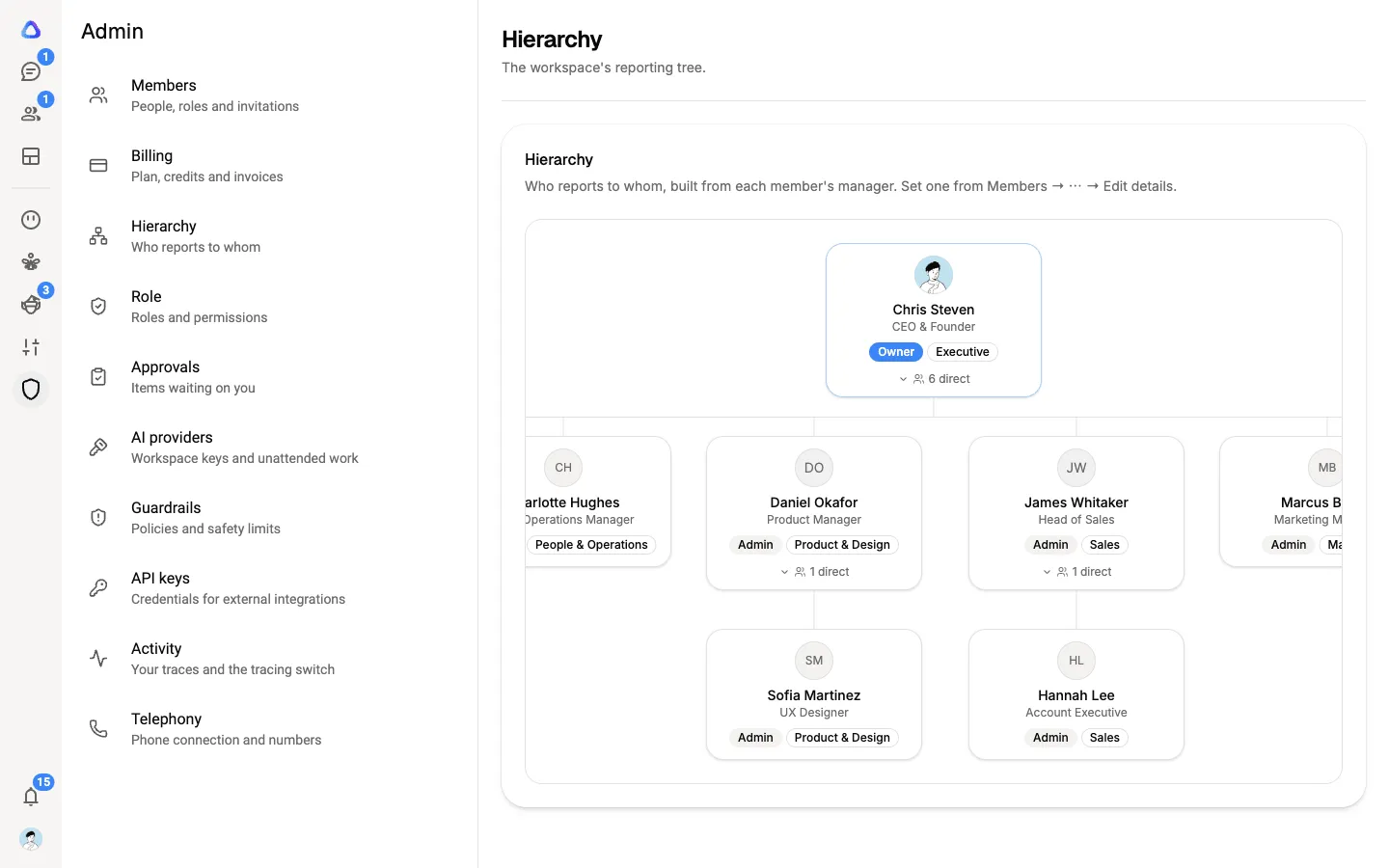
Each card shows:
- the person’s name and picture;
- their designation, or their email if they have no designation;
- their department, if one is set;
- Suspended, if their membership is suspended.
Someone with reports has a small button under their card. While their branch is open it shows how many people report to them directly (for example 3 direct). Select it to fold the branch away; it then shows how many people are in the whole branch. Select it again to open it.
A wide chart scrolls sideways inside its own frame.
Set who reports to whom
Section titled “Set who reports to whom”-
Select Admin in the rail, then Members.
-
On the person’s row, open the ⋯ menu and select Edit details.
-
Choose their Manager. Choose No manager to put them at the top of a branch.
-
Select Save changes.
Back on Hierarchy, the person now appears under their manager.
Manager and IT manager
Section titled “Manager and IT manager”Each member can have two reporting lines:
| Field | What it decides |
|---|---|
| Manager | Where they sit on the org chart. |
| IT Manager | Who reviews their requests when their role template asks for approval. It doesn’t change the chart. See Approvals. |
The two can be the same person or different people.
If the chart looks wrong
Section titled “If the chart looks wrong”- No reporting lines yet. Nobody has a manager set, so everyone sits side by side. Set managers from the members list and the chart fills in.
- Not on the chart. These people’s managers form a loop (A reports to B, and B reports to A), so there is no top to draw them from. Open one of them in Members, select Edit details and change or clear their Manager.