
Guardrails
For admins
A guardrail is a policy you write once for the whole workspace, in plain language, such as “Never include customer phone numbers in a reply.” It’s added to the AI’s instructions on every chat and agent run it covers, so nobody has to remember to ask for it.
Before you begin
Section titled “Before you begin”- Your role template needs guardrails. The Owner always has it.
Add a guardrail
Section titled “Add a guardrail”-
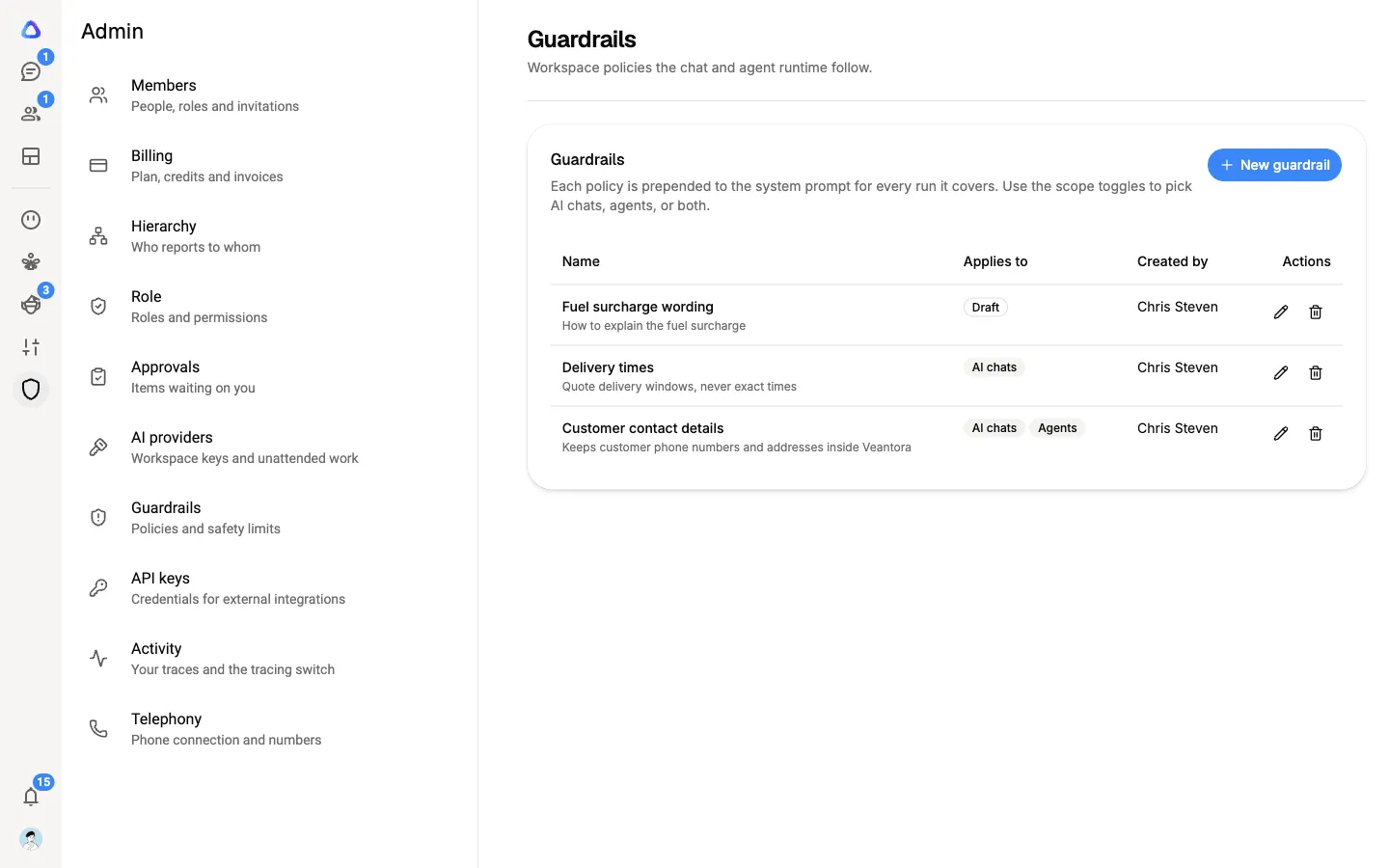
Select Admin in the rail, then Guardrails.
-
Select New guardrail.
-
Give it a Name, such as “No personal data in output”.
-
Add a Description. It’s shown on the Guardrails list so people can tell the rules apart.
-
Write the Rules: the policy the AI should follow, in your own words. They’re used exactly as you write them.
-
Choose where it applies. Turn on any of:
- Apply to AI chats: every AI chat in the workspace.
- Apply to agents: every agent run in the workspace.
- the third switch, for every Atlato One run.
-
Select Create.
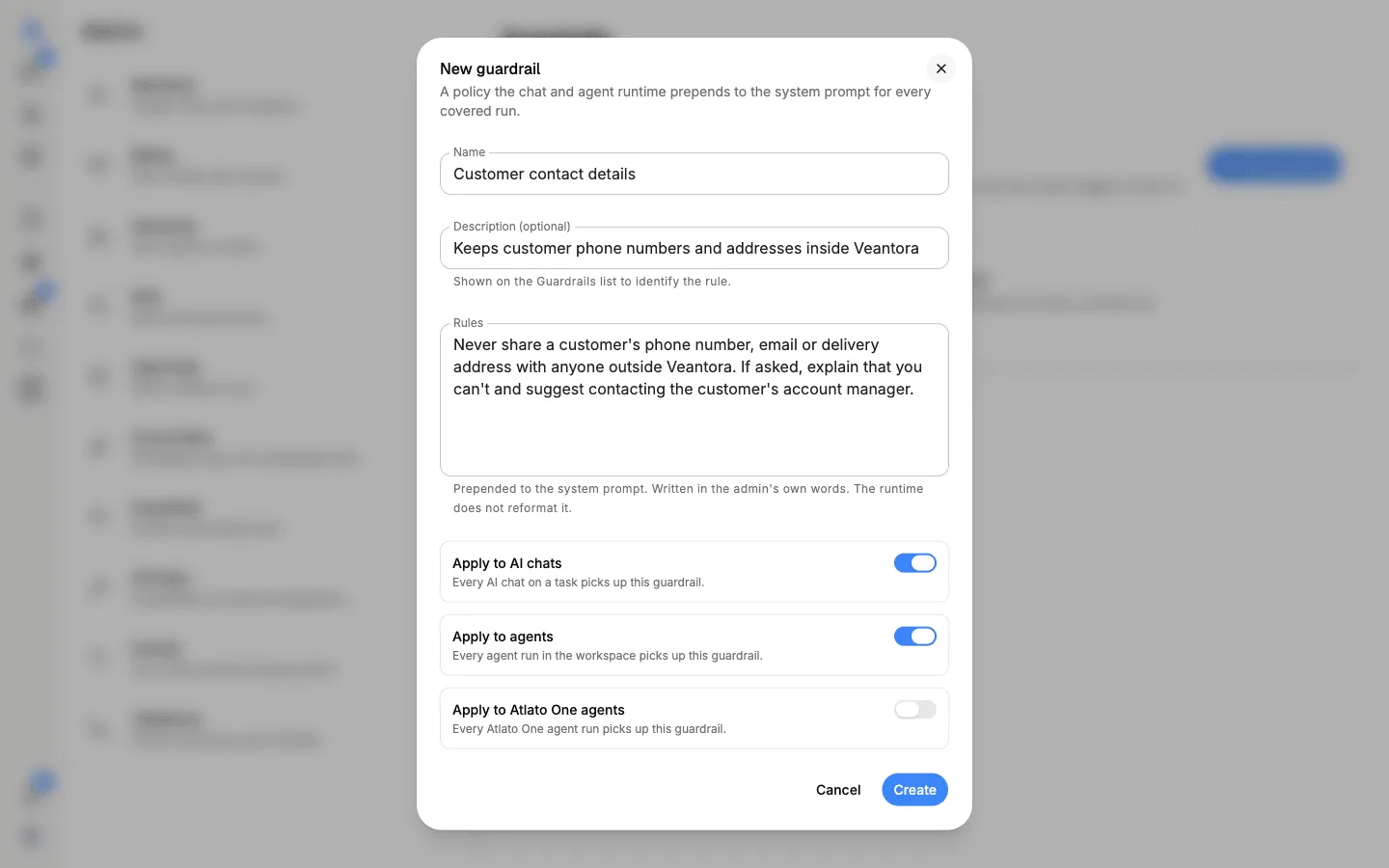
A guardrail with every switch off is saved as a Draft. Nothing uses it until you turn one on, so you can write a policy and switch it on when it’s ready.
Write rules that work
Section titled “Write rules that work”- Say what to do, plainly. “Reply in English unless the person writes in another language” works better than “Language policy applies.”
- Keep one policy to a guardrail. Separate guardrails are easier to switch off or change one at a time.
- Be specific about what’s off limits. Name the kinds of data or actions: customer contact details, prices not yet announced, legal advice.
- Test it. After saving, open a new AI chat and ask something the rule should change.
The guardrails list
Section titled “The guardrails list”The list shows each guardrail’s Name, where it Applies to (AI chats, Agents, Atlato One, or Draft) and who it was Created by.
Edit or delete a guardrail
Section titled “Edit or delete a guardrail”- Edit: select the pencil on its row, change it, and select Save.
- Delete: select the bin on its row and confirm.