
Run from other systems
For admins
Your other systems can start Atlato ABC workflows on their own. For example, your CRM can start a “New customer onboarding” workflow when a deal closes, or an internal tool can start a report and check when it is done. To do this, your IT team uses an API key: a secret password that lets another system work with your workflows without anyone signing in.
This page is for the admins and IT teams who set that up.
Before you begin
Section titled “Before you begin”- You need to be the workspace owner, or have a role that allows API keys. See Role templates.
- The workflow must be published. Other systems always start the published version.
- Runs started by another system have nobody waiting on them, so their AI steps use the workspace’s keys for Unattended work. Set these up in Admin → AI providers first.
What another system can do with a key
Section titled “What another system can do with a key”With an API key, another system can:
- Start a run of a published workflow, with its inputs.
- Check how the run is going and read its results.
- Read workflows, runs and schedules.
A key with full permissions can also make changes, but only the ones its creator could make in the app.
How a key works
Section titled “How a key works”- It acts as you. A key acts as the member who created it, in this workspace, and can never do more than that member can. If that member leaves the workspace, the key stops working.
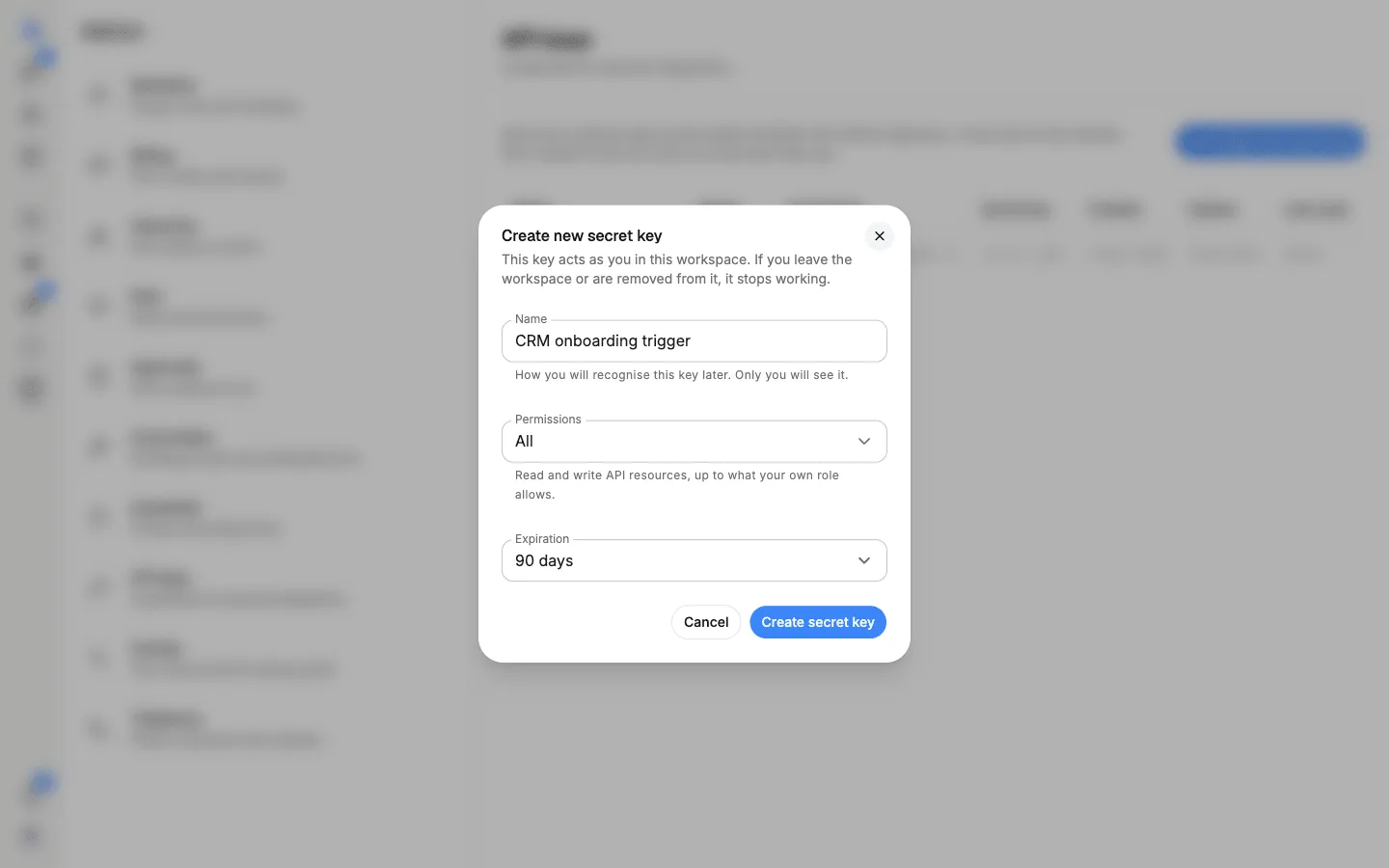
- Permissions. All lets the key read and change things, up to what the creator’s own role allows. Read only lets it read workflows, runs and schedules, and nothing else.
- Expiry. A key can expire after 7, 30, 60, 90, 180 or 365 days, or never. 90 days is the default.
- Shown once. The secret is shown only when the key is created. If it is lost, revoke the key and create a new one.
Create an API key
Section titled “Create an API key”-
Select Admin → API keys, then Create new secret key.
-
Enter a Name that says what the key is for, such as “CRM onboarding trigger”. Only you see this name.
-
Under Permissions, choose All or Read only. Choose Read only if the other system only needs to check on runs.
-
Under Expiration, choose how long the key lasts.
-
Select Create secret key.
-
Under Save your key, select Copy and store the key somewhere safe, such as your company’s password manager. You won’t be able to view it again.
-
Select Done.
Give the key to your IT team through a secure channel, never by plain email or chat. Anyone with the key can act as you in this workspace.
Manage your keys
Section titled “Manage your keys”The API keys page lists every key with its Name, Status (Active, Expired or Revoked), when it was Created, when it Expires, when it was Last used, who it was Created by and its Permissions. Each run a key starts also appears in the workflow’s Run history.
From an active key’s menu, you can Rename it or Revoke it.
Credits
Section titled “Credits”Runs started with an API key count as workspace work, so their credits come from the workspace’s balance rather than any one member’s credit limit. See Credits and top-ups.
Technical questions
Section titled “Technical questions”Your IT team will need to know how to send the key and which workflow to start. For help connecting a system, contact Atlato support.