
Your AI providers
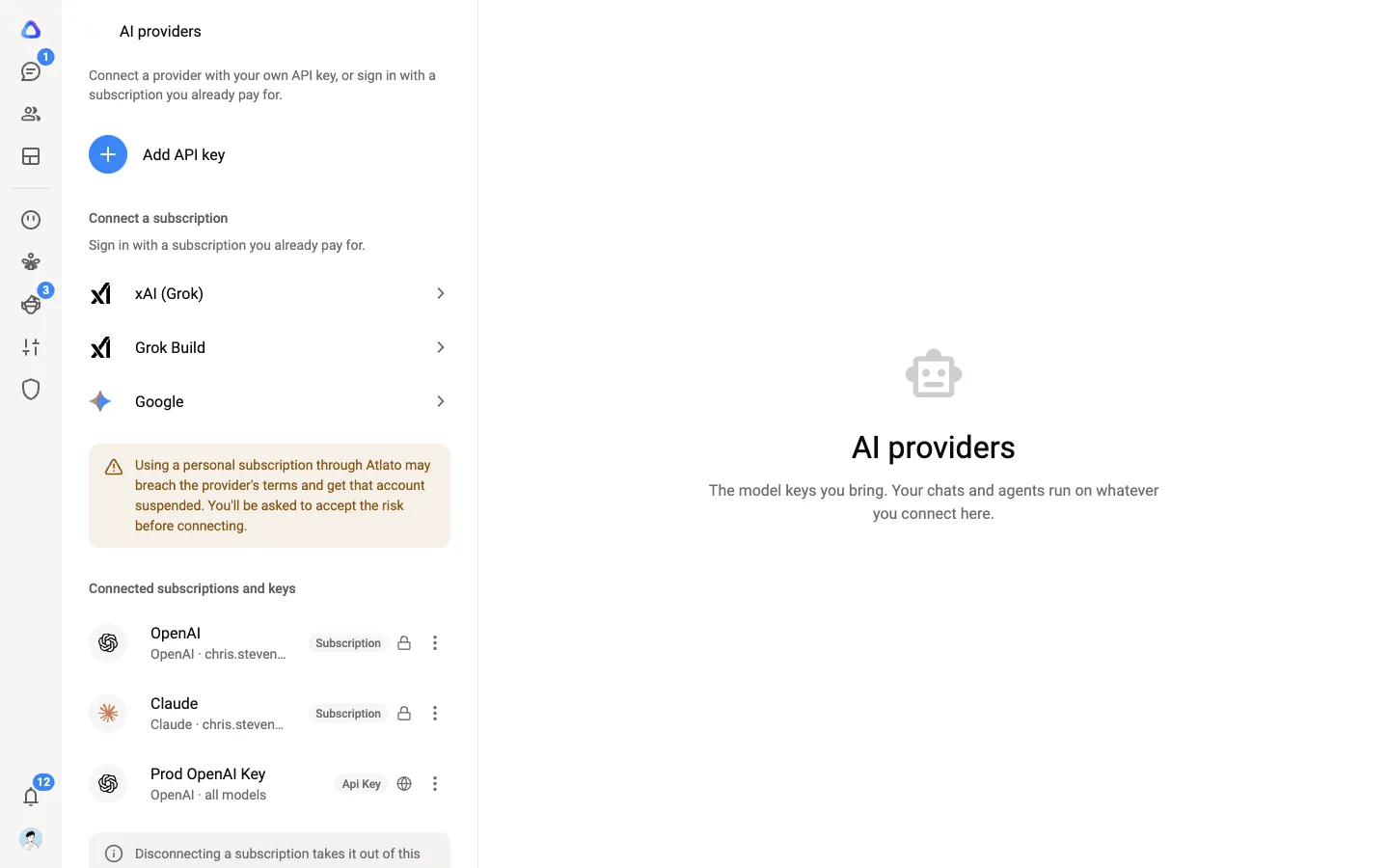
Your chats, agents and elves run on the AI providers you connect. Settings → AI providers is where you add, share and remove them: API keys you paste in, and subscriptions you sign in with.
Whatever you connect here, the AI’s charges go to your own account with that provider. Atlato ABC never resells AI usage.
Before you begin
Section titled “Before you begin”- To open the page, select your profile photo at the bottom of the left rail, then Settings, then AI providers.
- Your workspace decides whether you can add keys and subscriptions yourself, and whether a new one needs approval first. If you don’t see Add API key, ask an admin.
What the list shows
Section titled “What the list shows”Every key and subscription you can use in this workspace is listed, with tags that tell them apart:
| Tag or mark | Meaning |
|---|---|
| Api Key | A key you pasted in |
| Subscription name and account | A subscription you signed in with, shown with the account it belongs to |
| Workspace | A key the workspace provides, set up by an admin in Admin → AI providers |
| Shared with you | A teammate’s key they have shared with you. You can use it but never see it. |
| Padlock, people or globe | Who else can use your key: only you, chosen people, or anyone in the workspace |
| Pending or Rejected | Waiting for, or refused by, your workspace’s approval |
| Reconnect | Your provider has signed the subscription out. Connect it again to keep using it: see When a subscription is signed out. |
| Key required | The key needs saving again before chats can use it. Open it and paste the key again. |
| Not in this workspace | A subscription on your account that isn’t switched on here yet |
Select a row to see its details: the provider, who can use it, and when it was added and last changed.
Add an API key
Section titled “Add an API key”-
Select Add API key. If your workspace needs approval for new keys, the button reads Request API key.
-
Under The provider, choose the Provider and paste your API key. For your own model, choose Custom and enter its Base URL too.
The key is encrypted when it is saved. It is never shown again, here or anywhere else, not even partly.
-
Under Name it, give the key a Name you will recognize, such as “Work Claude key”. This is the heading it appears under in the model menu.
-
Under Models, choose All models or Only selected models. With Only selected models, chats can use only the models you pick.
-
Under Who can see this key, choose who can use it (see below), then select Add API key.
If your workspace needs approval, the key shows Pending until your IT manager approves it, and only then can chats use it.
Choose who can use a key
Section titled “Choose who can use a key”| Option | Who can use it |
|---|---|
| Only me | Just you. |
| Shared with | You, and the people you add. |
| Anyone | Everyone in this workspace. |
People you share a key with can chat on it, but they never see the key itself. Their usage is billed to your account with the provider, and only you can edit or delete the key.
Your own key is used before shared ones when you chat.
Connect a subscription
Section titled “Connect a subscription”Sign in with an AI plan you already pay for, such as ChatGPT or Claude, and use its models here at no extra charge from us.
-
In the subscriptions section, select your provider: Claude, OpenAI, xAI (Grok), Grok Build or Google.
-
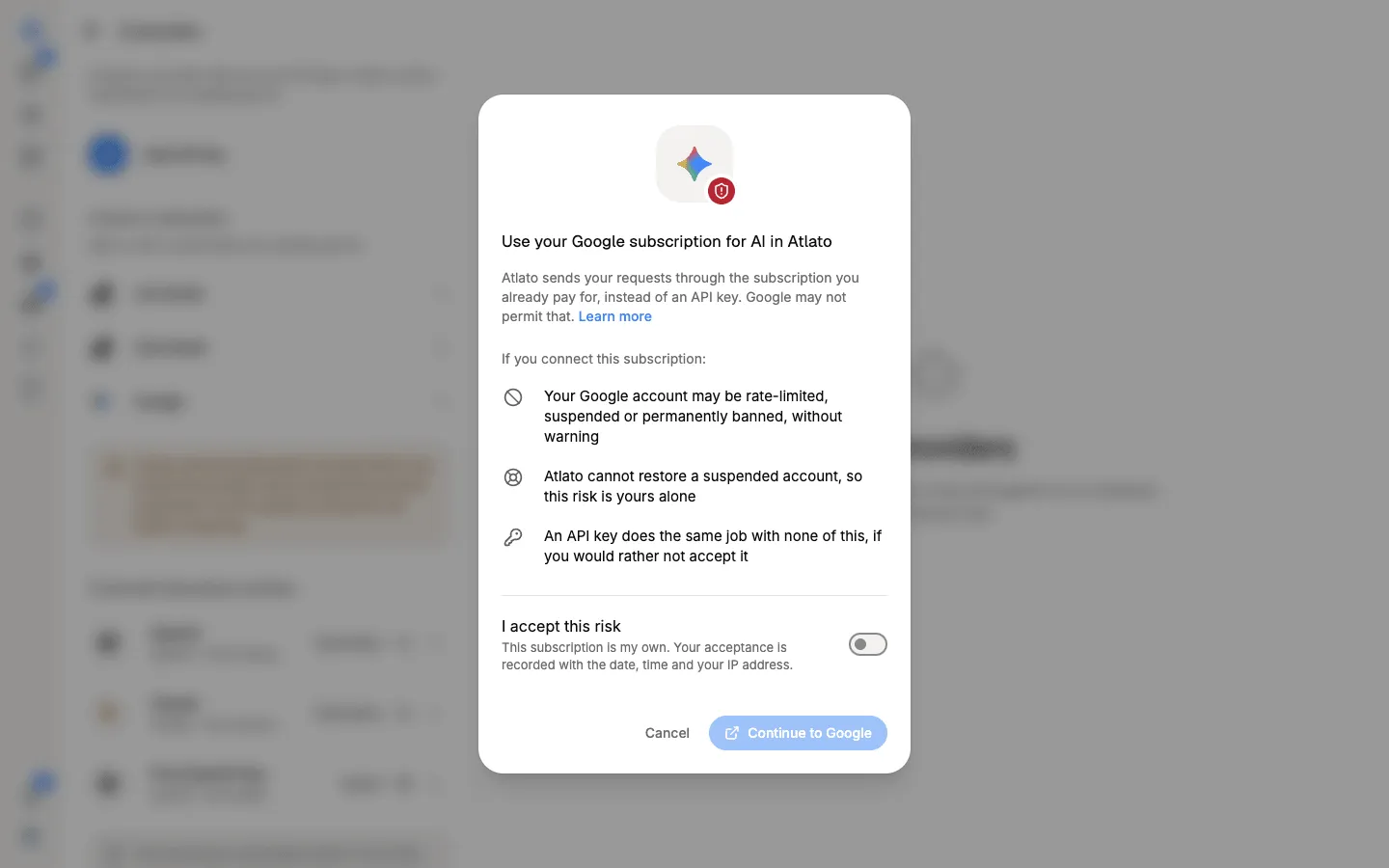
Read the warning, then switch on I accept this risk and continue. Your acceptance is recorded with the date, the time and your IP address.
-
Sign in to your provider in the window that opens and approve the connection. Some providers show a code to copy back, or ask you to enter a code shown here. Follow the steps on screen.
-
When you see that it is connected, it is switched on in this workspace and its models appear in the model menu.
Subscriptions are always yours alone. They can’t be shared, and no one else’s work ever runs on them.
A subscription belongs to your account, not to one workspace. If you belong to several workspaces, open the subscription’s menu in another workspace and select Connect to switch it on there too, without signing in again.
When a subscription is signed out
Section titled “When a subscription is signed out”Providers end a subscription’s sign-in on their own schedule: some after a number of days, some when you change your password with them, and any of them when you remove the connection from your account with them. Atlato ABC can’t keep it signed in for you.
When that happens, you see it in these places:
- In a chat. The reply stops with a message that names the subscription and its account, such as “Your Claude Code subscription (you@example.com) is signed out of Atlato ABC”, and asks you to connect it again.
- In Settings → AI providers. The subscription’s row shows Reconnect and “Sign-in expired. Connect it again to keep using it.”
- In the Connect AI wizard. The provider’s tile shows Needs attention.
Until you connect it again, your chats, agents and elves can’t use it.
Connect it again
Section titled “Connect it again”-
Open Settings → AI providers.
-
In the subscriptions section, select the same provider.
-
Follow the steps on screen, as when you first connected it, and sign in with the same account.
Signing in again with the same account repairs the subscription you already have, so it comes back in every workspace where you had switched it on.
If the message says your provider refused the sign-in, the account itself may be suspended or deactivated. Check it with your provider first, then connect it again.
If a reply says Atlato ABC couldn’t sign in to your subscription, it may be a passing problem. Try again in a moment, and if it keeps failing, connect it again.
Edit, disconnect or delete
Section titled “Edit, disconnect or delete”Open the menu on a row:
- Edit changes a key’s name, models or who can use it. To replace the key, paste a new one. Leave the key blank to keep the current one.
- Disconnect (subscriptions) switches a subscription off in this workspace only. It stays on your account, and Connect switches it back on.
- Delete removes a key for good, or gives up a subscription in every workspace you added it to. Chats that used it move to another key you can use.
Deleting can’t be undone. A deleted key has to be pasted in again, and a deleted subscription needs a fresh sign-in.