
Transfers and routing
For admins
A pixie does not have to handle every call alone. During a call it can pass the caller to a person, such as someone in billing. After an incoming call, it can hand the work on to one of your elves as a task, or start a workflow with the call’s details.
Before you begin
Section titled “Before you begin”- Owners and admins manage the transfer directory. Everyone can see who is in it.
- Owners, admins and editors can choose the elves and workflows a pixie hands calls to.
- Transfers to a workspace member ring the phone number saved on their profile.
Pass callers to a person
Section titled “Pass callers to a person”Callers can ask a pixie for someone by name or by role, such as “billing” or “the front desk”. The pixie looks them up in the workspace’s Transfer directory and passes the call on.
Add someone to the transfer directory
Section titled “Add someone to the transfer directory”-
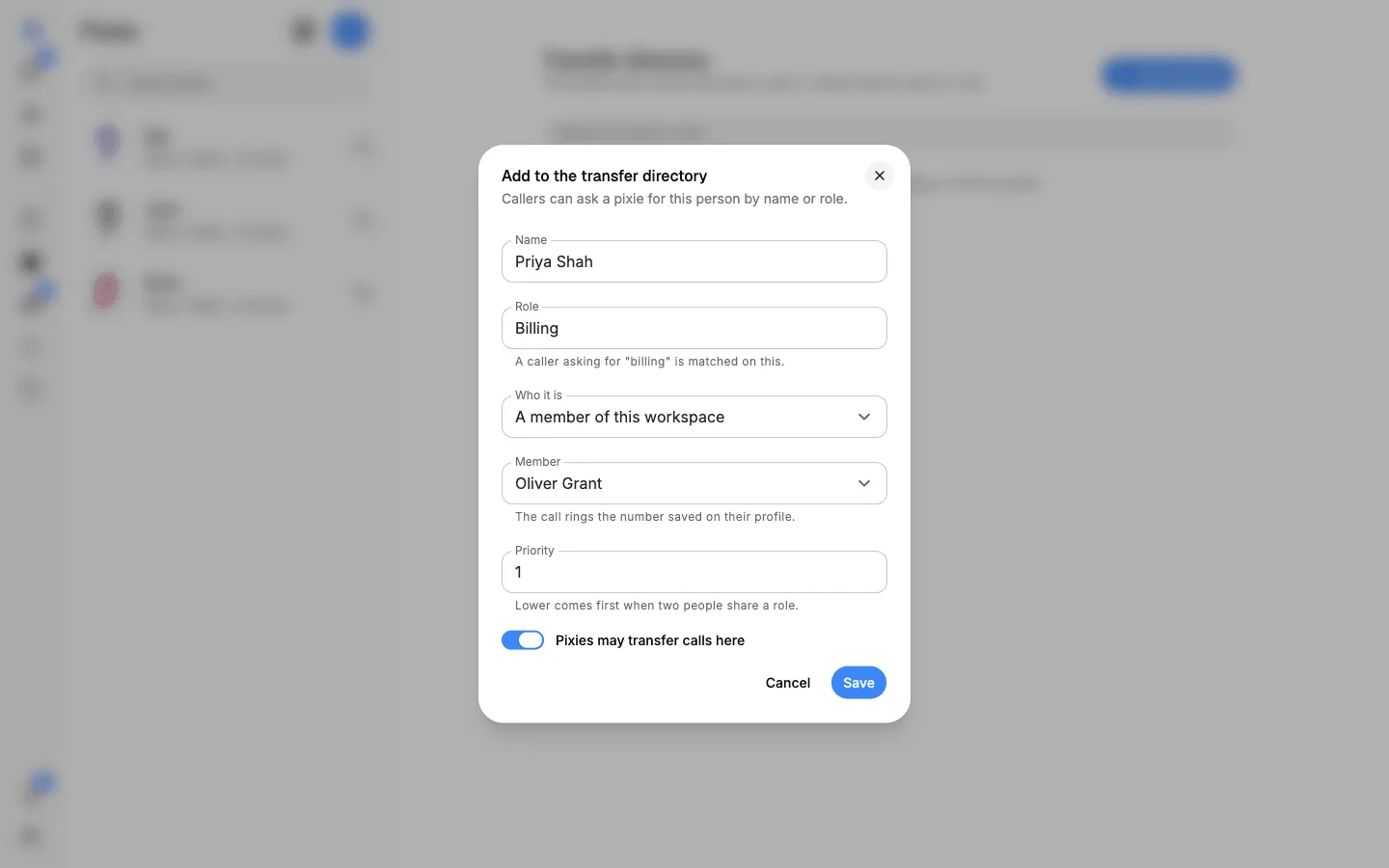
In the Transfer directory, select Add someone.
-
Type the Name, and a Role such as Billing, Sales or Support. A caller asking for “billing” is matched on the role.
-
Under Who it is, choose A member of this workspace and pick them, or An outside phone number and type it.
-
Set a Priority if two people share a role: lower comes first.
-
Make sure Pixies may transfer calls here is on, then select Save.
Turn the switch on a person’s row off to stop pixies passing calls to them for now, or remove them. Calls already transferred are not affected.
How the pixie hands over
Section titled “How the pixie hands over”Each pixie’s Settings → Calling rules → Passing a call to a person sets how it passes a caller on:
- Introduce first: the pixie speaks to your colleague first, and they can say no.
- Hand straight over: the caller is put straight through.
Transfer a live call yourself
Section titled “Transfer a live call yourself”While a call is on, owners, admins and editors can pass it on by hand from the call’s Live section.
-
Select Transfer.
-
Under How, choose Introduce first (the colleague can say no) or Hand straight over.
-
Under To, choose Someone in the directory and pick them, or enter a phone number.
-
Optionally, give a Reason. With an introduction, your colleague hears it first.
-
Select Transfer.
Hand calls to an elf or a workflow
Section titled “Hand calls to an elf or a workflow”After an incoming call, a pixie can hand the work on to the right place: an elf gets it as a task, and a workflow starts with the call’s details. For example, a call to reschedule an appointment can go to the elf that looks after your calendar.
-
Open the pixie, select Pixie details, then Settings → Resources.
-
Select Add an elf or workflow.
-
On Add a resource, choose from Your elves or Workflows. You can add only your own elves, and workflows you may run.
-
Under When to use, say which calls it is for, for example “When the caller wants to reschedule or cancel an appointment”. The pixie hands a call on only when it fits what you write here.
-
Select Save.
A pixie can have up to 20 elves and workflows.
What happens after a call
Section titled “What happens after a call”When an incoming call ends, the pixie checks the call against each When to use note:
- When it fits clearly, the call is handed over without asking. The elf’s owner gets a task for the inbound call, with the elf working on it and the call’s summary and transcript attached. A workflow run starts with the call’s details as its inputs.
- When it might fit, the person who added that elf or workflow is told, and the call’s page says the call might be for it. Select Send to it, or Ignore.
- When nothing fits, the call’s page says Not handed to anyone.
The call’s page always shows where the call went, with a link to the task or the workflow run. See Calls and follow-ups.