
Calls and follow-ups
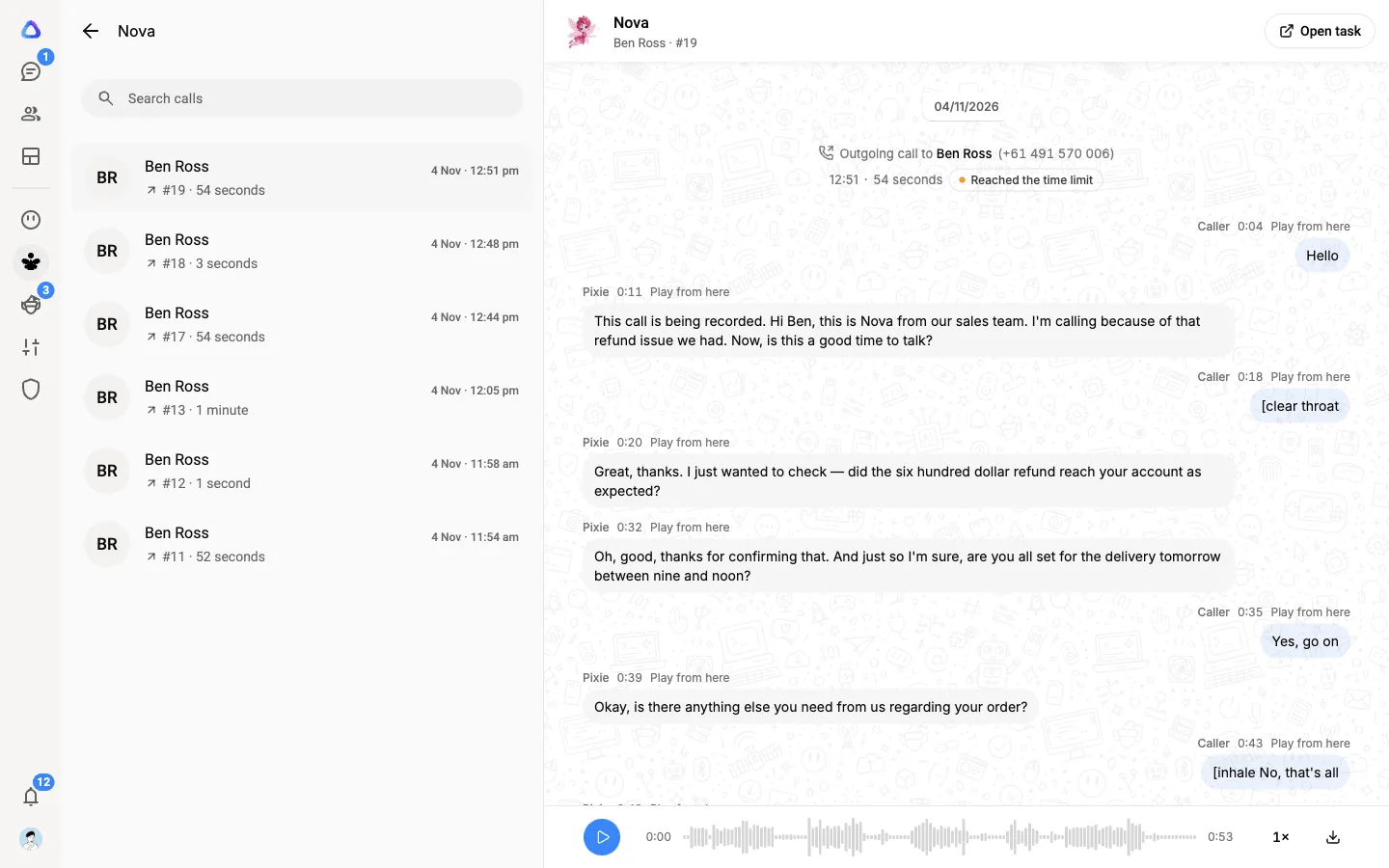
Every call a pixie makes or takes is kept with its transcript and, when recording is on, its recording. Follow-ups are the things a pixie could not do on a call and promised that a colleague would.
Who sees which calls
Section titled “Who sees which calls”- Owners and admins see every call your pixies made or answered.
- Everyone else sees the calls on tasks they are part of, such as a call breakaway in their chat.
A pixie’s settings decide who else can use it and read its calls. See Create a pixie.
Find a call
Section titled “Find a call”- A pixie’s call history. Select Pixies in the rail and open a pixie. The column lists its calls, newest first, each marked incoming or outgoing. Use Search calls to find one.
- Calls going on now. Open the pixie, select Pixie details, then Ongoing calls.
- A person’s calls. In the phone book, select the contact to see Recent calls.
- A task’s calls. A call breakaway’s card opens its call, and a task’s details list the calls made for it under Calls.
The call’s page
Section titled “The call’s page”Select a call to open its page. It shows who was called or who called, the number, the direction, when, how long and its status. Below that:
- Live, while the call is on: what is being said, line by line, with Hold, Transfer and Hang up for owners, admins and editors.
- The transcript. It stays in step with the recording, so you can follow along as you listen.
- The recording, when the pixie records its calls. The recording and the call’s summary can take a few moments to appear after the call ends.
- Where the call went, for an incoming call the pixie could hand on: to an elf as a task, or a workflow it started. See Transfers and routing.
When the call belongs to a task, select Open task at the top. If the task’s chat is yours, it opens. Otherwise the task’s details open in a panel beside the call, so you stay on the call.
To ring the same person again, start a new call breakaway, or right-click the pixie in the Pixies column and select Call someone.
Follow-ups
Section titled “Follow-ups”When a caller asks for something the pixie cannot do on the call, such as a refund above its limit, the pixie tells them a colleague will follow up and records the request.
To see them, open the pixie, select Pixie details, then Follow-ups. Requests still open are under Waiting, and older ones under Earlier. Each shows who asked, what they asked for and when. Use Search follow-ups to find one.
-
Select a follow-up to open the call and read what the caller said.
-
Do what they asked, or call them back. To have the pixie ring them, start a call breakaway or right-click the pixie and select Call someone.
-
Once it is done, open Pixie details → Contacts, select the person, and select Mark followed up on their page. The request moves from Waiting to Earlier. Owners, admins and editors can do this for callers who are in the phone book.
A new follow-up also appears in your notifications.