
Pixies
A pixie is an AI voice agent that answers your phone numbers and calls people for you, while you get on with your day. After every call you get what happened: the outcome, the transcript and the recording.
What a pixie can do
Section titled “What a pixie can do”- Calls in and out. It answers your numbers, places calls for you, and passes a caller to a person when asked.
- A voice of its own. You listen to each voice and tone before you choose, in the language your callers speak.
- Your limits, your rules. It never promises more than you allow, and calls only in the hours you set.
- Knows your work. It answers from your documents and remembers people between calls.
Before you begin
Section titled “Before you begin”- An OpenAI API key. A pixie talks on calls with OpenAI’s realtime voice, on your own OpenAI API key. Subscriptions and OpenRouter cannot run a call. Until you have one, the Pixies page shows Connect OpenAI to use Pixies. See Your AI providers.
- A phone connection. Pixies call through your workspace’s own Twilio account. The workspace owner connects it, and owners and admins give each pixie a number. See Telephony.
- The right role. Everyone can see pixies, calls and the phone book. Owners, admins and editors can create pixies and place calls. Your role template can also hide Pixies altogether. See Role templates.
Find your pixies
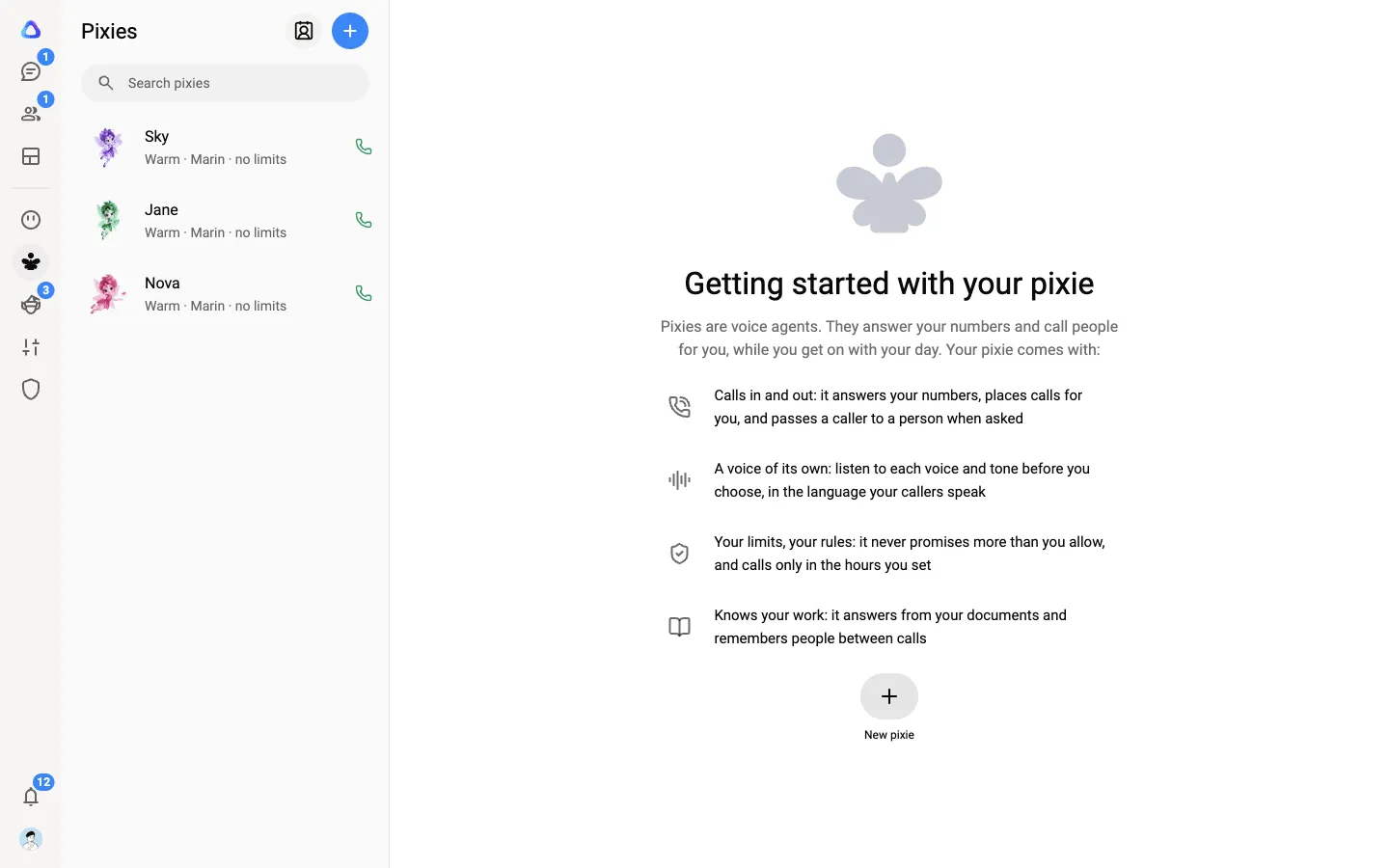
Section titled “Find your pixies”Select Pixies in the rail on the left. The column lists the pixies you can use, each with its face, name and voice. The phone icon on a row shows whether the pixie has a number that can take and make calls.
At the top of the column:
- Phone book opens the people your pixies call. See Phone book.
- New pixie starts a new pixie. See Create a pixie.
Right-click a pixie, or open the menu on its row, to Open it, Call someone, see its Numbers, Duplicate it or Delete it. Deleting a pixie stops it answering its numbers. Its past calls stay.
A pixie’s page
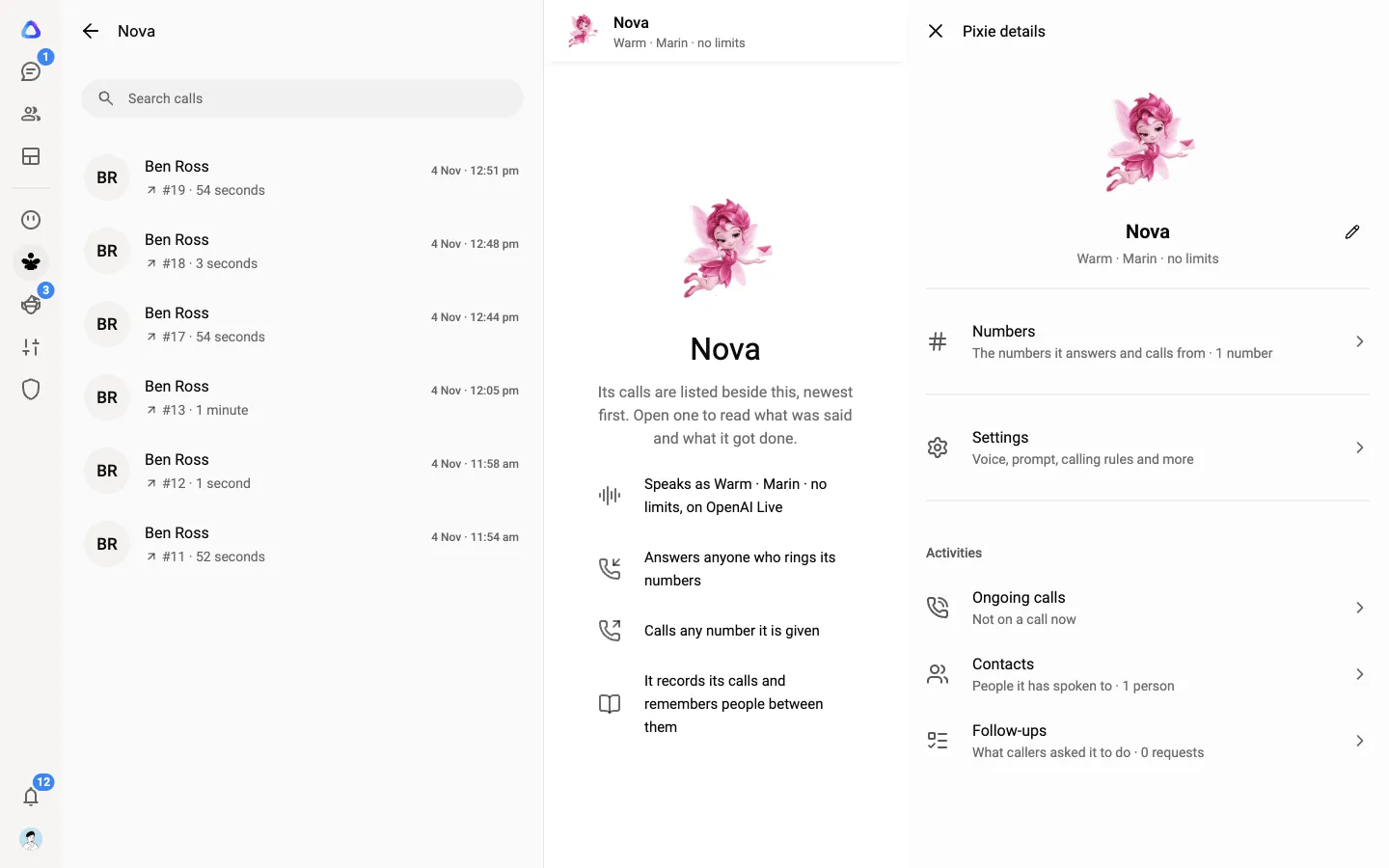
Section titled “A pixie’s page”Select a pixie to open it. The column turns into its call history, newest first, and the page shows how the pixie is set up: how it speaks, who it answers, who it calls and whether it records and remembers.
Select Pixie details at the top to see:
- Numbers: the numbers it answers and calls from.
- Settings: voice, prompt, calling rules and more. See Create a pixie.
- Activities: Ongoing calls, Contacts (people it has spoken to) and Follow-ups (what callers asked it to do).
Ways to make a call
Section titled “Ways to make a call”- A call breakaway. From any chat or team, hand a call to a pixie and get the result back where you asked. See Call breakaways.
- From a chat. Type # and the pixie’s name, then say who to call. See Call from a chat.
- Call someone. From the Pixies column, right-click a pixie and select Call someone to place a call straight away.
- Through an elf or an agent. An elf can ask a pixie to make a call. You approve each call before it is dialled. See Resources and knowledge.
Call someone right away
Section titled “Call someone right away”-
In the Pixies column, right-click the pixie and select Call someone.
-
Under Who to call, choose A phone number, A contact or Someone in this workspace, then pick or type who.
-
Under What the call is for, say what the call should achieve, for example “Confirm tomorrow’s appointment at 10 am”. Add Things to get done, one per line, and any Background the pixie should know before it dials.
-
Optionally, turn on Write a script first so the pixie follows wording you can read before it dials.
-
Select Place call.
The call’s page opens, where you can follow it. See Calls and follow-ups.
Calls that come in
Section titled “Calls that come in”When someone rings one of its numbers, the pixie answers, helps from its playbook and documents, and remembers the caller for next time. It can pass the caller to a person, and after the call it can hand the work to one of your elves or start a workflow. See Transfers and routing.
Calls use credits for the minutes a call is connected, the minutes of speech, and the AI’s work. The voice itself runs on your own OpenAI key, and Twilio bills calls and numbers to your Twilio account. See Credits and top-ups.