
Your settings
Settings is where you look after your own account: your name and photo, how you sign in, your AI providers, how the app looks and sounds, and what the AI remembers about you. Nothing here changes the workspace for anyone else.
To open it, select your profile photo at the bottom of the left rail, then Settings. The column shows your name at the top. Type in Search settings to find a setting by name, for example “dark” or “password”.
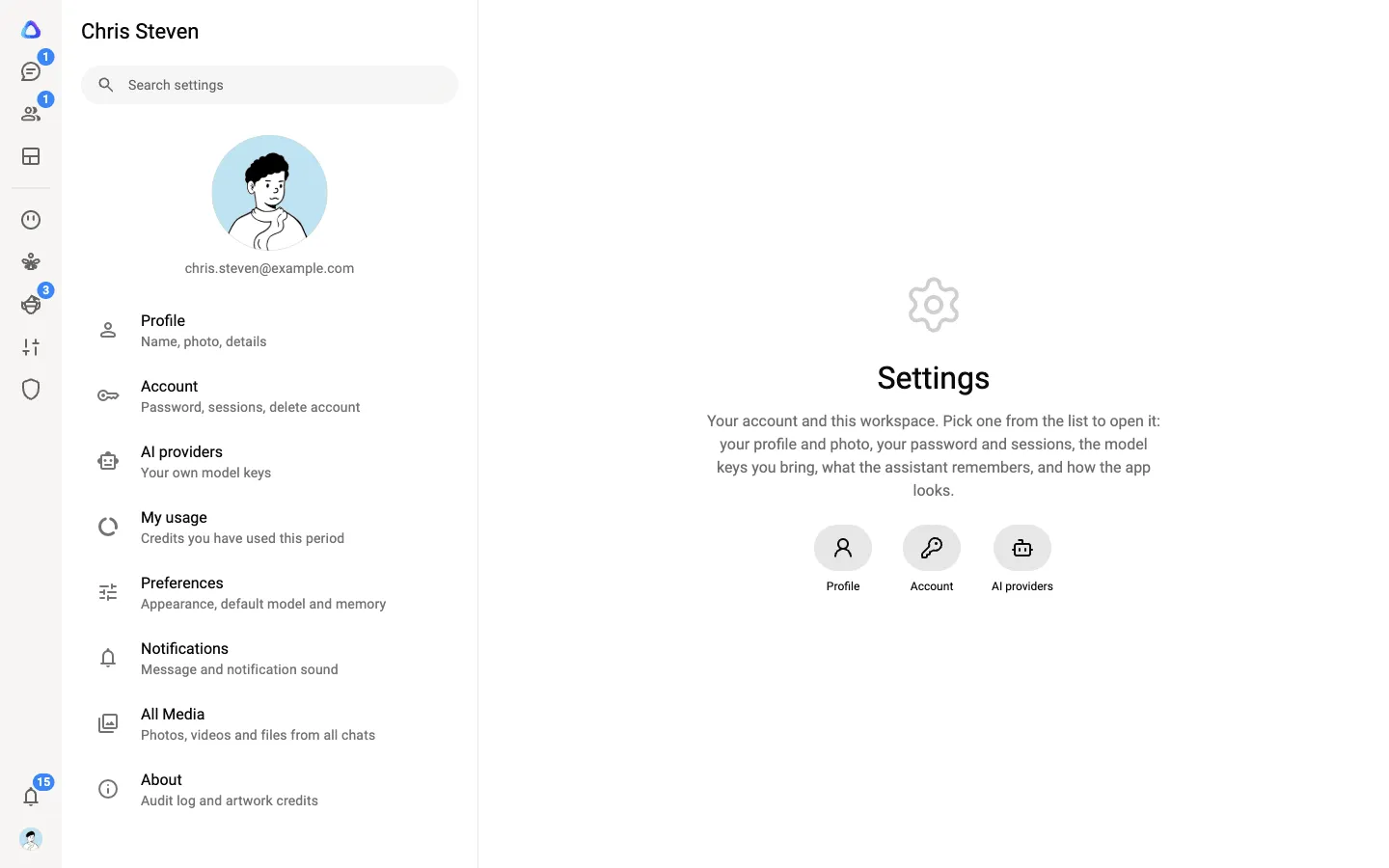
What’s in Settings
Section titled “What’s in Settings”| Row | What you can do there |
|---|---|
| Profile | Change your first and last name and your profile photo. |
| Account | See how you sign in, change your password, set up two-step verification, sign out other devices, and delete your account. |
| AI providers | Add and manage your own API keys and subscriptions. See Your AI providers. |
| My usage | See the credits your work has used this period, and your credit limit. See My usage. |
| Preferences | Choose light or dark mode, your default model, and what the AI remembers. |
| Notifications | Turn the sound for new messages and notifications on or off. |
| All Media | Browse photos, videos, documents and links from all your chats. |
| About | Open Help and documentation (this help site, in a new tab), the workspace’s audit log (if your role allows it) and the artwork credits. |
Profile
Section titled “Profile”Change your First name and Last name (each at least two characters), or select your photo to change it, then select Save changes. Everyone in your workspaces sees your name and photo.
Your email is your sign-in, so it can’t be changed here.
Account and security
Section titled “Account and security”Change your password
Section titled “Change your password”-
Open Account, then Change password.
-
Enter your Current password, then your New password twice.
-
Select Change password.
Changing your password signs you out on every other device. You get a notification and an email to confirm the change.
If you signed up with Google, Microsoft or Facebook, there is no Atlato ABC password: that provider holds your password and any two-step verification.
Turn on two-step verification
Section titled “Turn on two-step verification”Two-step verification asks for a code from an authenticator app on your phone when you sign in on a new device.
-
Open Account, then Two-step verification, and select Turn on two-step verification.
-
Scan the code on screen with your authenticator app, then enter the first code it shows.
-
Enter the 6-digit code from your authenticator app and select Turn on.
-
Save your recovery codes somewhere safe. Each one works once, and you won’t see them again. Tick I have saved my recovery codes in a safe place to finish.
Lost your phone? Sign in with one of your recovery codes instead of a code from the app. From the same screen you can generate a new set of recovery codes or turn two-step verification off.
Sign out other devices
Section titled “Sign out other devices”Under Active sessions in Account, you see every device signed in to your account. Select Sign out beside one device, or select Sign out other devices to keep only the one you are using. Sign out everywhere signs you out on this device too, after you confirm.
Delete your account
Section titled “Delete your account”At the bottom of Account, select Delete account, type your email address to confirm, and select Delete my account.
Preferences
Section titled “Preferences”- Appearance: Light, Dark or System default (follows your device).
- Default model: the model a new chat starts on. You can still switch model in any chat. See Choose and switch models.
- Memory: what the AI keeps about you between chats, whether it learns from your chats, and the workspace’s shared memory. See Memory.
Notifications
Section titled “Notifications”Switch Sound on or off. When it is on, a sound plays when a new message or notification arrives. The notifications themselves are in the bell at the bottom of the rail. See Notifications.
All Media
Section titled “All Media”All Media opens a window with every photo and video, document and link from the chats you can see, in three tabs. Search by sender or caption, sort, or select several files to download them.