
Skills and memory in chats
Skills tell the AI how you want something done: “how we write release notes”, “our brand voice”, “how to review a contract”. Memory lets the AI keep useful facts about you, such as your role and how you like answers, so you don’t have to repeat them in every chat.
Use a skill in a chat
Section titled “Use a skill in a chat”-
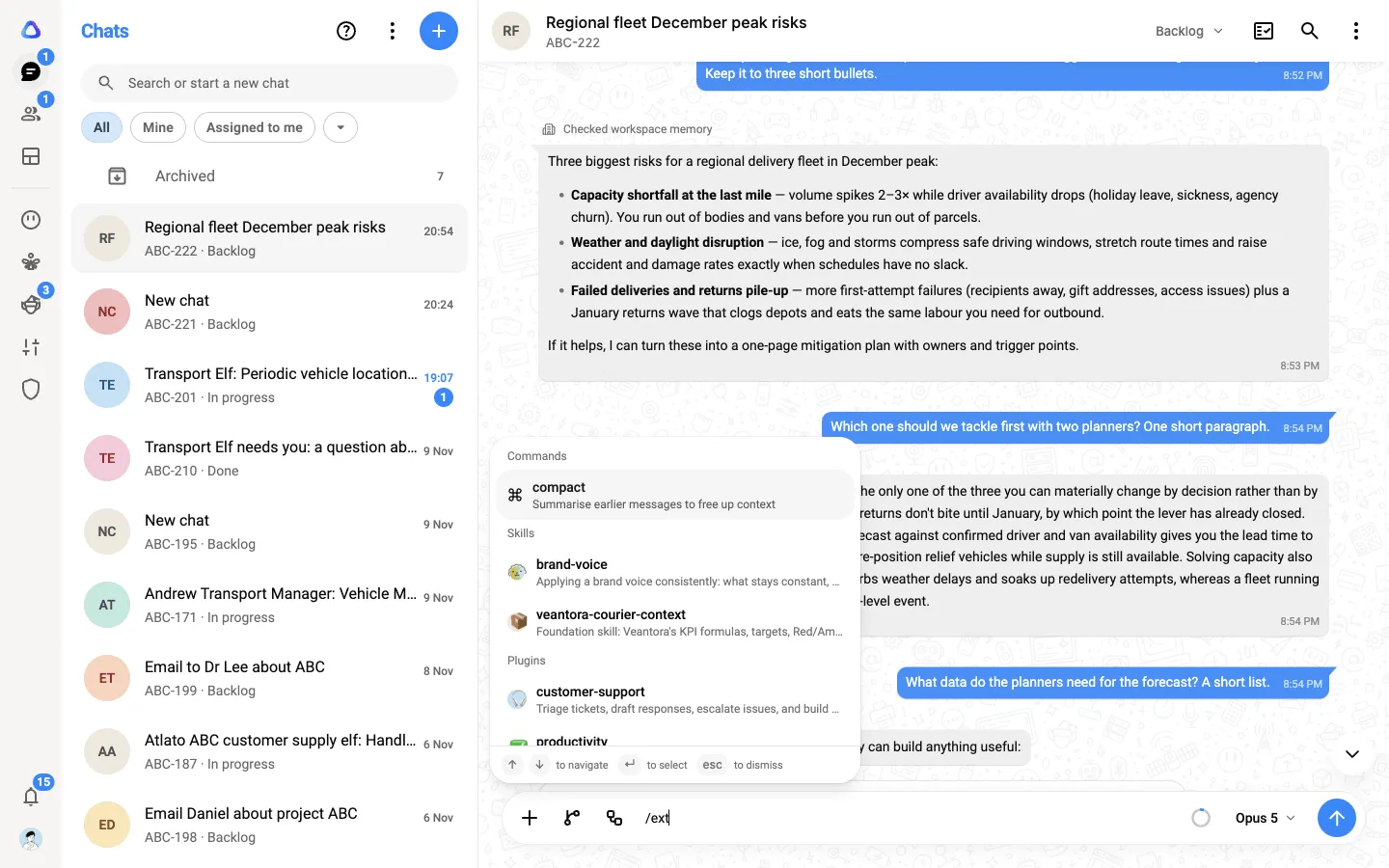
In the message box, type /. A menu opens with your Skills, Plugins, Knowledge Base and Connectors.
-
Keep typing to narrow the list, then select the skill (or use the arrow keys and Enter). It is added to your message as a tag.
-
Write your request and send it. The AI follows the skill, and you may see a step such as Read the brand-voice skill in its reply.
You can also select + in the message box, then Skills under Use.
Once you have used a skill in a chat, it stays available for the rest of that chat. The same goes for plugins, knowledge bases and connectors.
What the menu offers
Section titled “What the menu offers”| Group | What it adds to your message |
|---|---|
| Commands | compact: summarizes the earlier messages to free up room in a long chat. |
| Skills | Instructions the AI follows. See Skills. |
| Plugins | Ready-made bundles of skills and tools. See Plugins. |
| Knowledge Base | Files and web pages the AI can search and read when it needs them. See Knowledge Base. |
| Connectors | Your connected apps. See Use connected apps in a chat. |
Only the skills you have made, added from the Atlato skills gallery, or been given access to appear here. If you have none yet, select +, open the group under Use, and select Manage skills (or Manage plugins, and so on) to add some.
Memory
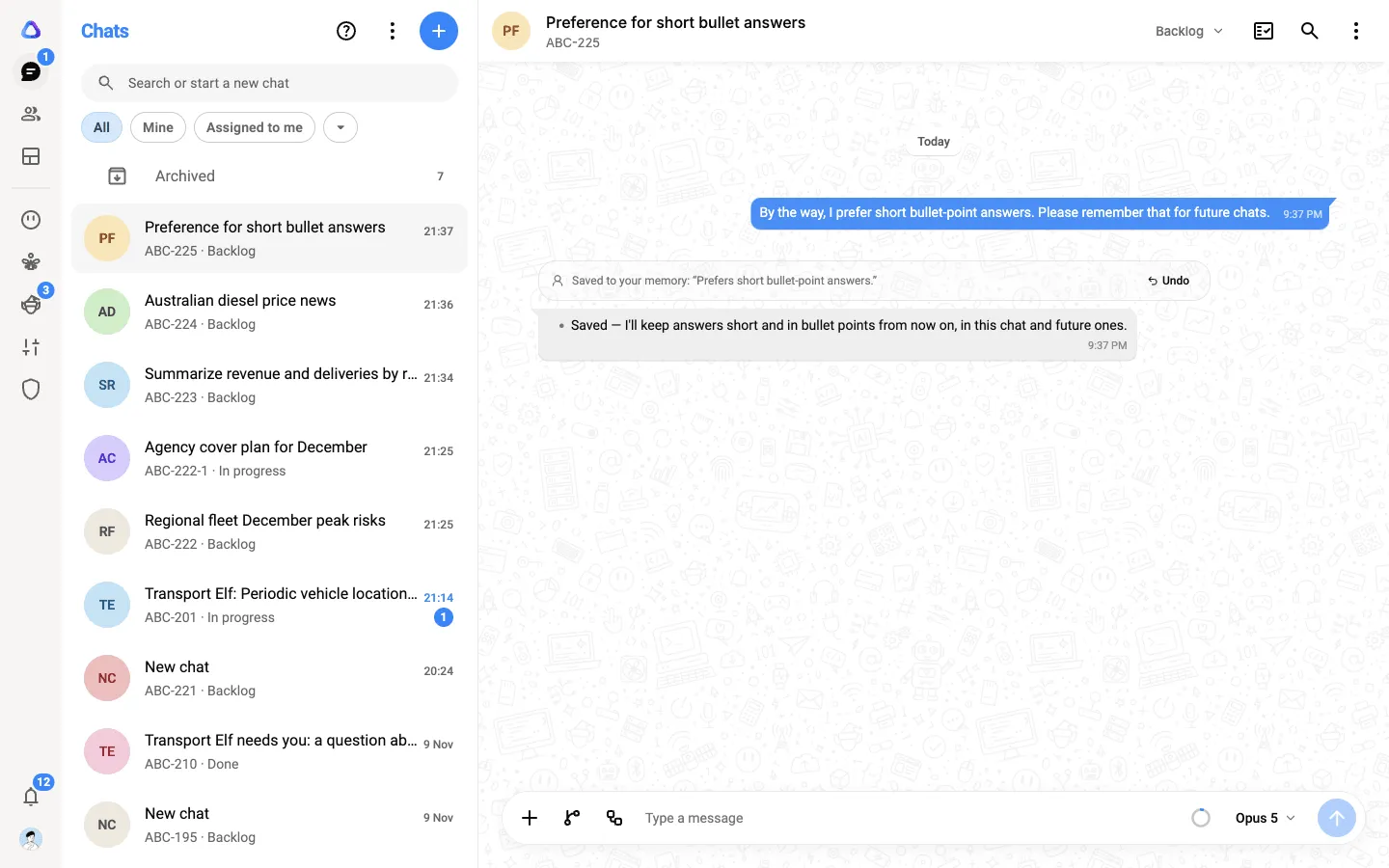
Section titled “Memory”With memory on, the AI saves lasting facts about you as you chat, and uses them in every chat after that. It saves without asking, so it always shows you what it did.
- When it reads your memory, a quiet line in the reply says Checked your memory (or Checked workspace memory).
- When it saves, changes or removes something, a small card in the reply says exactly what, for example Saved to your memory: “Prefers answers as bullet points”. Select Undo to take it back straight away.
Turn memory on or off
Section titled “Turn memory on or off”-
Select your profile photo at the bottom of the left rail, then Settings.
-
Select Preferences, then Memory.
-
Switch Generate memory from chats on or off. Search and reference chats lets a chat look through your past chats for relevant details.
On the same screen you can read and edit what the AI remembers about you in this workspace, see the workspace’s shared memory, and bring across what another AI assistant already knows about you. See Memory for the details.