
Ask, submit and review
A breakaway has two sides: the person who asked for the work and the one doing it. This page covers the three moments between them: asking a question along the way, handing the work back, and deciding whether it is done.
Ask a question privately
Section titled “Ask a question privately”Ask is a private chat for just the two of you. Use it to clear up the brief (“which price list did you mean?”) without sending the work back or starting a chat somewhere else. Nobody else can read it, including other teammates and workspace admins.
-
Open Task details by selecting the chat’s name at the top of the chat. If you have the breakaway, that is your breakaway chat. If you asked for the work, it is the chat you made the breakaway from.
-
Open Ask:
- If you have the breakaway, select Ask from and the other person’s name. The row says “Send questions or share updates privately, just between the two of you”.
- If you asked for the work, find the breakaway under Sub tasks · breakaways and select Open Breakaway Chat on its card. You can also select Details on the card, then Ask from and their name.
-
Write your message. You can reply to a message, react to it and attach files, just as in a team.
When the other person writes in Ask, you see an unread count: on the breakaway’s row in Chats if you are the one doing it, or on the chat you made it from (and on its row under Sub tasks · breakaways) if you asked for it.
Ask is there only on a breakaway between two people. A breakaway you gave yourself, or one handed to an agent or an elf, has no Ask.
Submit your work
Section titled “Submit your work”When you have finished a breakaway someone handed you, submit it to send the result back.
-
Open the breakaway chat and select Submit at the top. It shows while the breakaway is In progress.
-
On Add note, describe what you did in the Note box. This is required, and it is the first thing the requester reads. Say what was done, where the deliverable is, and anything they need to check it. Select the arrow to go on.
-
On Add deliverables, check the files under Attached files. Everything already on the task or in its chat starts attached, so remove anything that isn’t part of the result. Removed files move to Not added, where you can add them back.
-
To attach more, select Add files and documents and pick files from your device.
-
If the requester asked for particular formats, the screen says Asked for and, until each is attached, Still to attach. Select Submit (the check button) when everything is there.
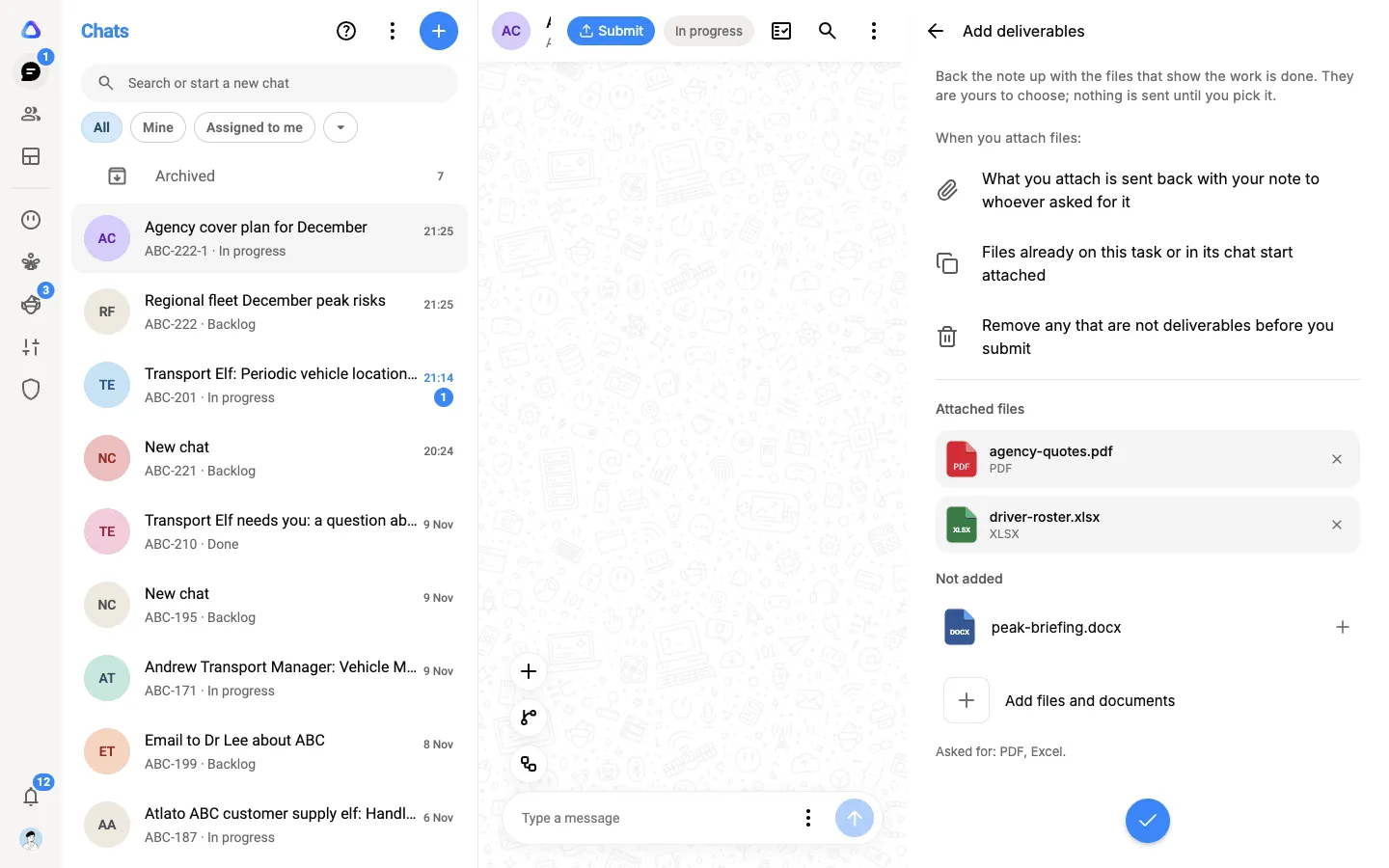
The breakaway moves to Checking, and the requester is told it is ready to review.
Approve or reject
Section titled “Approve or reject”When work comes back to you, you get a notification, and the Approvals & Submissions button at the top of the chat you made the breakaway from shows a count. Select it to see the card saying who handed this in, with the number of files.
-
Select the card to open Sent for review beside the chat. It shows their note and the files they handed back, ready to open.
-
Decide, using the buttons on the card:
- Select Approve if the work is done. The breakaway moves to Done, and the files they handed back are copied onto your task, under Media, links and docs in Task details. When an agent did the work, its result is also added to your chat.
- Select Reject if something has to change.
-
If you rejected it, write in What has to change. This is required, because it is the only thing they get: say what is missing or wrong, where in the work it is, and what done looks like this time. Then select Send back.
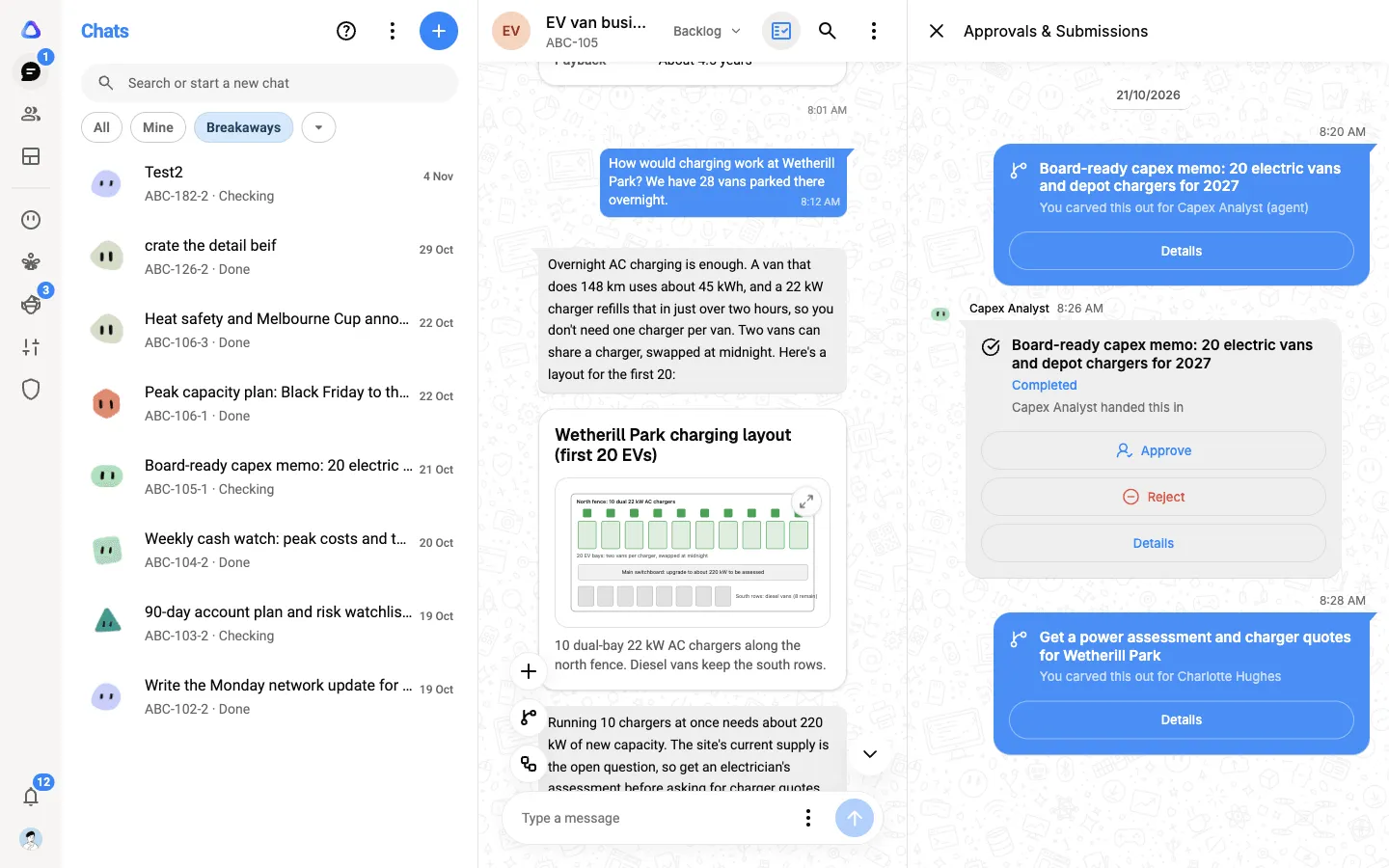
A rejected breakaway goes back to In progress, and your note is put in their chat where they were working on it. They can hand it in again when it is ready, and you review it the same way. An agent or an elf picks your note up and works on it again by itself.
When an agent or an elf has the work
Section titled “When an agent or an elf has the work”Agents and elves hand their result back on their own when they finish, with any files they made, so there is no Submit to press. The hand-back still waits for you: nothing is approved until you select Approve.
Their hand-back card in Approvals & Submissions carries the agent’s or the elf’s own name and face, so you can tell their work from a teammate’s. In an elf’s breakaway chat, your decision is shown too, as Approved by or Sent back by with your note.