
Plugins
A plugin is a ready-made bundle of skills, installed in one go. A sales plugin might bring skills for call prep, follow-up emails and pipeline reviews, and work with the apps your team already uses. Add one and your chats and agents can use everything it knows.
Before you begin
Section titled “Before you begin”- Anyone can add a plugin from the gallery.
- Making or uploading your own plugin depends on your role. If you don’t see + on the Plugins list, ask an admin. If your role uses IT Manager Approval for plugins, an uploaded plugin shows Pending until an admin approves it.
Add a plugin from the gallery
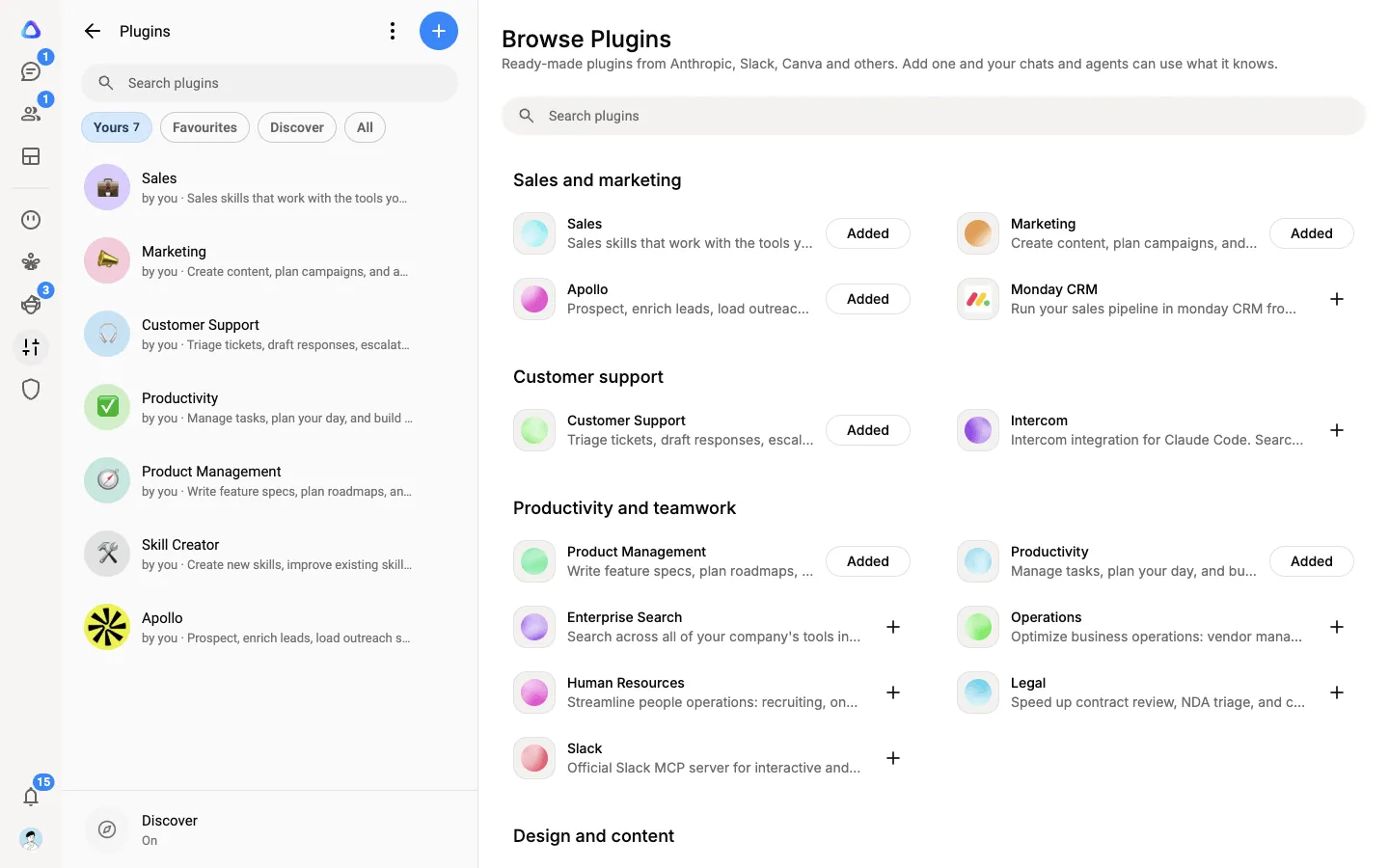
Section titled “Add a plugin from the gallery”Open Personalization → Plugins. The main area shows Browse Plugins, grouped into Sales and marketing, Customer support, Productivity and teamwork, Design and content, and Build and learn.
-
Search, or browse the categories, and select a card to preview it.
-
Check Skills it brings and Works with, the apps its skills can use.
-
Select + on the card, or Add plugin in the preview.
The plugin is added to your Plugins list as your own. The card now shows Added; select it to open your plugin.
The apps under Works with are optional. When you connect them in Connectors, the plugin’s skills use your own connections to them.
Use a plugin
Section titled “Use a plugin”- In a chat: type / and pick the plugin under Plugins. The AI uses the plugin’s skills when they fit the task.
- In an agent: add the plugin in the agent’s settings.
Upload your own plugin
Section titled “Upload your own plugin”-
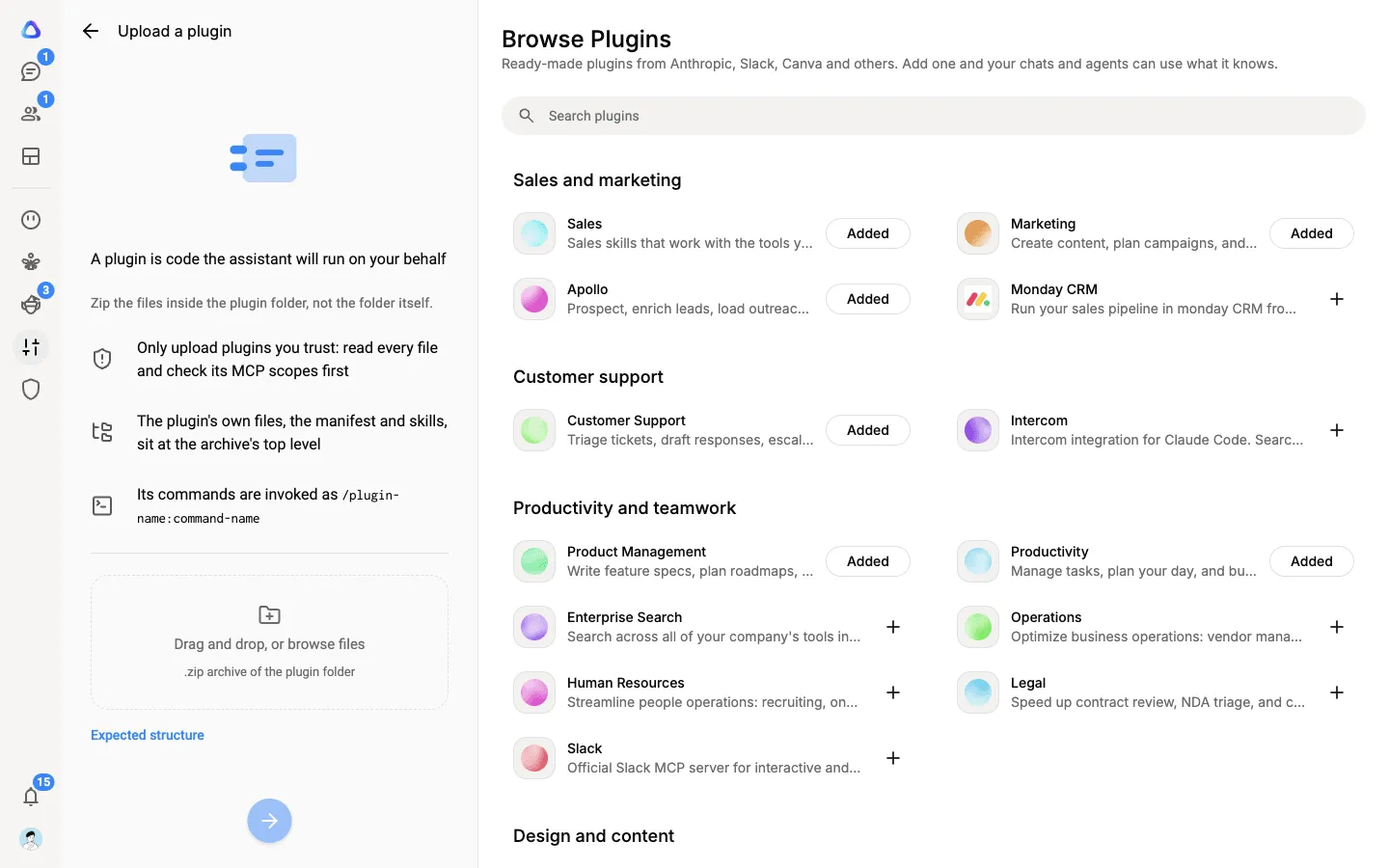
In the Plugins list, select ⋮ at the top, then Upload. (Or select +, which opens the Plugin Builder, and choose Configure manually from the menu at its top.)
-
Drag in a
.ziparchive of the plugin, or browse for it.Zip the files inside the plugin folder, not the folder itself. If your tool produced a
.pluginfile, rename it to.zipand try again. -
Select Next. Give the plugin a short name, ideally short and hyphenated, and a description. The description is what people read before they add it, and what the AI reads to decide when to use it.
-
Choose who can see it, then select Upload plugin.
Prefer to describe what you want? The Plugin Builder writes a plugin for you. See Create a skill or plugin by chatting.
Edit, version and restore
Section titled “Edit, version and restore”Open the plugin from your list. Its page has tabs for Overview, Contents and Skills.
- ⋮ → Edit opens the plugin in the Plugin Builder, where you ask for changes or make them yourself. Each save makes a new version. Plugins added from Atlato’s gallery can’t be edited.
- Pick an earlier version from the version list on Contents, then select Restore this version to go back to it. The version it replaces stays in the list.
- ⋮ → Download saves a copy of the plugin.
- ⋮ → Who can see this… changes who it is shared with.
- ⋮ → Delete removes the plugin. Chats stop loading its skills, and every saved version is removed.