
Files and web search
The AI in a chat can read the files you give it, create new files for you, and look things up on the web. You don’t need to switch anything on: attach a file or ask a question that needs current information, and the AI does the rest.
Attach files
Section titled “Attach files”-
In the message box, select +.
-
Under Attach, select Add files, then choose one or more files from your computer.
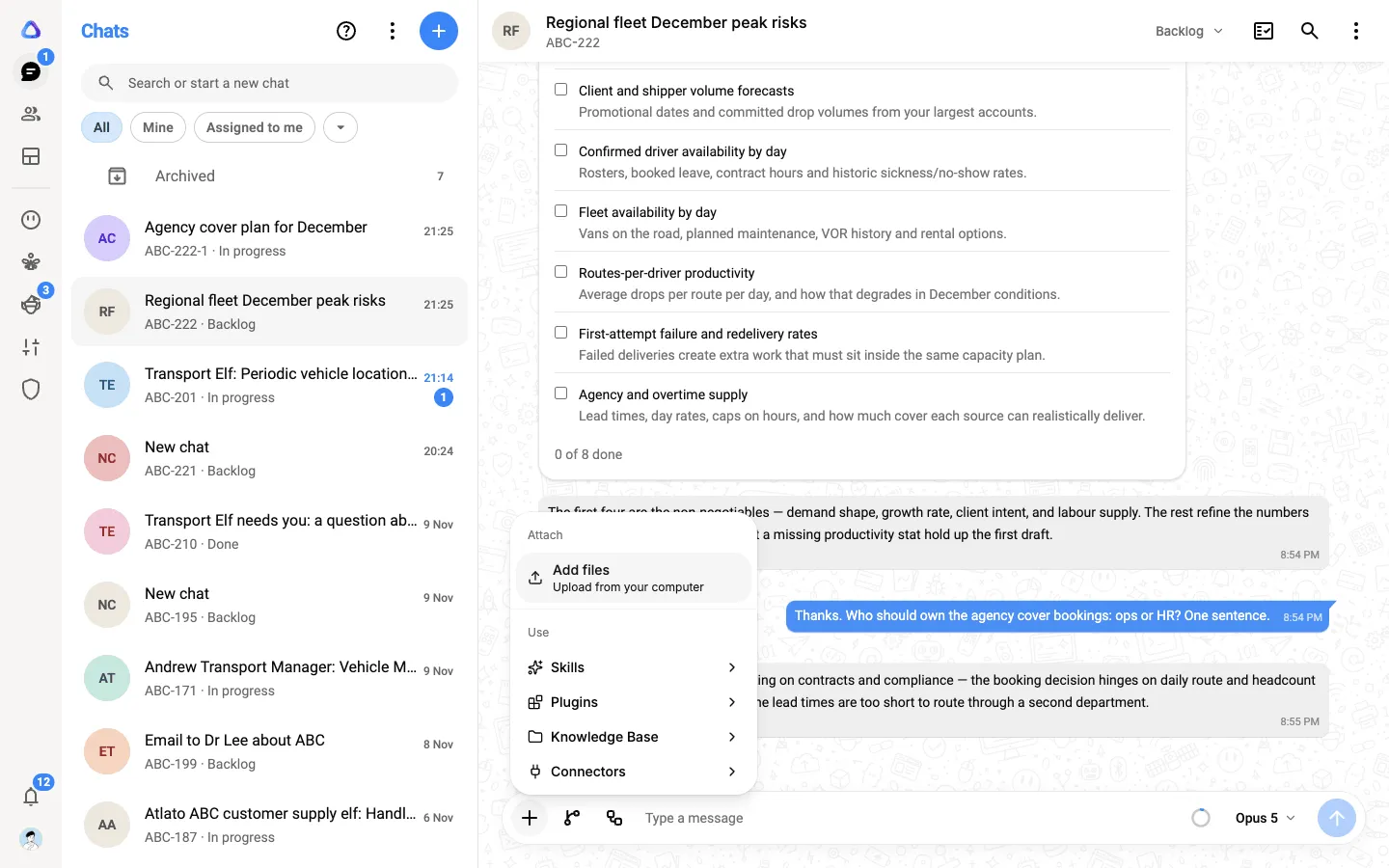
-
The files appear as chips above the box. Add your message and send it.
You can also drag files from your computer and drop them anywhere on the chat, or paste an image straight into the message box.
What you can attach:
- Documents: Word, PDF, text, Markdown, rich text, HTML and OpenDocument files
- Spreadsheets and data: Excel, CSV, JSON and OpenDocument spreadsheets
- Presentations: PowerPoint
- Images: PNG, JPEG, GIF, WebP, SVG and HEIC
- Archives: ZIP and other compressed files
- Video and audio, up to 50 MB each
To remove a file before you send, select the cross on its chip.
Long pasted text
Section titled “Long pasted text”If you paste more than 10,000 characters into the message box, the text is attached as a file called pasted-text-1.txt instead of filling the box. The AI reads it as part of your message, and your own words stay easy to see beside it. Select the chip to read or check what you pasted.
Files the AI creates
Section titled “Files the AI creates”Ask for a document, a spreadsheet, a presentation, a PDF or a web page, and the AI can create it for you. Files it creates appear in the reply. Select one to preview it in a panel beside the chat, or download it. Downloading saves the file to your computer, and you stay in the chat.
Videos and audio play right in the chat, including clips that a connected app makes for you, such as a voice-over. To save an audio clip, point at it, open the arrow in its corner and select Download.
Every file in a chat, yours and the AI’s, is also kept together in the chat’s Media, links and docs. See Organize your chats.
Images and voice
Section titled “Images and voice”- Create images. Ask the AI to draw or design something, and it can create an image, as long as you have connected a provider that makes images (for example an OpenAI or OpenRouter API key).
- Speak instead of typing. Select Record voice message, speak, and stop when you are done. Your words appear in the box as text for you to check and send.
Web search
Section titled “Web search”When a question needs current information, the AI searches the web by itself. You see a line such as Searching “best CRM for small teams” while it looks, then Searched with the sources it used.
Select the line to see the sources, and select a source to open it.
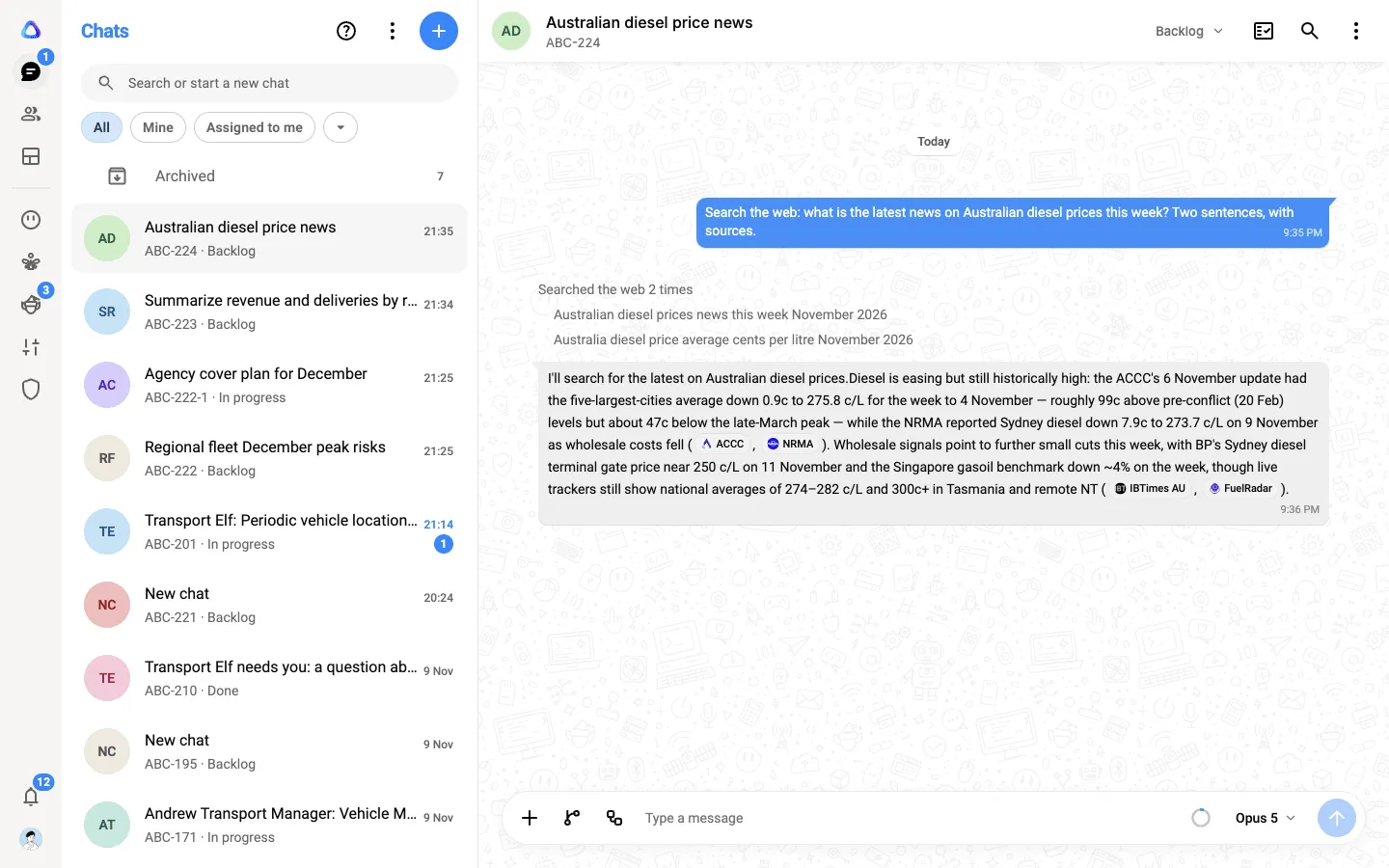
The AI uses your model’s own web search where the provider offers one. Otherwise it uses the web search tool chosen in Personalization → Web search. See Web search.