
Workflow steps
Steps are the building blocks of a workflow. In the editor, select + on the canvas, then More tasks, to see them all in the Add Task panel, grouped as Atlato, Control, Integration and Human. The most used ones are also under Quick add.
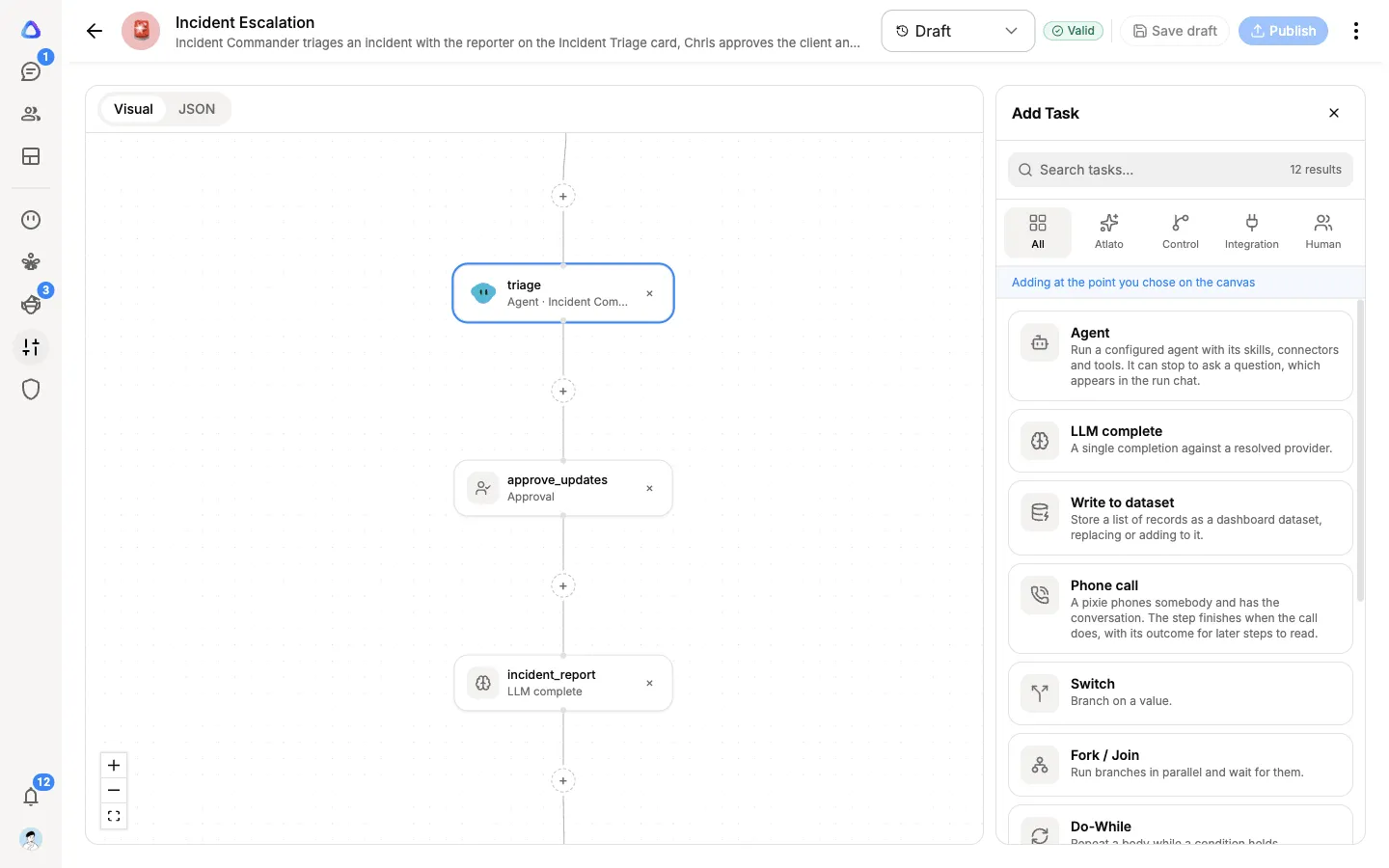
All steps at a glance
Section titled “All steps at a glance”| Group | Step | What it does |
|---|---|---|
| Atlato | Agent | Runs one of your agents with its skills, connected apps and tools |
| Atlato | LLM complete | Asks an AI model for one answer, or fills a report template and makes a PDF |
| Atlato | Write to dataset | Stores a list of records for a dashboard |
| Atlato | Phone call | Has a pixie phone someone and bring back the outcome |
| Control | Switch | Sends the run down one of several paths, depending on a value |
| Control | Fork / Join | Runs several branches at the same time and waits for all of them |
| Control | Do-While | Repeats the steps inside it while a condition holds |
| Control | Sub-workflow | Runs another published workflow as one step |
| Control | Wait | Pauses for a time, until a date, or until someone releases it |
| Integration | HTTP request | Calls a web service |
| Integration | HTTP poll | Keeps calling a web service until a job is ready |
| Human | Approval | Pauses until a named person approves or rejects |
Every step has a Reference name, which identifies it when later steps use its output, and an optional Description. At the bottom of each step’s settings, Make task optional lets the workflow carry on even if that step fails or does not finish.
AI steps
Section titled “AI steps”Runs one of your agents, with everything it can use: its skills, its connected apps and its tools. Use it for work that needs judgment or several actions, such as “Research this company and draft a reply in Gmail”.
- Agent: the agent to run.
- Prompt: what to do this time. Use Insert a value from another step to pass in the workflow’s inputs or earlier results.
- Allow clarifying questions: on by default. The agent may stop to ask the person running the workflow a question, which appears in the run’s chat. If nobody answers in time, it carries on with its own stated assumptions.
- UI templates: cards the agent may show when it needs something from a person. See Templates.
- Files: files for the agent to read.
- Enable JSON output: ask for a structured answer that later steps can read field by field. Give a Sample output to show its shape.
LLM complete
Section titled “LLM complete”Asks an AI model for a single answer, without tools. Use it to summarize, classify, translate or draft text.
- Model: the AI model to use.
- Prompt: what to ask.
- Temperature: lower for consistent answers, higher for more varied ones.
- File input: a file for the model to read.
- Report: pick a content Template and a File name to turn the answer into a PDF report. See Reports from workflows.
- Enable JSON output: ask for a structured answer, as for the Agent step.
Data and calls
Section titled “Data and calls”Write to dataset
Section titled “Write to dataset”Stores a list of records that an earlier step produced in a dashboard data source, so a dashboard shows the latest results after each run.
- Dataset: a data source set up to receive a workflow’s output.
- Rows: the list of records to store, usually from an earlier step.
- Mode: Replace (each run is the whole truth) or Append (each run adds rows, so history builds up).
- Field map: which field of each record goes into which column.
See Data sources.
Phone call
Section titled “Phone call”A pixie phones somebody and has the conversation for you. The step finishes when the call does, and later steps can read its outcome.
- Pixie: which pixie makes the call.
- Who to call: a number in international format (such as +61412345678), or select Pick someone instead to choose a contact or member.
- Brief: What the call is for, Things to get done and Background the pixie should know.
- Call: Who speaks first (The pixie, The person answering or Decide on the line), whether to Wait for the call to finish, and when to Give up waiting after (minutes) (60 by default).
On the run page, the step links to Open the call, the Transcript and the Recording.
Control steps
Section titled “Control steps”Switch
Section titled “Switch”Takes a different path depending on a value, such as a category an agent picked. Add a path for each value with + case on the canvas. Anything that matches no case takes the default path.
Fork / Join
Section titled “Fork / Join”Runs several branches side by side, then waits for all of them before moving on. Add branches with + branch on the canvas.
Do-While
Section titled “Do-While”Repeats the steps inside it while a Loop condition holds, for example up to 3 attempts.
Sub-workflow
Section titled “Sub-workflow”Runs another workflow as a single step. Only published workflows in your workspace can be called, so you can build small workflows once and reuse them.
Pauses the run. Choose a Wait type:
- Duration: a number of days, hours, minutes or seconds.
- Until: a Date and time in a Timezone you choose.
- Signal: until someone selects Release wait on the run page.
Integration steps
Section titled “Integration steps”HTTP request
Section titled “HTTP request”Calls a web service, for example to create a record in an internal system. Set the Method, the URL (it must be a public https:// address), any Additional headers and the Request body. Later steps can read the service’s reply.
HTTP poll
Section titled “HTTP poll”Calls a web service again and again until it says a job is ready. Set the request as for HTTP request, then under Stop when, add conditions such as “status equals done”. Choose the Polling interval between attempts, and when to Give up after.
Human steps
Section titled “Human steps”Approval
Section titled “Approval”Pauses the run until one of the people you name approves or rejects. See Workflow approvals.