
Organize your chats
Your Chats list keeps the chats with something new at the top, marks what you haven’t read, and lets you search, filter and group the rest. This page covers the tools for keeping a busy list under control.
Find a chat
Section titled “Find a chat”Search the list. Type in Search or start a new chat at the top of the Chats list. The search covers all your chats, not only the ones on screen.
Search everything. Press Ctrl + K (⌘ + K on a Mac) from anywhere in the app and type in Search chats and tasks…. Results are grouped into Today, Past week, Past 30 days and Older. Use the arrow keys and Enter to open one.
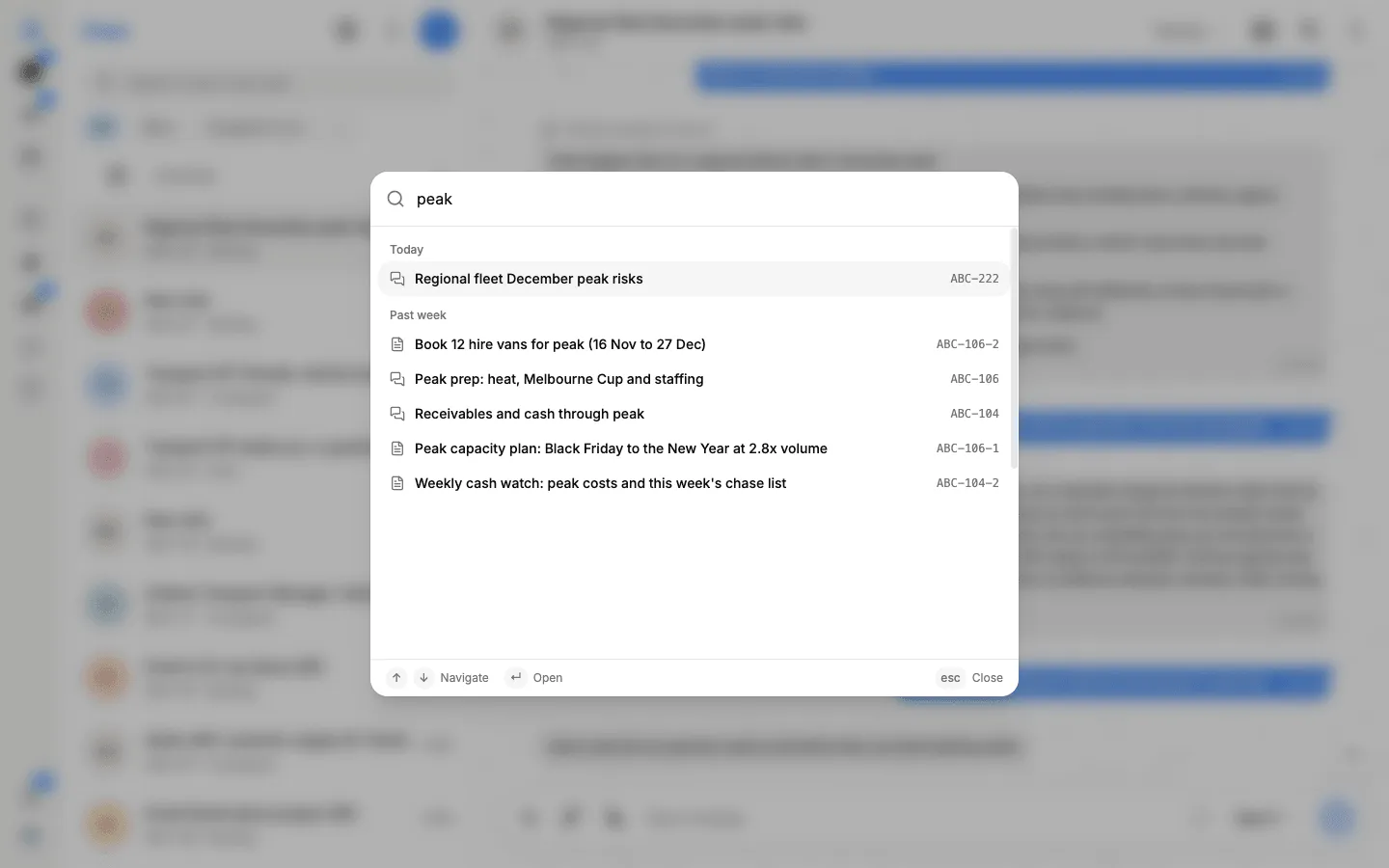
Search inside a chat. Open the chat and select Search messages (the magnifier at the top of the chat).
Filter with chips
Section titled “Filter with chips”The chips under the search field narrow the list:
| Chip | Shows |
|---|---|
| All | Every chat you can open |
| Mine | Chats you started yourself |
| Assigned to me | Work handed to you, such as a breakaway from a teammate |
| Breakaways | Work you handed to an agent |
| Favourites | Chats you added with Add to Favorites |
Your own lists follow as chips of their own. If the chips don’t fit, the rest are behind More filters at the end of the row.

Favorite chats and your own lists
Section titled “Favorite chats and your own lists”Add a chat to your favorites. Right-click the chat in the list (or point at it and open its menu) and select Add to Favorites.
Make a list.
-
At the end of the chip row, select New list.
-
Type a List name, such as “Clients” or “This week”.
-
Search for the chats to include and add them.
-
Select Create list.
To add a chat to a list later, right-click the chat and select Add to list. To rename a list, change what is in it or delete it, right-click its chip and select Manage list or Delete list. Deleting a list never deletes the chats in it.
Unread chats and new activity
Section titled “Unread chats and new activity”- A blue count on a chat means something new is waiting: a new reply, a question, or work handed back to you.
- Chats with new activity move to the top of the list, so the newest work is always first.
- A sound plays when something new arrives. Turn it off in Settings → Notifications. See Your settings.
- The Chats button in the rail shows how many chats have something unread.
To clear them all at once, select Chat options (the menu at the top of the Chats list), then Mark all as read.
Tidy up several chats at once
Section titled “Tidy up several chats at once”-
Select Chat options at the top of the Chats list, then Select chats.
-
Tick the chats you want.
-
Open the menu in the selection bar and choose Mark as read, Archive chats or Delete chats.
Archive or delete a chat
Section titled “Archive or delete a chat”Archive a chat to take it out of your list without losing it: right-click it and select Archive chat. When you have archived chats, an Archived row appears in the list with a count. Open it to find them, and select Unarchive chat from a chat’s menu to put it back. Archived chats stay archived even when they are updated.
Delete a chat from its menu with Delete chat. A breakaway someone handed to you can’t be deleted, because it belongs to their task.
Media, links and docs
Section titled “Media, links and docs”Every photo, video, document and link shared in a chat is gathered in one place.
-
Open the chat and select its name at the top to open Task details.
-
Select Media, links and docs.
-
Switch between Media, Docs and Links.
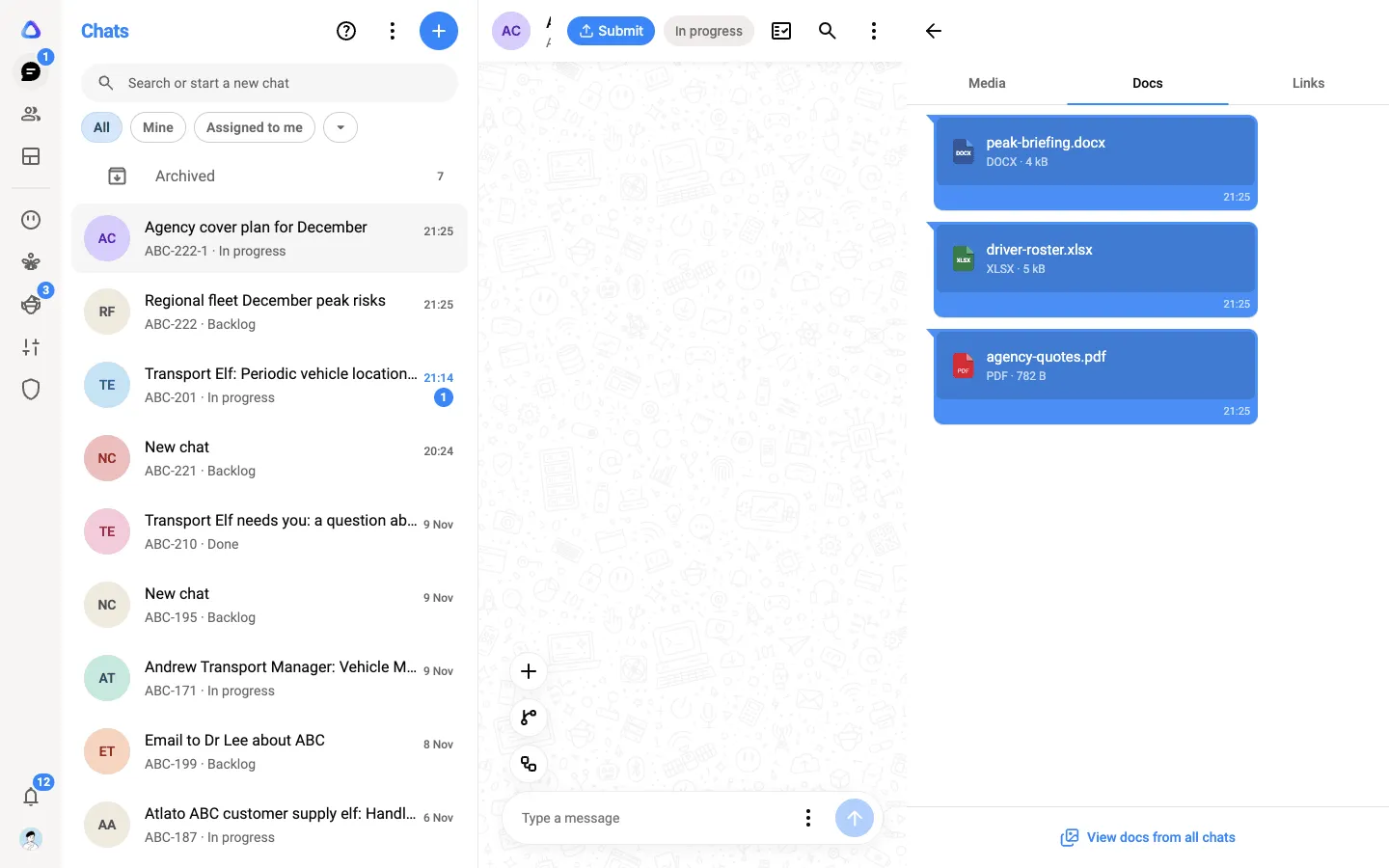
To see media from all your chats together, open Settings → All Media. You can search by sender or caption, sort the results, and select several files to download.