
Resources and knowledge
An elf can only use what you give it. Its resources are the skills, apps, people, workflows, agents, other elves and pixies it may call on. Its knowledge is the documents, media and links it reads. Over time it also keeps templates of the tasks it runs and learned skills from steps that worked.
Before you begin
Section titled “Before you begin”- Your role decides whether you can add resources to an elf and whether it may read shared knowledge. If you do not see Resources or Knowledge in the elf’s settings, ask an owner or admin. See Role templates.
- Connect an app in Personalization before you give it to an elf. See Connectors.
Kinds of resource
Section titled “Kinds of resource”Open the elf, select Settings in the Elf details panel, then Resources. Each kind shows how many are added.
| Kind | What the elf does with it |
|---|---|
| Skills | Follows its step-by-step instructions for a specific job. |
| Plugins | Uses a bundle of skills installed together, often from one source. |
| Connectors | Uses the app on your behalf, with your sign-in. |
| People | Asks people in your workspace for approvals and help. |
| Workflows | Starts the workflow as part of its work. |
| Agents | Hands a piece of work to the agent. |
| Elves | Hands work to another of your elves. It can ask no other elves. |
| Pixies | Asks the pixie to make a phone call. You approve each call before it is dialled. |
When the elf passes work to a person, a workflow, an agent, another elf or a pixie, it waits for the answer and carries on with it.
Add a resource
Section titled “Add a resource”-
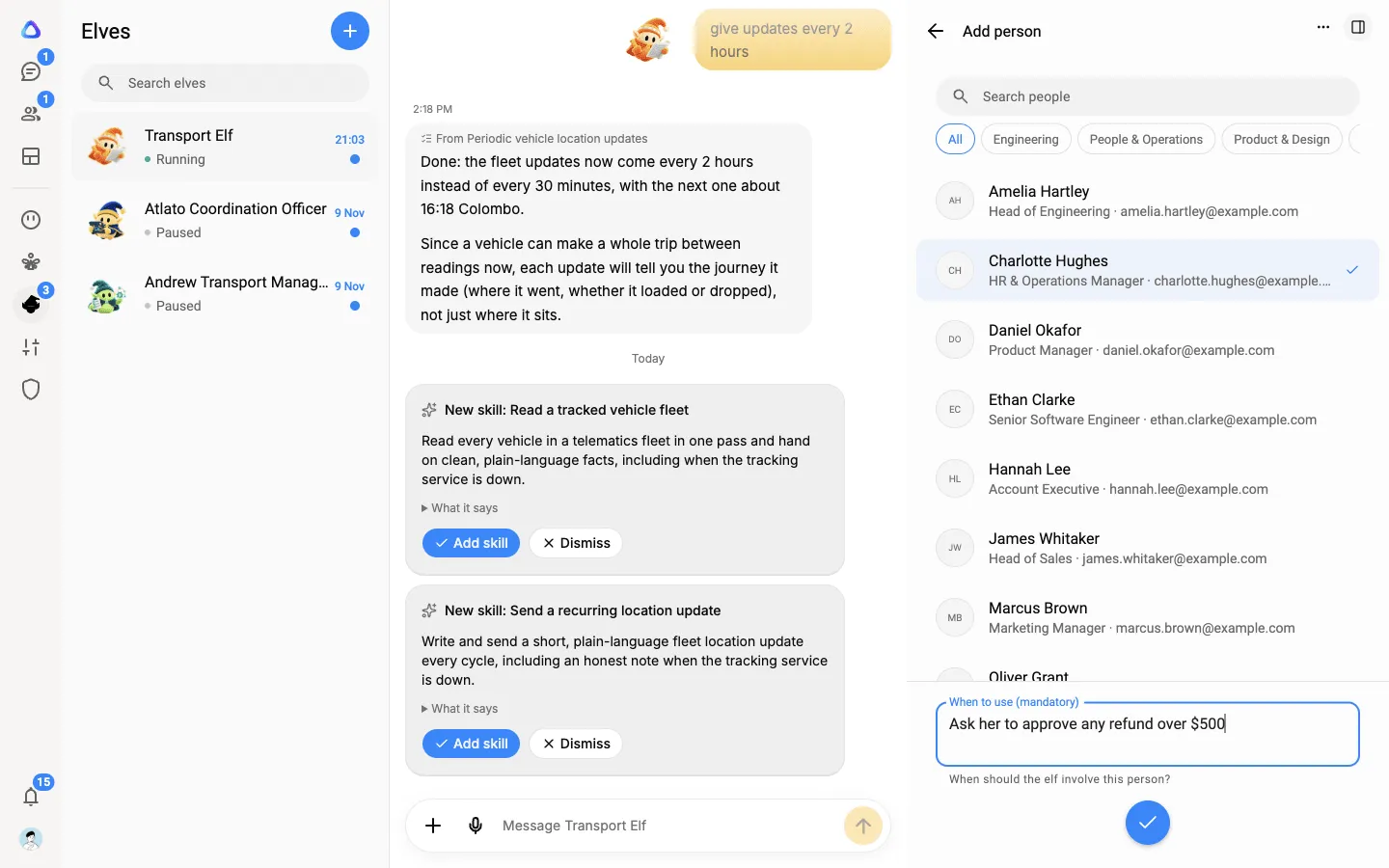
In Resources, select the kind, then select Add and the kind’s name, for example Add person.
-
Pick the resource from the list. Use the chips at the top to narrow a long list.
-
Under When to use, tell the elf when it should use it. For people, workflows, agents, elves and pixies this is required, for example “Ask Priya to approve any refund over $500”. For skills, plugins and connectors it is optional.
-
Select Add.
You do not have to add everything up front. When the elf plans a task and finds it needs something it does not have, it asks you to connect it. See Give an elf a task.
Change or remove a resource
Section titled “Change or remove a resource”Open a kind to see the resources added to it:
- Turn a resource off to stop the elf using it for now.
- Select it to change When to use, or select Remove from this elf.
If tasks use the resource, the app lists them first, because those tasks will not be able to do that part. After you remove it, you can select Replan affected tasks so each task works around it: with another resource if one fits, or by asking you to connect one.
Choose what it may do in an app
Section titled “Choose what it may do in an app”By default an elf may do everything the workspace allows in a connected app. To narrow that, open Resources → Connectors, select the app, then Permissions:
- Everything the workspace allows is the default.
- Only what I choose lets you set each action to Allow, Ask me each time or Never. For example, allow reading email, ask before sending, and never delete.
Under Advanced rules, you can limit one field of an action: Never above or Ask me above an amount, Only these values, or Must end with. For example, an email’s recipient Must end with your company’s domain.
If the app asks you to sign in again, do that first, and then choose the actions.
Share knowledge with your elf
Section titled “Share knowledge with your elf”Open the elf, select Settings, then Knowledge.
- Select Media, links and docs to add documents, images, video, audio and web links for the elf to read. An elf can hold up to 200 files and 200 links. A large file is opened only when it is needed.
- Turn on Use shared knowledge to let the elf also read the files your workspace shares with every elf that opts in.
A single task can have knowledge of its own. Open the task, then Knowledge, to add files only that task reads.
Templates
Section titled “Templates”Every task your elf runs is kept as a template: its steps, in order, without the details of one customer or date. When you ask for a similar job, the elf starts from the template instead of planning from scratch, and it updates the template when you or the elf change those steps.
To see them, open Settings, then Templates. Select one to rename it or to Retire it. No new tasks are made from a retired template, and tasks already made from it carry on.
Learned skills
Section titled “Learned skills”When a step keeps working, your elf drafts a skill from it and asks you to approve it in the chat. The skills you approve are listed in Settings → Learned skills. The elf does that step the way that worked from its next task.
Your elf can also learn from your chats. Now and then it looks back over a chat, for example one where you corrected how it did something, and may draft a skill there for you to approve with Add skill, or to Dismiss. Each look-back uses your AI model. To stop it, turn off Learn from chats in Settings → Computer.
Select a learned skill to:
- See its versions, and pick an earlier one with Use this version.
- See when the elf Last used it.
- Share a copy to your own skills, so you can use it in your chats and with other agents.
- Remove it. The elf stops using it from its next task, and its versions are deleted. A copy you shared stays.
You can also teach a skill by showing the elf. See Take over the browser.
Skills it no longer uses
Section titled “Skills it no longer uses”A learned skill your elf has not used for 90 days is archived: it keeps its versions, but the elf no longer uses it. A paused elf’s skills are left as they are, and so are skills that came from a task still open or belong to a template still in use. From 60 days without use, the list shows how long it has been idle, for example Not used for 64 days. Archived skills are listed under Archived, and the count beside Learned skills leaves them out.
To bring one back, select it and then Restore. The elf uses it again from its next task.