
Chats
Chats is where you work with AI. Each chat is a private conversation between you and the AI model you pick, and you can bring your files, the web, your connected apps and your skills into it.
Every chat is also a task. It has a status, a priority and a due date, so anything you start in a chat can be tracked, split into breakaways and handed to others without creating a separate ticket.
Before you begin
Section titled “Before you begin”- You need at least one AI model. If you don’t have one yet, Chats shows the Connect AI wizard in place of the message box. See Connect an AI model.
Start a new chat
Section titled “Start a new chat”-
Select Chats in the left rail. A new chat opens, ready to type in. From anywhere in Chats, you can also select New chat (the blue + at the top of the list).
-
Check the model at the bottom of the message box, and pick another if you like. See Choose and switch models.
-
Type your message in Ask anything. Press Shift + Enter for a new line.
-
Press Enter or select Send.
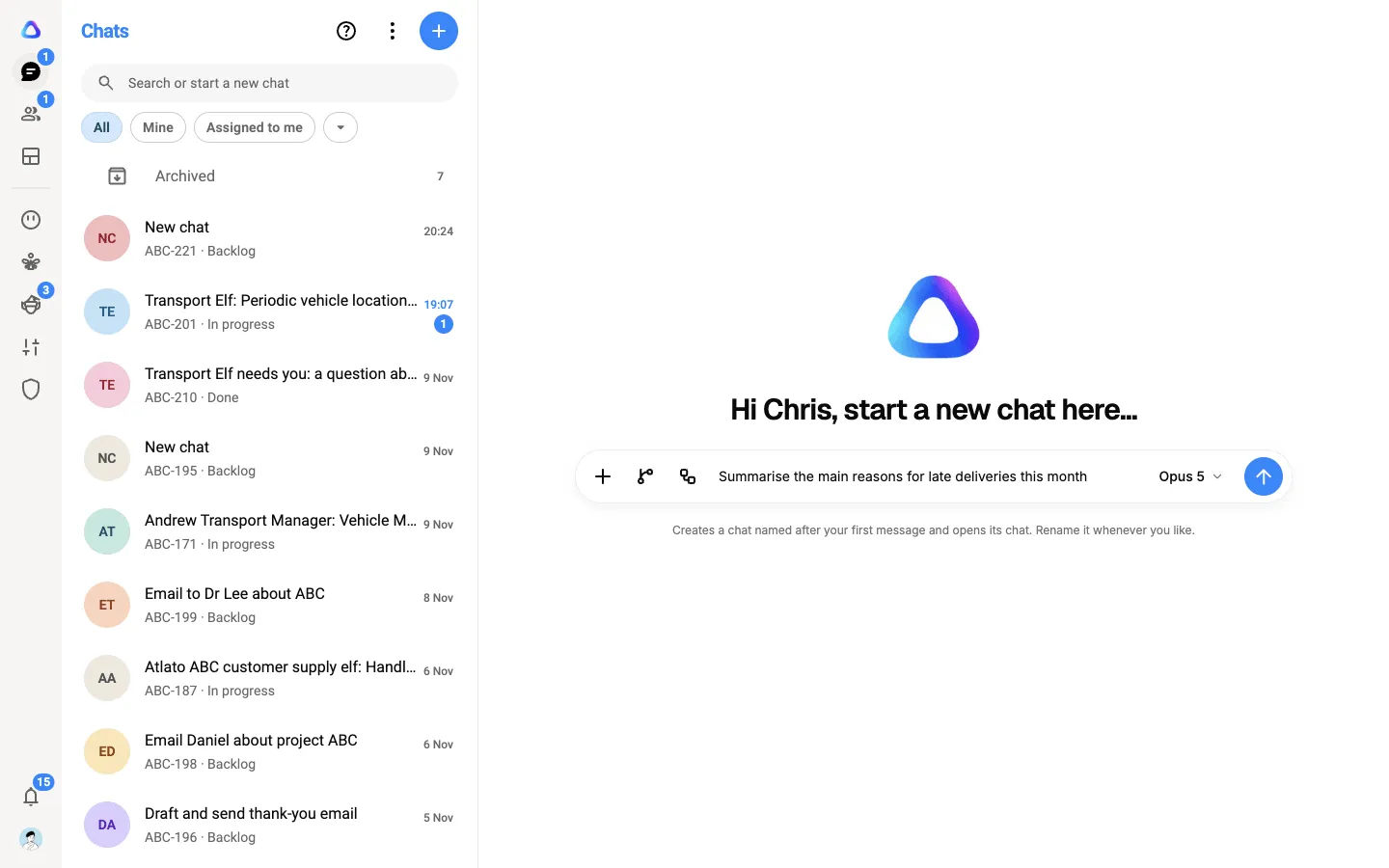
The chat is named after your first message and appears at the top of your Chats list. To rename it, select its name at the top of the chat to open Task details, then select the title.
The message box
Section titled “The message box”| Button | What it does |
|---|---|
| + | Attach files, and use your skills, plugins, knowledge bases and connectors in this message. See Files and web search and Skills and memory. |
| Create breakaway | Split part of this chat into its own task for someone else. See Create a breakaway. |
| Trigger workflow | Run one of your workflows from this chat. See Run and schedule. |
| Record voice message | Speak instead of typing. Your words appear in the box as text, ready to send. |
| Model button | Pick the AI model and how much it should think. See Choose and switch models. |
Typing / in the box opens the same skills, plugins, knowledge bases and connectors as the + menu.
While the AI is answering
Section titled “While the AI is answering”- Watch it work. Steps such as “Searching” the web or “Ran a command” appear as the reply is written. Select one to see the detail.
- Stop it. Select Stop in place of Send to end the reply where it is.
- Keep typing. You can send another message while a reply is still running. It waits, marked Queued, and goes as soon as the reply ends.
- Leave if you like. A reply keeps going if you reload the page or close the tab. Come back and it is there, or still arriving.
Do more with a message
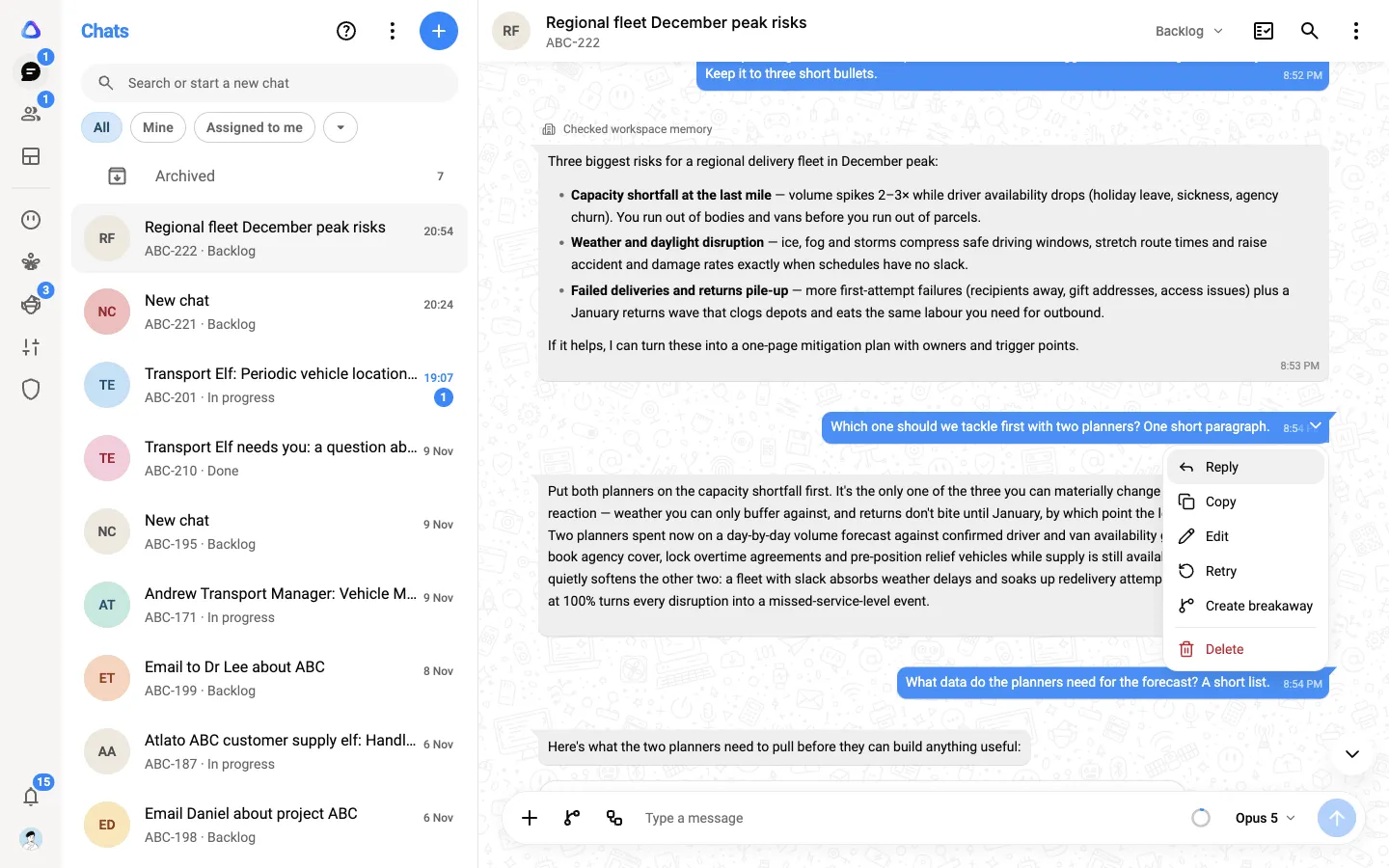
Section titled “Do more with a message”Right-click a message, or point at it and select the arrow that appears, for its menu. The actions offered depend on the message:
| Action | What it does |
|---|---|
| Reply | Quote the message in your next one. |
| Copy | Copy the message text. |
| Edit | Change one of your own messages. |
| Retry | Ask for a fresh answer. |
| Create breakaway | Start ticking the messages to carry into a breakaway. |
| Delete | Remove the message. |
You can also react to a message with an emoji. Edit, Retry and Delete wait until the current reply has finished.
Your chat is private
Section titled “Your chat is private”A chat handed to you as a breakaway is private to you in the same way. The person who asked sees its details and what you submit, not your conversation with the AI.