
Workflow approvals
An Approval step pauses a run until a person you name looks at it and decides. Use it wherever a human should check the work before it goes further: before a payment is made, an email is sent to a customer, or a record is changed.
The approver sees exactly what you choose to show them, can add a note, and can even correct the data before the run carries on.
Add an approval to a workflow
Section titled “Add an approval to a workflow”-
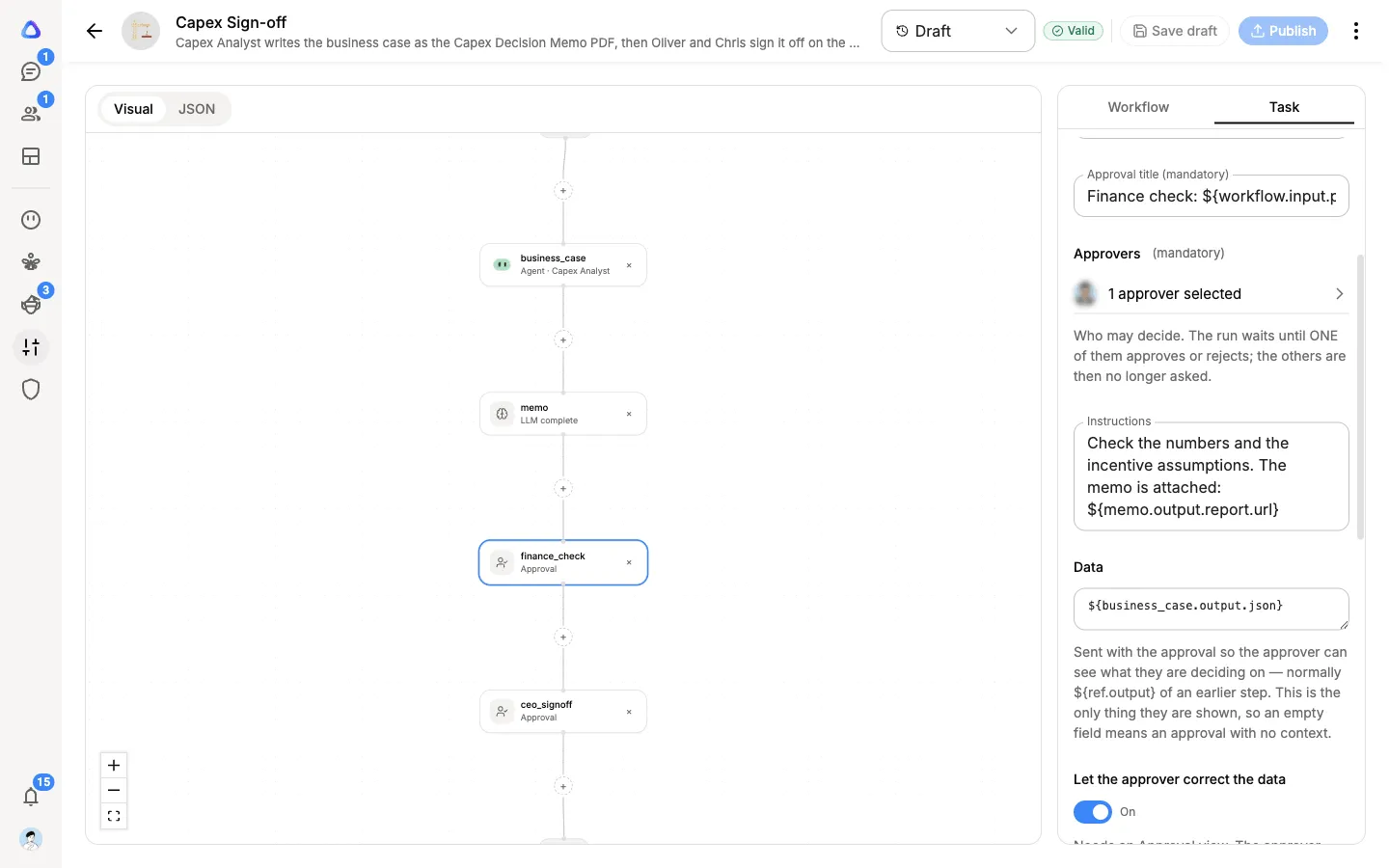
In the editor, select + where the approval should happen, then pick Approval (it is under Quick add, and in the Human group).
-
Fill in its settings:
- Approval title: what the approver sees at the top, such as “Approve refund over $500”.
- Approvers: one or more people who may decide. The run waits until one of them approves or rejects. The others are then no longer asked.
- Instructions: what to check and how to decide.
- Data: the information the approver is shown, usually from earlier steps. This is the only thing they see, so leave nothing important out.
- Let the approver correct the data: allows them to change the data before approving. This needs an Approval view.
- Approval view: an optional action template that lays the data out as a form or card. Leave it empty to show the data read-only. See Templates.
- Files for the view: files to show alongside it.
-
Save and publish the workflow.
Decide on an approval
Section titled “Decide on an approval”When a run reaches an approval, every approver gets a notification. Open it to go to the run’s Approvals tab. If the run was started from a chat, each approver also gets a chat for the approval in their Chats column, with the decision at the top.
-
Read What you are approving, and open More details if there is more to see.
-
If you need to, correct the data in the approval view.
-
Add a Note if you like. If you reject, the note is sent as the reason.
-
Select Approve (or Approve with corrections if you changed the data), or Reject.
Only the people named in the step can decide. Anyone else who opens the run sees Only the named approver can decide this.
What happens next
Section titled “What happens next”| Decision | What happens |
|---|---|
| Approve | The run carries on to the next step. |
| Approve with corrections | The run carries on with the corrected data, marked Sent on with corrections. |
| Reject | The approval step fails and the run stops, unless the step was made optional. The note is kept as the reason. |
The card then shows who decided, for example Approved by and their name. For the other approvers it shows Decided by someone else.
See who a run is waiting on
Section titled “See who a run is waiting on”- On the run page, the Approvals tab shows each approval, its status (Pending, Approved, Rejected, Cancelled or Decided by someone else) and who it is Waiting on.
- If you started the run from a chat, the Workflow status panel says who it is waiting on to decide.
Questions from an agent
Section titled “Questions from an agent”An Agent step can also stop to ask a person something, if its Allow clarifying questions setting is on. The question goes to whoever started the run (for a scheduled run, the workflow’s author), as a card in the run’s chat headed The agent asks. If the run has no chat yet, one is created and you get a notification. Answer with one of the suggested choices or type a reply, and the agent carries on. If nobody answers in time, the agent continues with its own stated assumptions.
When the agent wants to use a tool that needs permission, the card says The agent wants to use a tool. Select Allow or Don’t allow. If you do not allow it, the agent is told no and carries on without it.