
Use connected apps in a chat
Connect the apps you already use, such as Gmail, Outlook, Slack, Notion or Xero, and the AI can work with them from a chat: find an email, summarize a thread, look up an invoice, draft a reply. When it wants to change something, such as sending a message or creating a record, it stops and asks you first.
Before you begin
Section titled “Before you begin”- Add the app as a connector and sign in to it with your own account in Personalization → Connectors. See Connectors.
- Each person signs in with their own account. Sharing a connector shares the setup, never your login, so the AI only sees what your own account can see.
The first time you sign in to an app, a window opens saying the app is connected, for example Gmail is connected. It lists the app’s tools and when your chats, agents and elves may use each one. Owners and admins can change them there, or select Allow all to let every tool run without asking first. If that includes tools that delete or overwrite something, the button changes to Allow all anyway so you can confirm. Select Done to close the window. These settings apply to everyone in the workspace, and you can change them later under the connector’s tool permissions.
Use an app in a chat
Section titled “Use an app in a chat”-
In the message box, select +, then Connectors under Use. Or type / and pick from Connectors.
-
Select the app. It is added to your message as a tag.
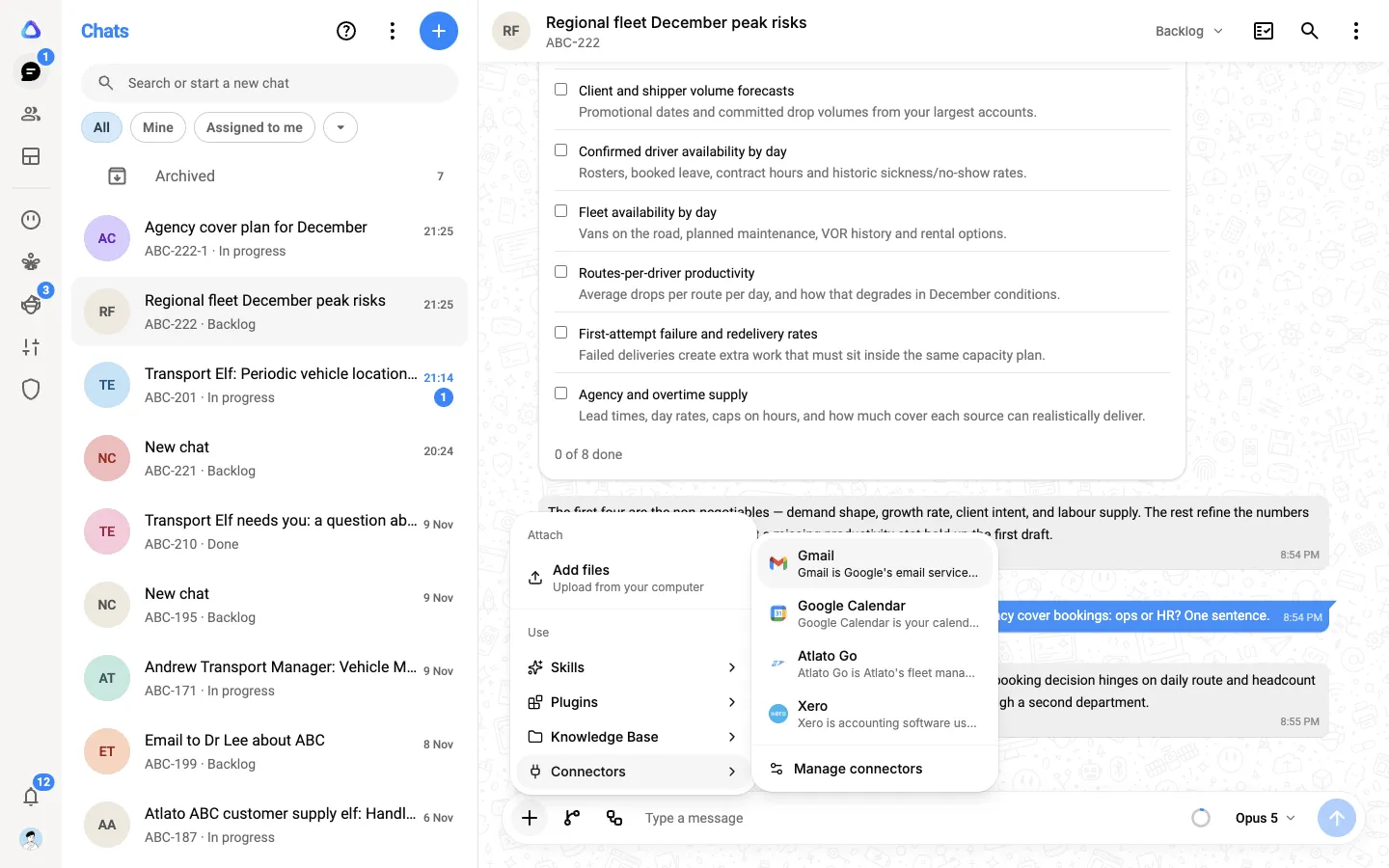
-
Write what you want done and send it, for example: “Find the last three emails from Acme and summarize what they are asking for.”
Once you have used an app in a chat, it stays available for the rest of that chat, so you don’t need to add it to every message.
If an app’s sign-in has expired, the AI tells you, and you can sign in again from Personalization → Connectors.
Approve an action
Section titled “Approve an action”Before the AI does anything your workspace has set to need approval, the chat pauses and shows a card. It names the app and the action, with the details it is about to send, such as the recipient and the text of an email.
Choose one:
| Button | What happens |
|---|---|
| Allow once | The AI goes ahead with this one action. |
| Allow for this chat | The AI goes ahead, and won’t ask again for this action in this chat. |
| Deny | The action is not run. |
| Edit | Change the details first, then select Run with changes. |
Actions that delete or overwrite something are marked as such (“This deletes or overwrites something and cannot be undone”), and never offer Allow for this chat: you are asked every time.
Once you decide, the card shows what happened, such as Allowed once or Denied. Not run. If you send a new message instead of answering, the waiting action is skipped.