
Teams
Teams are group chats for the people in your workspace. They are kept apart from your AI chats, so the conversation between colleagues never gets lost in AI answers. Open Teams in the sidebar to see yours.
Create a team
Section titled “Create a team”-
Open Teams and select New team (the + at the top of the list).
-
Pick the people to include. Search by name or email, and select a name to add it. Selected people show at the top, where you can remove them again.
-
Select Next.
-
Type a Team name. This is required, and it shows in everyone’s Teams list and at the top of the chat. To give the team a picture, select the circle and upload a photo or pick an emoji. Leave it blank to use the name’s initials.
-
Select Create team.
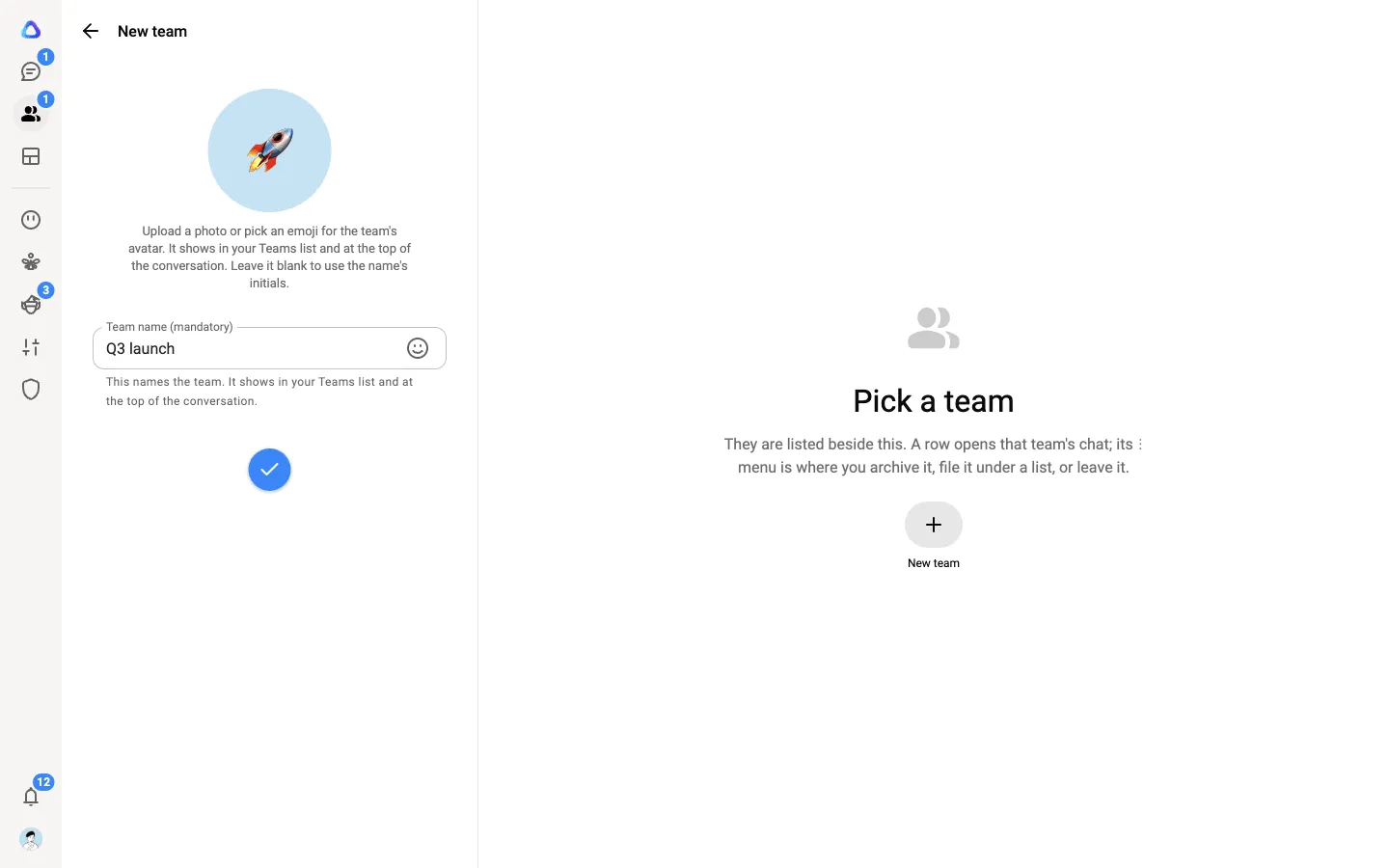
The team appears in the Teams list straight away for everyone you added, ready for its first message.
Talk in a team
Section titled “Talk in a team”Everyone in the team sees the same messages. Type in the message box at the bottom and press Enter to send.
- Reply to a message. Right-click it (or hover and open its menu) and select Reply. Your message quotes the one you replied to.
- Mention someone. Type @ and pick a member of the team from the list, or pick all to mention everyone. The names you mention are highlighted in the message.
- Add emoji. Select Emoji (the smiley) in the message box and pick as many as you like. They go in where your cursor is.
- React. Hover over a message and select the reaction button beside it, then pick an emoji.
- Edit or delete your own messages. Open the message’s menu and select Edit or Delete.
- See who has read it. The ticks under your messages show Sent, Delivered to everyone or Read by everyone. For the details, open the message’s menu and select Message info.
- See who is typing. A line under the messages shows who is typing right now.
- Links. A web address you send shows a preview.
- Search. Select the search button at the top of the team to search its messages.
Share files
Section titled “Share files”-
Select + in the message box.
-
Choose Document, Photos & videos or Audio, and pick the files.
-
On the send screen, add a caption if you like, select + to add more files, then send. Nothing is sent until you do.
Every photo, video, document and link shared in the team is gathered in Team info under Media, links and docs.
Team info and members
Section titled “Team info and members”Select the team’s name at the top of the chat to open Team info. Here you see the team’s picture, name, description, shared media and its members.
The person who created the team is its owner. Owners can:
- rename the team, change its picture and edit its description;
- add people with Add people;
- remove someone, from the menu beside their name in the members list.
Archive, leave or delete a team
Section titled “Archive, leave or delete a team”- Archive a team to tidy your list: open the menu on the team’s row and select Archive team. This only changes your own list. Everyone else keeps it as it was.
- Leave or delete teams: open the menu at the top of the Teams list and choose Select teams, tick the teams, then select Delete teams. A team you own is deleted for everybody in it. From any other team, you just leave, and someone would need to add you back.
Turn messages into work
Section titled “Turn messages into work”Select messages in a team and turn them into a task for a teammate, yourself, an agent, one of your elves or a pixie, with the messages carried along. When the work is handed back, the result is posted back into the team. See Turn messages into a task.