
Reports from workflows
A workflow can turn its results into a polished PDF report, such as a weekly sales summary or a client update. You design the layout once as a content template. On every run, an AI model writes the words for each field in the layout, and the workflow renders the filled page as a PDF.
Because the layout comes from your template and never from the AI, every report looks the same from one run to the next. Only the content changes.
Before you begin
Section titled “Before you begin”- You need a content template. Templates are made under Personalization → Templates.
- The workflow needs an LLM complete step, which writes the report. See Workflow steps.
Design the report template
Section titled “Design the report template”-
Select Personalization → Templates, then Content template.
-
Under Choose the paper, pick the Page size and Orientation, then select Next.
-
Name the template, choose who can see it, then select Open editor. The template is created when you select Save in the editor.
-
Lay out the page with blocks. The Report data blocks are made for reports: Field, Data table, Report header and KPI row.
-
For each piece the AI should write, add a Field and give it a clear Field name, such as
summaryortop_risks. The AI is asked for a value for every field name. -
Select Save. A template needs at least one field before it can be saved.
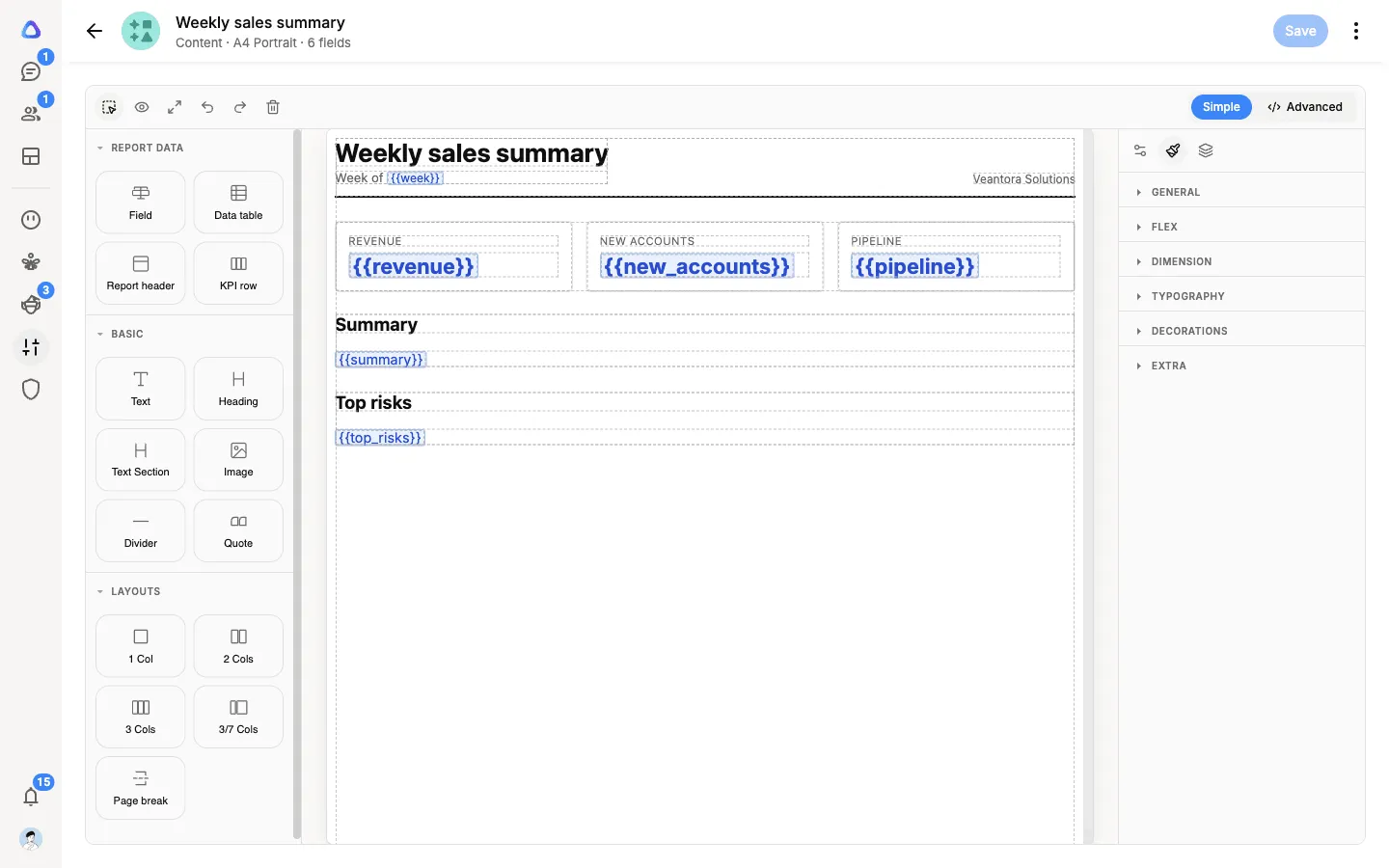
Use Preview in the editor’s toolbar to see the page as it will print. See Templates for more about the editor.
Add the report to a workflow
Section titled “Add the report to a workflow”-
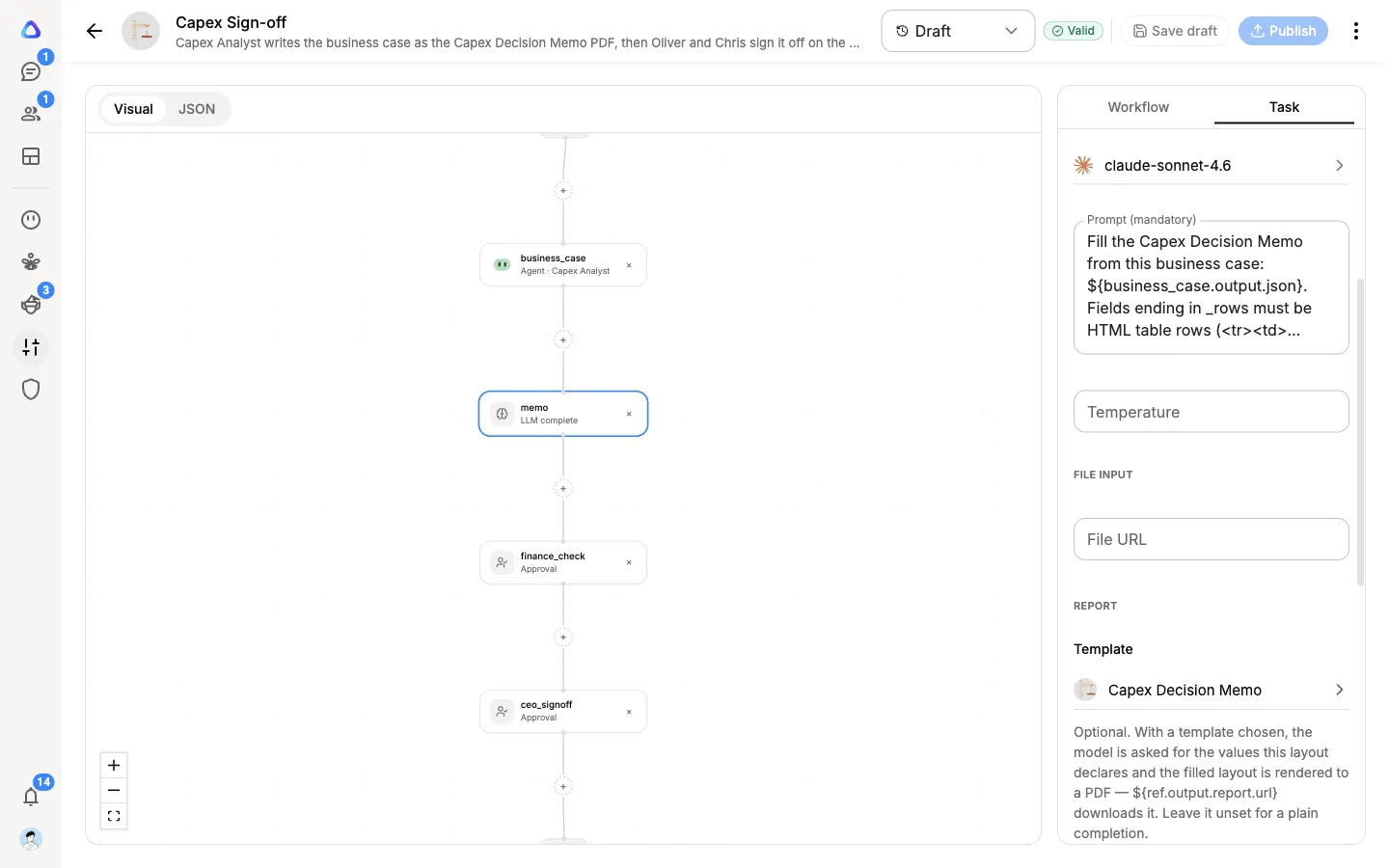
Open the workflow in the editor and add an LLM complete step after the steps that gather the information.
-
Choose a Model.
-
In Prompt, say what the report is for and give the model what it needs. Use Insert a value from another step to pass in earlier results, for example the figures an Agent step collected.
-
Under Report, choose your Template.
-
Optionally, set a File name, such as
weekly-summary.pdf. -
Select Save draft, then Publish.
Get the PDF
Section titled “Get the PDF”After a run, open it from Run history, select the LLM complete step, and look at its Output tab. It includes the link to the report’s PDF. The link works for 7 days after the run.
Later steps in the same workflow can use the link too. For example, an Agent step with an email connector can send the report’s link to your team. Use Insert a value from another step and pick the report’s link from the LLM complete step.