
Take over the browser
Your elf works in a web browser on its own computer, and you can watch it at any time. When a website needs a person, such as a sign-in, a CAPTCHA or a consent screen, you take control of the browser, do what is needed, and hand it back so the elf carries on.
Before you begin
Section titled “Before you begin”- Only the elf’s owner can watch or control its computer. Others see Only the owner can watch this computer.
- A paused elf’s computer is off. Resume the elf first.
Watch your elf work
Section titled “Watch your elf work”-
Open the elf.
-
In the Elf details panel, select the computer row (your elf’s name followed by ’s computer). The computer opens in place of the panel.
-
If the computer is asleep, it starts. You see Starting and the elf’s name while it does: this usually takes a minute or two. If it says The computer is off, select Start computer.
You now see the elf’s screen live. Under it, a line says who has control, such as your elf’s name followed by has control.
At the top of the computer view you can:
- Drag its left edge to make it wider or narrower.
- Select Expand to fill the page, and Shrink to go back.
- Select Stop computer to turn the computer off now. It also turns off by itself after 30 idle minutes, unless the elf is always on.
- Select the cross to close the view and go back to the panel.
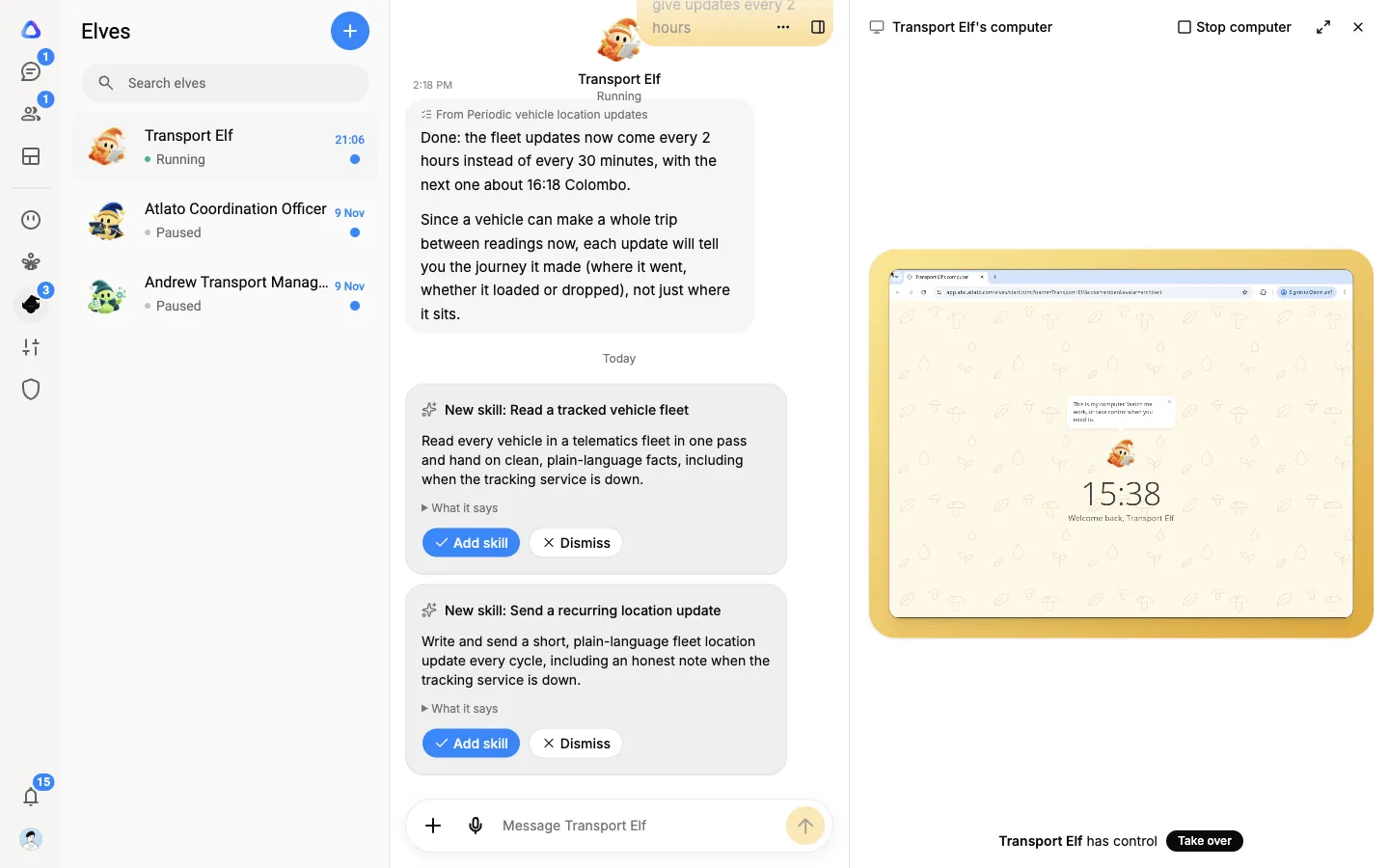
Take over
Section titled “Take over”-
In the computer view, select Take over. The line now reads You have control.
-
Use the browser as you would your own: click, type, scroll.
-
When you are done, select Hand back.
While you have control, the elf stops using the browser and waits, so it never acts under your cursor. If you leave it without touching it for a while, control goes back to the elf by itself, and the view says Handed back with the reason.
When the elf asks for you
Section titled “When the elf asks for you”When the elf reaches something only a person can do, it stops and shows a card in its chat: your elf’s name followed by needs you in the browser, the reason, the website and the task it was working on.
-
On the card, select Take over. The computer opens with you in control. If the computer turned itself off while the card waited, it starts again first, back on the page the elf left.
-
Do what is needed, for example solve the CAPTCHA or accept the consent screen.
-
Select Done, hand back on the card, or Hand back under the screen. The elf picks up where it left off.
If the elf was working in the background, you also see the request as an urgent chat in your Chats. See Give an elf a task.
Sign in to a website
Section titled “Sign in to a website”When a website asks for a password or a code, the elf may ask you for it with a sign-in card: Sign in to or Enter the code for, followed by the website.
- Type your details and select Sign in. They are typed into the elf’s computer for you: the AI never sees them. The card expires after a few minutes.
- Or select Open my computer to take over and sign in yourself.
- Or select Decline if you do not want the elf to sign in.
Teach a skill by showing it
Section titled “Teach a skill by showing it”You can show the elf how to do something once, and it turns what you did into a skill it can reuse.
-
Take over the browser.
-
Select Record skill, then do the job in the browser, step by step.
-
Select Stop recording. Save as a skill opens.
-
Under What were you doing?, say what the job was. This is optional, but it helps.
-
Select Make skill, or Discard to throw the recording away.
The elf writes the skill and shows it in the chat for you to approve with Add skill.
You cannot select Hand back under the screen while a recording is running: stop it first. If control goes back to the elf another way, for example with Done, hand back on a card in the chat or after a while without input from you, the recording stops and Save as a skill opens, so the steps you showed are not lost.
What you type into password, one-time code and card number fields is left out of the recording.