
Call from a chat
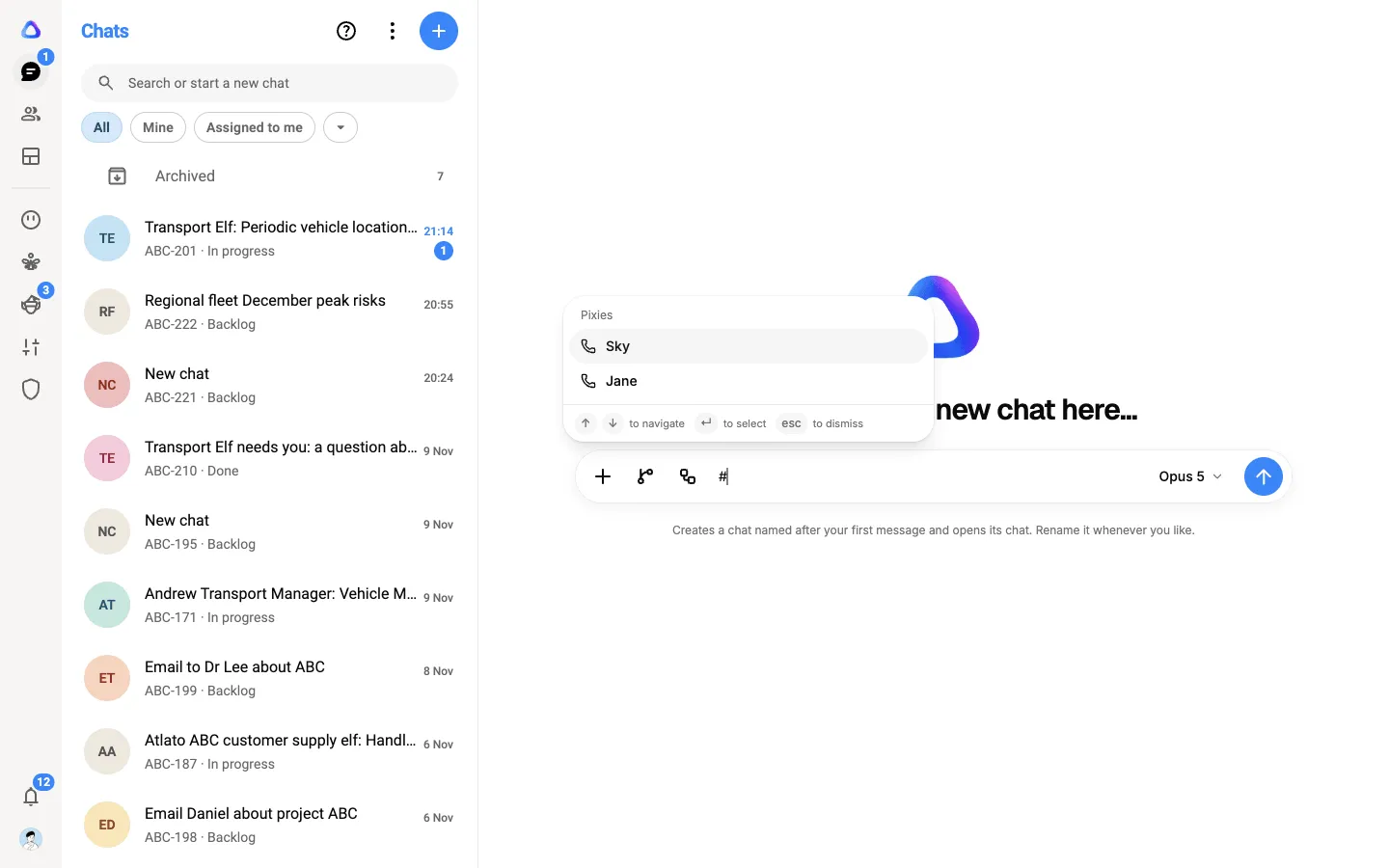
You can ask for a phone call in the middle of any chat. Type #, pick the pixie, and say who to call and what the call is for. The assistant finds the person in your phone book and sets the call up for you.
Before you begin
Section titled “Before you begin”- You need to be an owner, admin or editor to place calls.
- The pixie must be one you can use, with a phone number. See Create a pixie.
- Calling by name works best when the person is in the phone book. You can also give a number with its country code.
Ask a pixie to call
Section titled “Ask a pixie to call”-
In the chat’s message box, type #. The menu shows your pixies under Pixies.
-
Pick the pixie, or keep typing its name to narrow the list. If a pixie gives a different name on the phone, the menu shows that too.
-
Finish the message with who to call and what the call is for, for example: “call Sam Lee and confirm tomorrow’s delivery window”.
-
Send the message.
When there is more than one person
Section titled “When there is more than one person”If the assistant is not sure who you mean, it shows a list from your phone book in its reply. Use Search the phone book to find the right person, and pick them. If they have more than one number, Choose a number then lists them: pick the one to call. If they are not in the phone book, type their number in the chat instead.
If you are allowed to manage contacts, you can also ask the assistant to add a new person to the phone book.
Start the call
Section titled “Start the call”In most chats, the call arrives as a call breakaway, just as if you had created one yourself. The chat’s Approvals & Submissions panel opens on its card by itself. Select Call now, or Schedule it later to pick a time. See Call breakaways.
If the chat cannot take a breakaway, the assistant asks you to approve the call before anything is dialled. While it places the call, the chat shows Placing the call…. When the call ends, the result is posted in the chat as Call completed. with a summary and the links Open the call, Read the transcript and Listen to the recording. If the call could not be placed, the chat says No call was made. and why.
Calls waiting for your approval
Section titled “Calls waiting for your approval”An elf or an agent can also ask a pixie to make a call as part of its work. Those calls never dial on their own. A card at the top of the task’s chat says which pixie will call whom, with Waiting for approval and the call’s brief or script.
- Select Call (or Approve and call when there is a script to check) to let it ring. If it is outside the pixie’s calling hours, it is booked for the next allowed time.
- Select Don’t call to cancel it. Nothing is dialled.
A call that nobody approves is dropped after a day.