
Canvas dashboards
An Elf Canvas is a dashboard that Dashboard elf designs as a whole page. You describe what you want, or share a picture of a dashboard you like, and it lays out the page in your workspace’s style and fills it with your data. There is no widget library to pick from: you shape the page by talking to it.
Use an Elf Canvas when you want a polished, one-of-a-kind page. If you would rather build tile by tile, use a Widget Board.
Before you begin
Section titled “Before you begin”- An Elf Canvas works best with an advanced AI model. When you choose a model, you may see a note under it:
- A model that cannot use tools cannot build a canvas at all. Pick another one.
- Small models often leave a canvas broken or unfinished. For reliable results, pick an advanced model such as Claude Sonnet or Opus, or Gemini Pro.
- To change a canvas, you need to own it or have Can edit access to it.
Create an Elf Canvas
Section titled “Create an Elf Canvas”-
Select Dashboards → New dashboard.
-
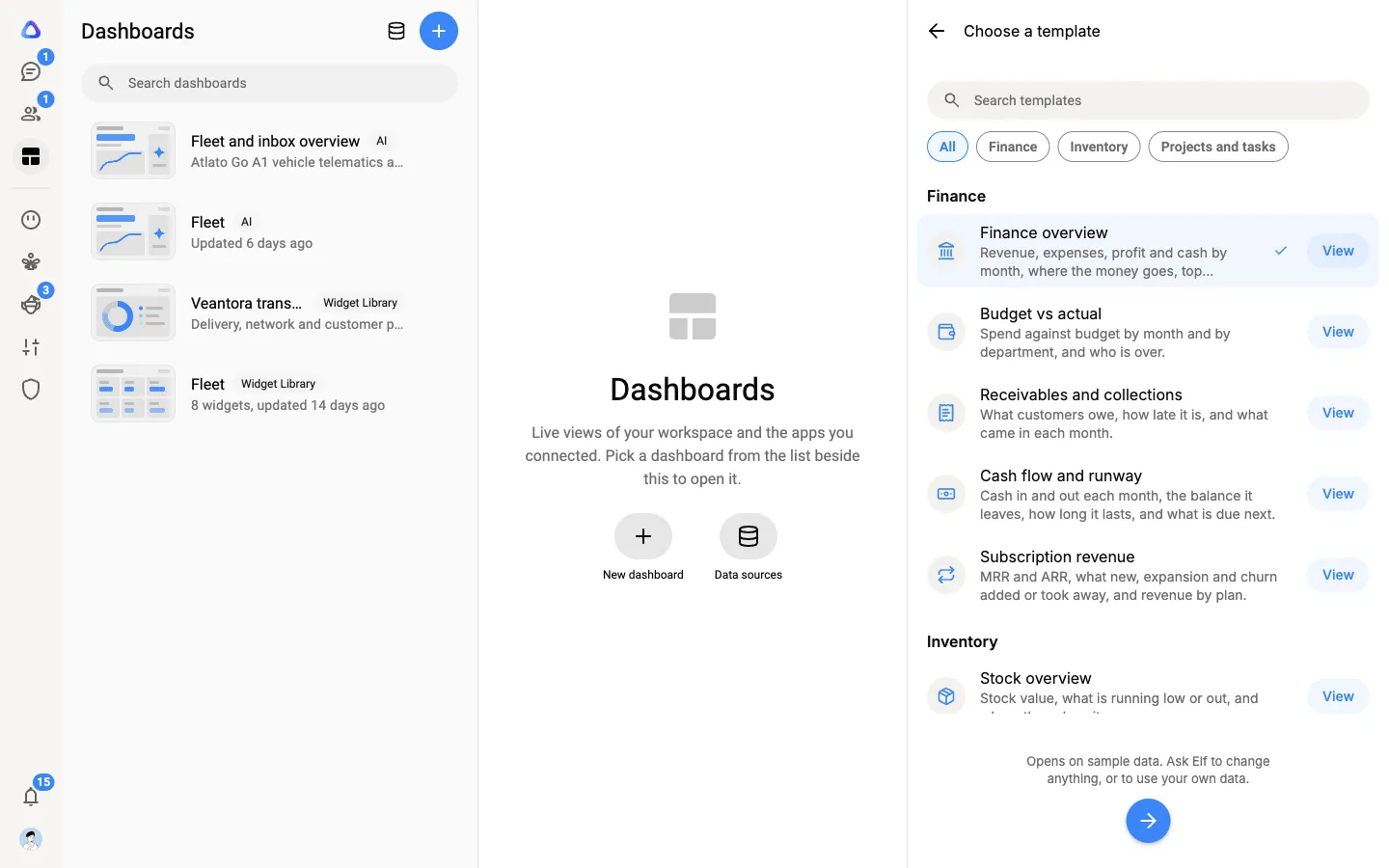
Choose Create with AI to start from a blank page, or Start from a template to begin with a ready-made finance, inventory or project page.
-
Give it a name, choose who can see it, and pick its AI model. Then select Next.
-
In the Build with Elf panel, describe the page you want, for example “A one-page view of this quarter’s sales: revenue by month, top 10 customers and unpaid invoices”.
-
To show Dashboard elf a design you like, select + in the message box, then Add reference pictures. You can add up to 3 pictures, such as a screenshot of another dashboard.
-
Send the message. Dashboard elf plans the layout, gets your data and designs the page. You can follow along as it works, for example Planning the layout, Designing the page and Comparing with your picture.
Change part of the page
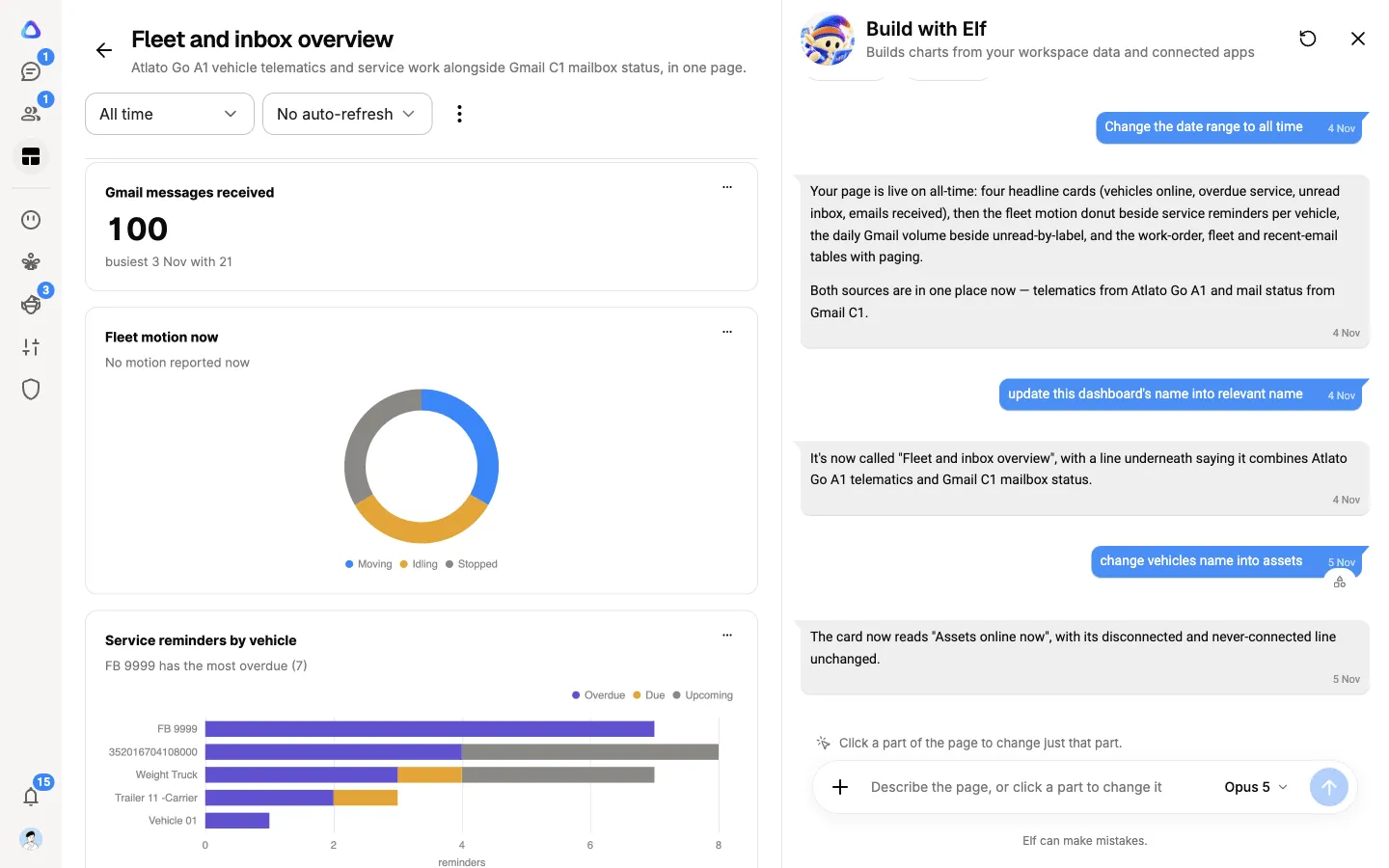
Section titled “Change part of the page”Each section of a canvas is called a part. You can change one part without touching the rest.
- Point at it. With the Build with Elf panel open, select the part on the page, then describe the change (“show this as a line chart over 12 months”).
- Use its menu. Each part has a menu with View data, Edit (to set the part’s own Auto-refresh), Change with Elf and Remove.
A part that has been hidden is listed under Hidden: below the page. Select its name to show it again.
To move or resize parts yourself, select the ⋮ menu, then Edit layout. Drag parts into place and select Done. To go back to the layout Dashboard elf designed, select ⋮ → Use Elf’s layout.
Start from a template
Section titled “Start from a template”Templates give you a finished page straight away. Choose from Finance, Inventory and Projects and tasks pages, and preview any of them before you pick.
A template opens on sample data, with a Sample data note at the top of the page. To make it yours, ask Dashboard elf to switch it to your own data and name the source, for example “Use the invoices from our Xero connection” or “Use the Orders spreadsheet I uploaded”. It keeps the design and swaps in your numbers.
Good to know
Section titled “Good to know”- An Elf Canvas refreshes its data without the AI. Dashboard elf is only used while you build or change the page.
- The kind of dashboard is fixed when you create it. To turn a canvas into a Widget Board, create a new dashboard.
- Elf Canvas pages can be shared, restored to an earlier version and exported to PDF, just like Widget Boards. See Share and export.