
Workflows
A workflow turns a process you repeat into a series of steps that run for you. One workflow can ask an AI agent to research something, branch on the answer, wait for a manager’s approval, call a web service, phone a customer with a pixie and write the result to a dashboard, all in order and the same way every time.
You build a workflow once on a visual canvas, publish it, and then run it whenever you need: by hand, from a chat, on a schedule, from an elf, or from another system.
Find your workflows
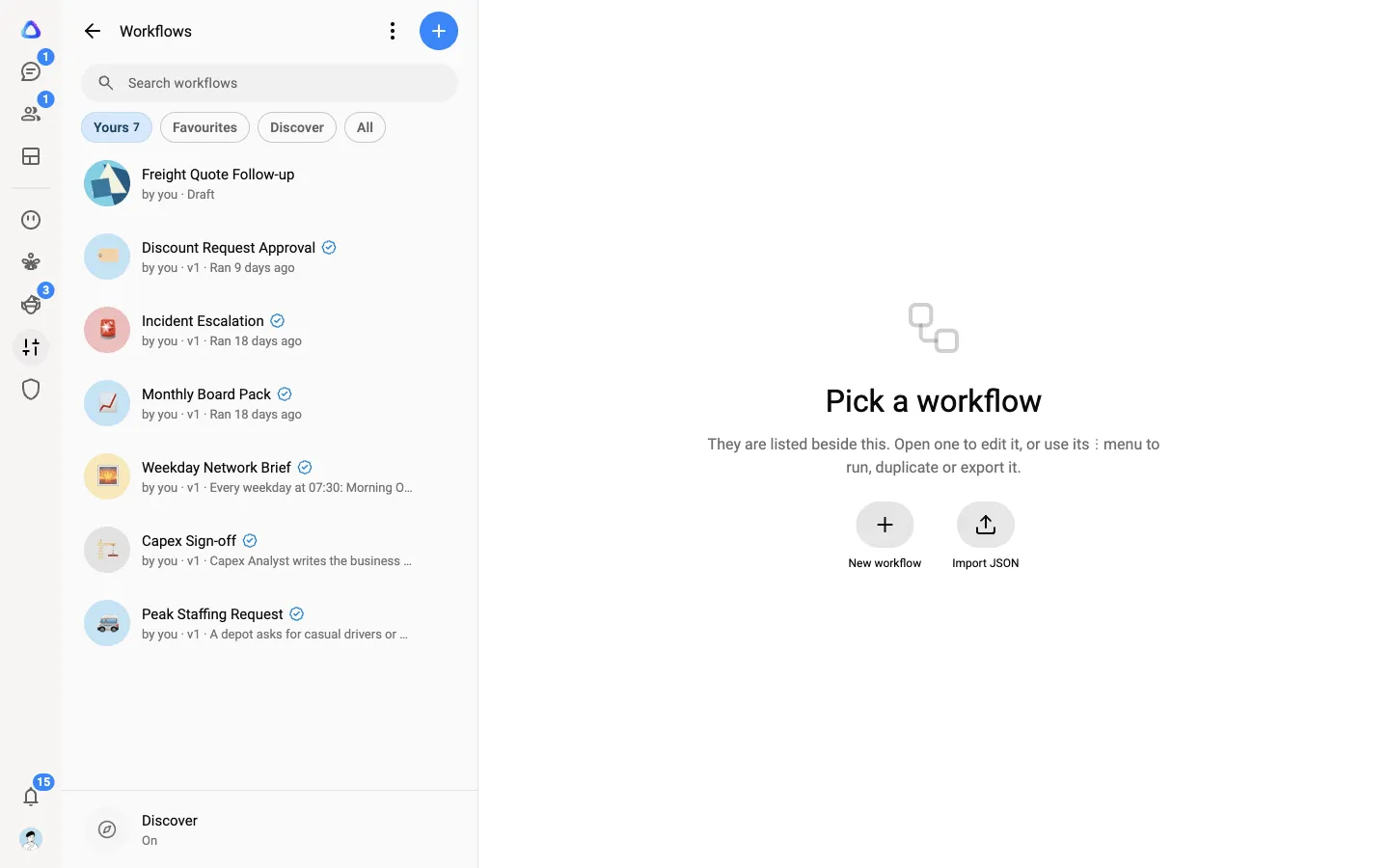
Section titled “Find your workflows”Select Personalization in the rail, then Workflows. The column lists your workflows. Each row shows its published version (for example v3), or Draft if it has never been published, and when it last ran.
Use the chips under the search to switch views:
- Yours: workflows you made or added.
- Favourites: the ones you starred from a workflow’s ⋮ menu.
- Discover: workflows others in the workspace shared. Select Add to put one in Yours.
- All: every workflow in the workspace (owners and admins only).
How a workflow works
Section titled “How a workflow works”-
Build. Add steps on the canvas and connect them. Your work is saved as a draft, which never runs. See Build a workflow.
-
Publish. When the draft is ready, publish it. Each publish creates a new numbered version, and every version is kept. Only the published version runs.
-
Run. Start it whenever you need, or let a schedule start it. See Run and schedule a workflow.
-
Follow. Every run has its own page showing each step, what went in and what came out, and who it is waiting on.
What a workflow can do
Section titled “What a workflow can do”| Kind of step | Examples |
|---|---|
| AI | Run one of your agents with its skills and connected apps, or ask an AI model for a single answer or a PDF report |
| Control | Take different paths, run branches side by side, repeat, wait, or call another workflow |
| Integration | Call a web service, or keep checking one until a job is ready |
| Human | Pause until a named person approves or rejects |
| Data | Store a list of records for a dashboard |
| Calls | Have a pixie phone someone and bring back the outcome |
See Workflow steps for every step and its settings.
Ways to start a run
Section titled “Ways to start a run”| How | Who uses it | Learn more |
|---|---|---|
| By hand, with a short form for the workflow’s inputs | Anyone it is shared with | Run and schedule |
| From a chat, so the run gets its own chat | Anyone it is shared with | Run from a chat |
| On a schedule | Owners and admins set schedules | Schedule a workflow |
| By an elf, as part of its work | Elves you give the workflow to | Resources and knowledge |
| From another system, with an API key | Your IT team | Run from other systems |
Who can do what
Section titled “Who can do what”- Build and edit. Your role decides whether you can create and edit workflows. If you can only view one, the editor says Read only.
- Share. A workflow can be seen by Only me, people it is Shared with, or Anyone in the workspace. Everyone it is shared with can run its published version.
- Delete and schedule. Owners and admins can delete workflows and add schedules.
Which AI keys a run uses
Section titled “Which AI keys a run uses”- A run you start yourself, by hand or from a chat, uses your own AI providers.
- A run nobody is waiting on (a schedule, an API key) uses the workspace’s keys for Unattended work, which an admin sets up in Admin → AI providers. It never uses a member’s own keys or subscriptions.