
Give an elf a task
You give an elf work the way you would brief a colleague: tell it in its chat. For a quick question it simply answers. For a real job it sets up a task: it makes sure it understands what you want, asks what it needs to know, plans the work in steps and then gets on with it, in the background if need be.
Before you begin
Section titled “Before you begin”- You need an elf. See Create an elf.
- Give the elf the apps and resources the job needs, or let it ask for them as it plans. See Resources and knowledge.
Ask in the chat
Section titled “Ask in the chat”Open the elf and type in the message box, then press Enter. You can also:
- Select + to attach files, or to pick a skill, plugin or connector for this message.
- Type / to pick from what this elf may use, such as its skills, apps, people and workflows.
- Use the microphone to speak your message instead of typing it.
You can keep typing while the elf works. To stop what it is doing, select Stop.
How the elf sets up a task
Section titled “How the elf sets up a task”When your message is a job rather than a question, the elf shows a Setting up a task card and works through five steps. You can watch each one as it happens.
-
Understanding the aim and outcome. The elf writes down the aim, when the task counts as done and how success is measured, then checks with you: “I will take this as … Done when … measured by … Right?” Answer, or correct it.
-
Checking past tasks, knowledge and tools. It looks at tasks it has done before, the files it can read and the resources it has, and searches the web only if none of those cover what it needs.
-
Asking what it needs to know. It asks short questions, one at a time, each with likely answers you can pick or your own answer. The first is usually Where should I send it?: Here in this elf chat or As a chat in your Chats. Then it asks about format and timing, and whether it should check with you before it sends or changes anything. If it lacks an app it needs, it asks you to connect it.
-
Creating subtasks. It breaks the job into subtasks. Each says what it takes in, what it should do, what it hands on and when it is done well.
-
Trying a sample run and getting approvals. It tries the task once without sending or changing anything, and collects every action that needs your approval on one card. Approve them once and the running task stops asking. See Elf approvals.
When setup is done, the card reads Task set up and running, or the plan waits for you. Select Start to run it, or Change to adjust it first. To skip this step for future tasks, turn on Start plans without asking in the elf’s Settings → Computer.
When it needs an app it does not have
Section titled “When it needs an app it does not have”If a subtask needs something the elf cannot use yet, a card says, for example, that the subtask needs Gmail. Select Connect to add it to the elf’s resources. If you would rather it did without, select Do it without, say what to do instead (for example “post the PDF here”), and select Go ahead without Gmail. The elf re-plans that subtask at once.
Follow a task
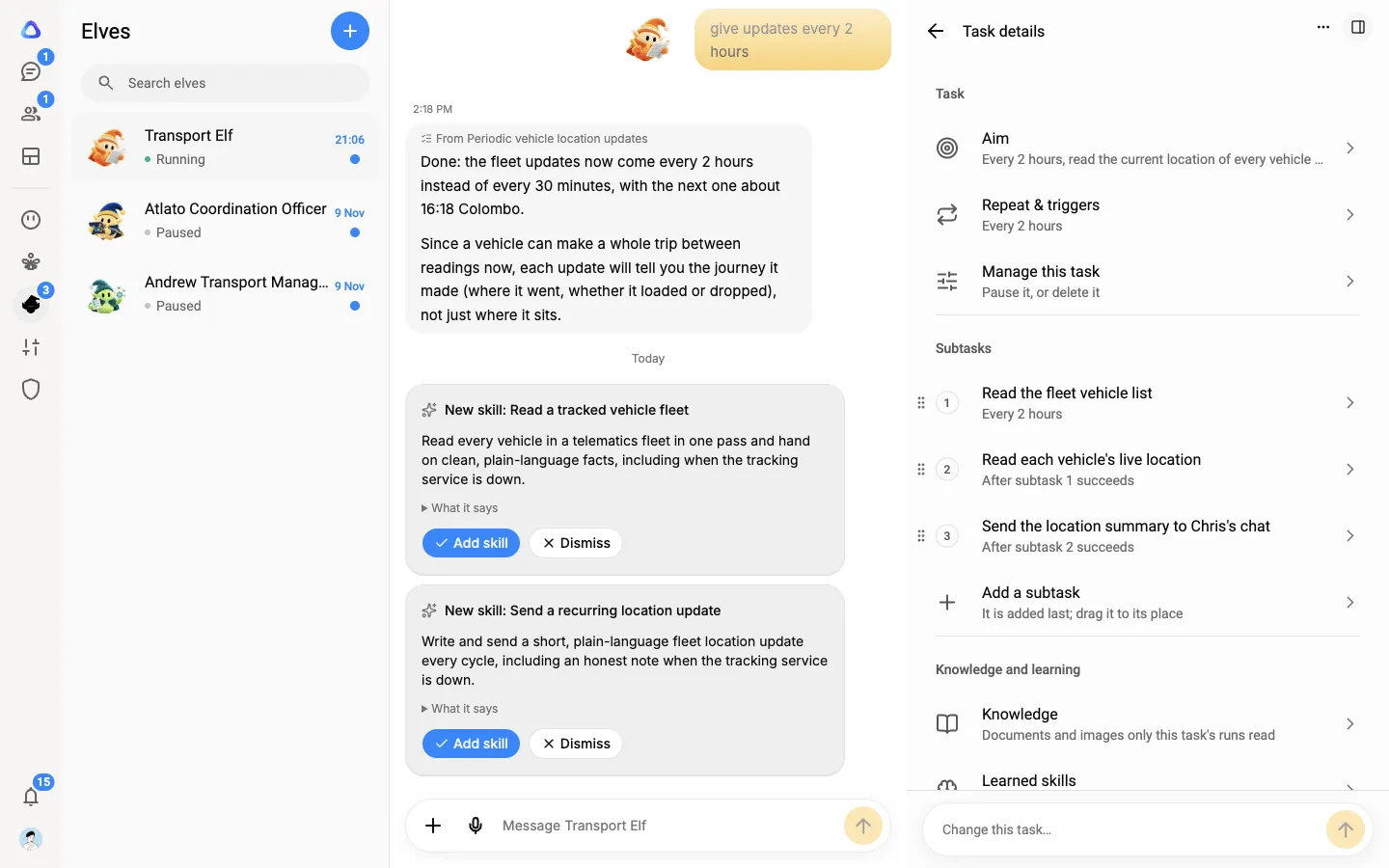
Section titled “Follow a task”Open the elf, then select Tasks in the Elf details panel. Select a task to see:
- Aim, with Done when, Measured by and Asks your approval.
- Repeat & triggers: when it runs again. See Schedules and triggers.
- Subtasks, in order. Select one to see what it takes in, its expected output and what happens if it fails. Select Add a subtask to add one.
- Knowledge and learning: files only this task reads, and skills it learned along the way.
- Records: Details & settings, Runs, Files, Versions and History.
To change a task, type in the box at the bottom of its screen (“Change this task…”) and the elf updates the plan. Under Manage this task you can Start task, Pause task, Resume task or Delete task. Deleting a task removes it and its subtasks, but its chats and files stay.
When a breakaway asks the elf to change one of its open tasks, the elf may make a new version of the task instead of editing it. The old task then reads Replaced, with a Replaced by row that opens the new one. A replaced task never runs again: delete it, or keep it for its history.
In Details & settings, turn on Pause outbound contact to let the elf keep reading and preparing for a task while sending nothing: no emails, messages or records.
When you talk about several tasks
Section titled “When you talk about several tasks”The elf works out which task a new message belongs to. If it is unsure, it asks Which task is this about? Pick a task, A new task or Just chat.
To correct where a message went, point at it and select Move…, then pick another task, New task, or Just chat with the elf.
Get the results
Section titled “Get the results”The elf delivers a task’s results where you told it to: in the elf’s chat, or as one chat in your Chats that every run of the task adds to. A repeating task always delivers to the same place. A subtask’s Output shows where results go, under Results go to.
Files it makes are also listed under Outputs in the Elf details panel. When a task ends, the elf says so in its chat, for example Finished the task followed by the task’s name.
When the elf needs you
Section titled “When the elf needs you”While a task runs in the background, the elf may need an approval, an answer, a sign-in or your hands in its browser. The request appears in the elf’s chat. It also appears in your Chats as an urgent chat, so you see it even when you are not looking at the elf.
- Every request from one session of a task goes into one urgent chat, named after the elf, the task and the session, for example “Inbox Elf: Daily briefing (session 3)”. The task’s results still go where you told it to deliver them. For a breakaway, its requests go to the breakaway’s own chat instead.
- An approval or a question shows as its card, and you can answer it right there or in the elf’s chat. It is answered once, wherever you answer it.
- A sign-in, a request for your hands in the browser or an app to connect links back to the elf, where you do it.
Once nothing in the urgent chat is waiting for you, it closes.
Problems it ran into are listed under Attention in the Elf details panel.
Hand an elf a breakaway
Section titled “Hand an elf a breakaway”You can give an elf a piece of work from any chat or team as a breakaway. When you choose who takes it, select Elves and pick one of your elves. Priority and a due date do not apply. Giving work to a paused elf resumes it.
An elf works on one thing at a time. If it is busy, the breakaway waits its turn: its chat says Queued and that the elf starts on it when its current task is done.
The breakaway has a chat of its own in your Chats. The elf’s questions, approvals and answers appear there, and you answer them on their cards. The message box is always on: while the elf has a question open, what you type answers it; otherwise it is a follow-up the elf takes next.
If the work is a real task, such as “every 15 minutes, check Gmail and reply”, the elf sets it up as one. The breakaway’s chat then says the elf set this up as a task: its setup questions are in the elf’s own chat, and its results come to the breakaway’s chat.
When it is done, the elf hands the breakaway back by itself. Its chat shows Handed back for review, then Approved by or Sent back by with the reviewer’s name and note.
Messages that came from someone else are labelled in the elf’s chat, for example Asked by and the person’s name, or Scheduled for a schedule’s run.