
Elves
An elf is your own AI worker with a computer and a web browser of its own. Give it a job and it keeps working for hours, even after you close the tab. It browses the web, uses the apps you give it, works on a schedule and checks in when it needs you.
Your elves are private to you. Your teammates have their own, and nobody else can watch your elf’s computer.
What an elf can do
Section titled “What an elf can do”- Use its own computer. It opens web pages, reads files and runs its tasks there. You can watch it work, or take over to sign in or fix something, then hand it back.
- Keep going while you are away. It carries on after you close the tab, runs on schedules and triggers, and tells you when something needs you.
- Follow your rules. It only uses the apps and resources you give it, and anything risky waits for your approval.
- Think with your own AI. It runs on your own AI provider key or subscription, and it sleeps when it has nothing to do.
Before you begin
Section titled “Before you begin”- Your role decides whether you can create elves, keep one always on, give it resources, change its computer size and add shared knowledge. If you do not see New elf, ask an owner or admin. See Role templates.
- Your elf needs an AI provider to think with. If you have not connected one yet, see Connect an AI model.
Find your elves
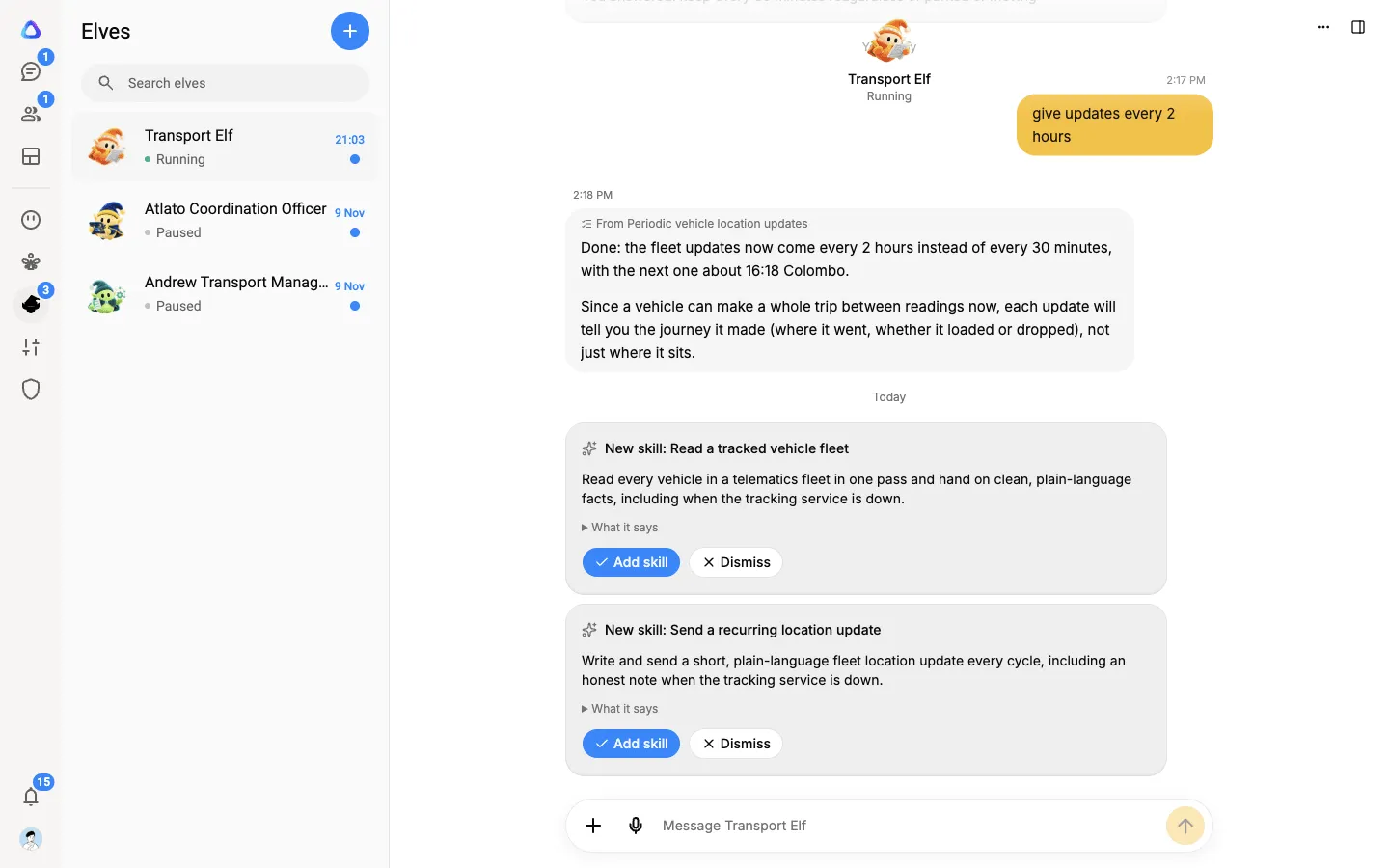
Section titled “Find your elves”Select Elves in the rail on the left. The column beside it lists your elves, each with its status and when it was last active. An elf that is waiting for you shows a Needs you marker.
Select New elf (the plus sign) at the top of the column to make one. See Create an elf. Beside it, the help button (the question mark) offers Watch the video tutorial, a short tour of Elves.
The elf page
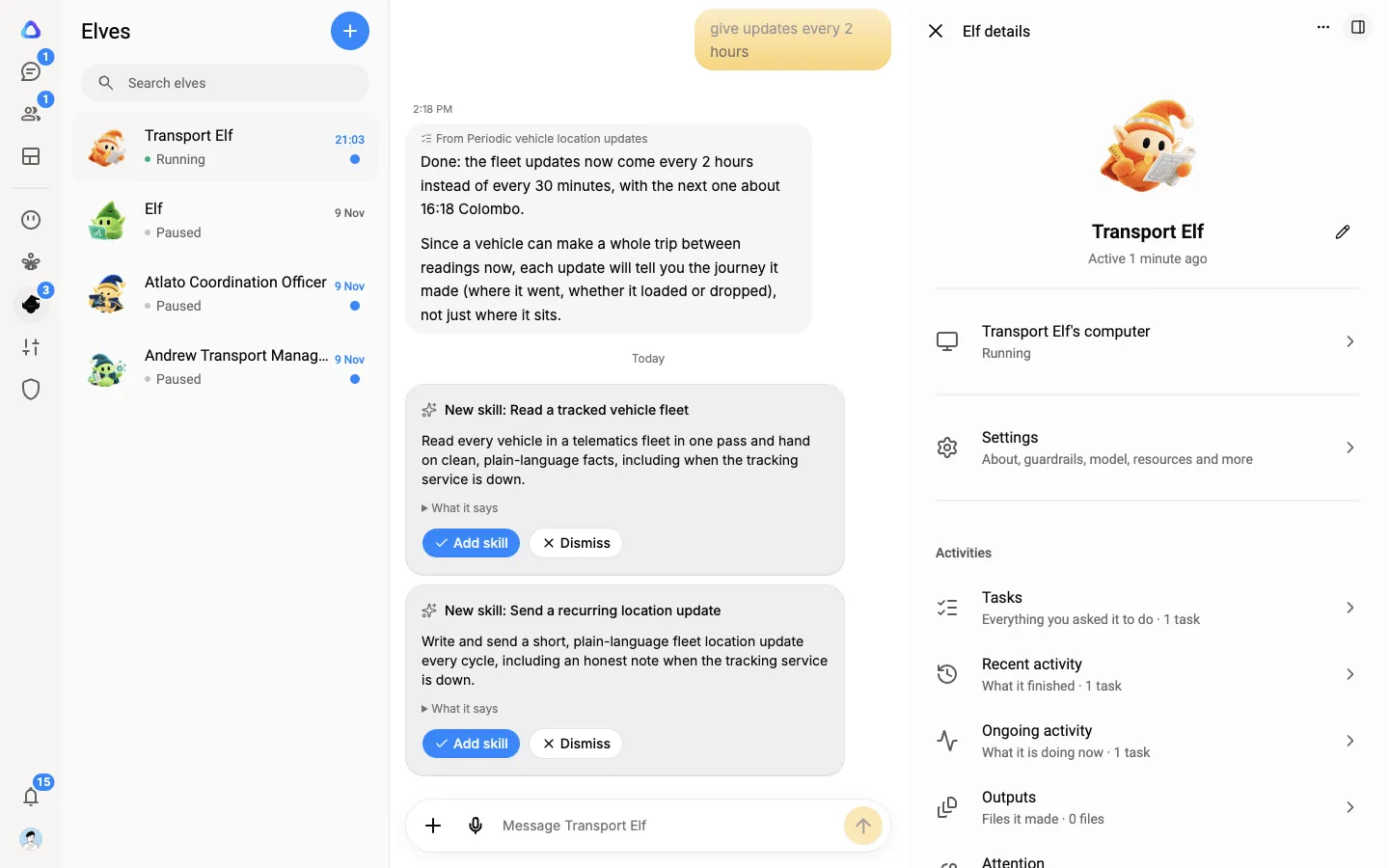
Section titled “The elf page”Select an elf to open its chat. This is where you talk to it, answer its questions and see its results. The Elf details panel on the right holds everything else:
- Its face and name. Select the face to change it, or the pencil to rename the elf.
- Its computer. Select the row to watch the screen. It reads Connected while the computer is on and Asleep when it is off.
- Settings. About, guardrails, model, resources and more.
- Activities. What the elf is doing and has done.
| Activity | What it shows |
|---|---|
| Tasks | Everything you asked it to do, including breakaways handed to it |
| Recent activity | What it finished |
| Ongoing activity | What it is doing now |
| Outputs | Files it made |
| Attention | Problems it ran into |
Each pass a task makes through its subtasks is a session. Ongoing activity lists the tasks with a session running, and Recent activity the tasks with a session finished, so a task that repeats every 15 minutes can be in both. Select a task to see its sessions (Session 1, Session 2 and so on), then a session to see how each subtask went in it. A session that found nothing to do reads Nothing new, so the ones that did something stand out.
A breakaway handed to the elf is listed with its tasks, marked Breakaway. Select it to open its chat with the elf.
Use the panel button at the top right to show or hide the panel.
What its status means
Section titled “What its status means”| Status | What it means |
|---|---|
| Running | Its computer is on and it is ready or working. |
| Starting… | Its computer is starting up. This usually takes a minute or two. |
| Asleep | Its computer is off to save credits. It wakes when you open it or give it work. |
| Paused | You paused it. Nothing runs, and no schedule or trigger starts it, until you resume it. |
| Pausing after current work | It finishes what it is doing, then pauses. |
| Needs attention | Something went wrong. Open the elf to see what, or reboot it. |
An elf’s computer turns off after 30 idle minutes, unless you keep it always on. See Create an elf.
Pause, reboot or delete an elf
Section titled “Pause, reboot or delete an elf”Open the menu (the … button at the top right of the elf page), or right-click the elf in the Elves list:
- Rename changes its name. It is on the elf page’s menu only.
- Pause stops it until you select Resume. Pause also stops an elf that is kept always on.
- Reboot restarts its computer. Use it when the elf is stuck.
- Delete removes the elf with its computer, files and chats. This cannot be undone.
Credits
Section titled “Credits”An elf uses credits while it works: for the minutes its computer runs (a bigger computer uses more per minute), the time it spends in its browser, its AI usage and the storage its files take. The AI itself runs on your own provider key or subscription. See Credits and top-ups.