
Schedules and triggers
An elf does not need you to start every job. A task can run again on a schedule or whenever something happens: an email arrives, data in one of your apps changes, another task ends, or another system calls it. You can also give the elf simple schedules of its own, such as “summarize my new email every morning”.
The quickest way to set either up is to ask in the elf’s chat, for example “do this every weekday at 9”. A task you ask to repeat every few minutes, such as “check my inbox every 15 minutes”, runs its first pass as soon as it starts. This page shows where to see and change them yourself.
Each pass a task makes is a session, listed under the task in Ongoing activity and Recent activity. See Elves.
Before you begin
Section titled “Before you begin”- The task must already exist. See Give an elf a task.
- Email and app triggers watch one of the elf’s connected apps. Add the app to the elf’s resources first. See Resources and knowledge.
- A paused elf runs nothing until you resume it, whatever its schedules and triggers say.
Add a trigger to a task
Section titled “Add a trigger to a task”A task with no trigger runs once, when it is started. Each trigger starts it again from its first subtask. A task can have up to 10 triggers.
-
Open the elf, select Tasks in the Elf details panel, and select the task.
-
Select Repeat & triggers, then Add trigger.
-
Under Starts when, choose what starts the task:
Choice Starts the task Schedule At set times Email When a matching email arrives Tool change When a tool shows a change Another task When another task ends Webhook When an address is called -
Fill in the details for your choice (see below), then select Add trigger.
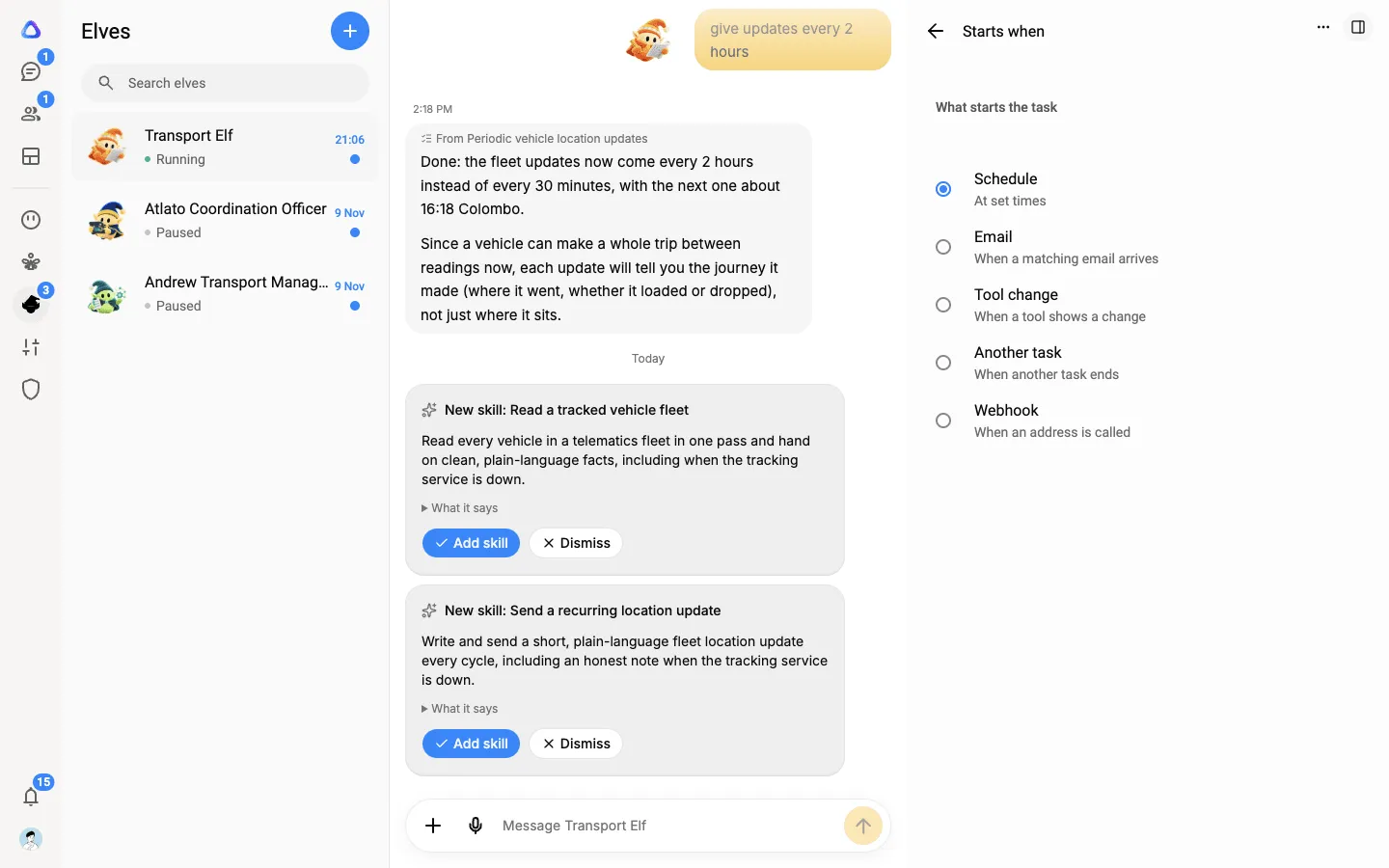
On a schedule
Section titled “On a schedule”Under Repeats, choose Every few minutes, Every few hours, Every day, Weekdays, Every week, Every month, On dates or Custom (cron). Then set the Days, Day of the month or Dates where they apply, the time under At, and the Time zone the times are read in.
A trigger can run at most every 15 minutes.
When an email arrives
Section titled “When an email arrives”Pick the email app under Connector, then fill in at least one of From, To, Subject contains and Body contains. Every new email that matches starts the task.
When data in an app changes
Section titled “When data in an app changes”Pick the app under Connector and the read action under Tool to watch. Optionally add Arguments (JSON) for the action, and a Field to watch (leave it empty to watch the whole result). Then choose a Condition: Changed, Contains, Equals, Greater than or Less than, with a Value for all but Changed.
For example, watch a sales app’s open deals and start the task when the total is Greater than a target.
When another task ends
Section titled “When another task ends”Pick the Task to follow, then under When that task choose Is done, Fails or Ends either way. Use this to chain tasks: a report task that starts when the data-gathering task is done.
From another system (webhook)
Section titled “From another system (webhook)”When you add a Webhook trigger, you get an Address and a Secret. Copy the secret straight away, because it is not shown again, then select I’ve copied it.
The other system starts the task by sending a POST request to the address, with the secret in the X-Trigger-Secret header. Whatever it sends in the request body becomes the task’s input. If you are not sure how to set this up, pass the address and secret to whoever looks after that system.
Turn a trigger off or remove it
Section titled “Turn a trigger off or remove it”Select a trigger under Repeat & triggers to change it. Turn On off to stop it starting the task without losing it, or select Remove trigger.
To stop a task altogether, select Manage this task, then Pause task. It stops running until you resume it.
Triggers on one subtask
Section titled “Triggers on one subtask”A subtask can have triggers of its own, so that one step of a task waits for something before it starts. Open the subtask, select When it starts, then select Add trigger under Triggers. The choices are the same, except Schedule: a subtask that repeats does so on its own cycle.
The elf’s own schedules
Section titled “The elf’s own schedules”Besides task triggers, an elf can have simple schedules: an instruction it carries out at set times, each run in the same chat. To see them, right-click the elf in the Elves list, or open the menu on its row, and select Schedules.
-
Select New schedule.
-
Give it a Title (optional), and type What should the elf do each time?, for example “Summarize new email and post it in the chat”.
-
To run it more than once, turn on Repeat task and choose Interval, Daily, Weekdays, Weekly, Monthly or Custom, with a Start time. Under End repeat, choose Never or On date.
To run it once, leave Repeat task off and pick a Date and Time.
-
Optionally, open Advanced to set the Time zone, or a different Model and Effort for these runs.
-
Select Add schedule.
Select a schedule to Pause schedule, Resume schedule, Open its chat or Delete schedule.