
Choose and switch models
A chat is not tied to one AI vendor. You can start with one model, switch to another halfway through, and the new model reads the whole conversation so far. Each model is better at different things, so it pays to try a few.
The models you can pick come from the AI providers you have connected, and from any keys your workspace or a teammate has shared with you.
Before you begin
Section titled “Before you begin”- Connect at least one AI provider. See Connect an AI model.
Pick a model
Section titled “Pick a model”-
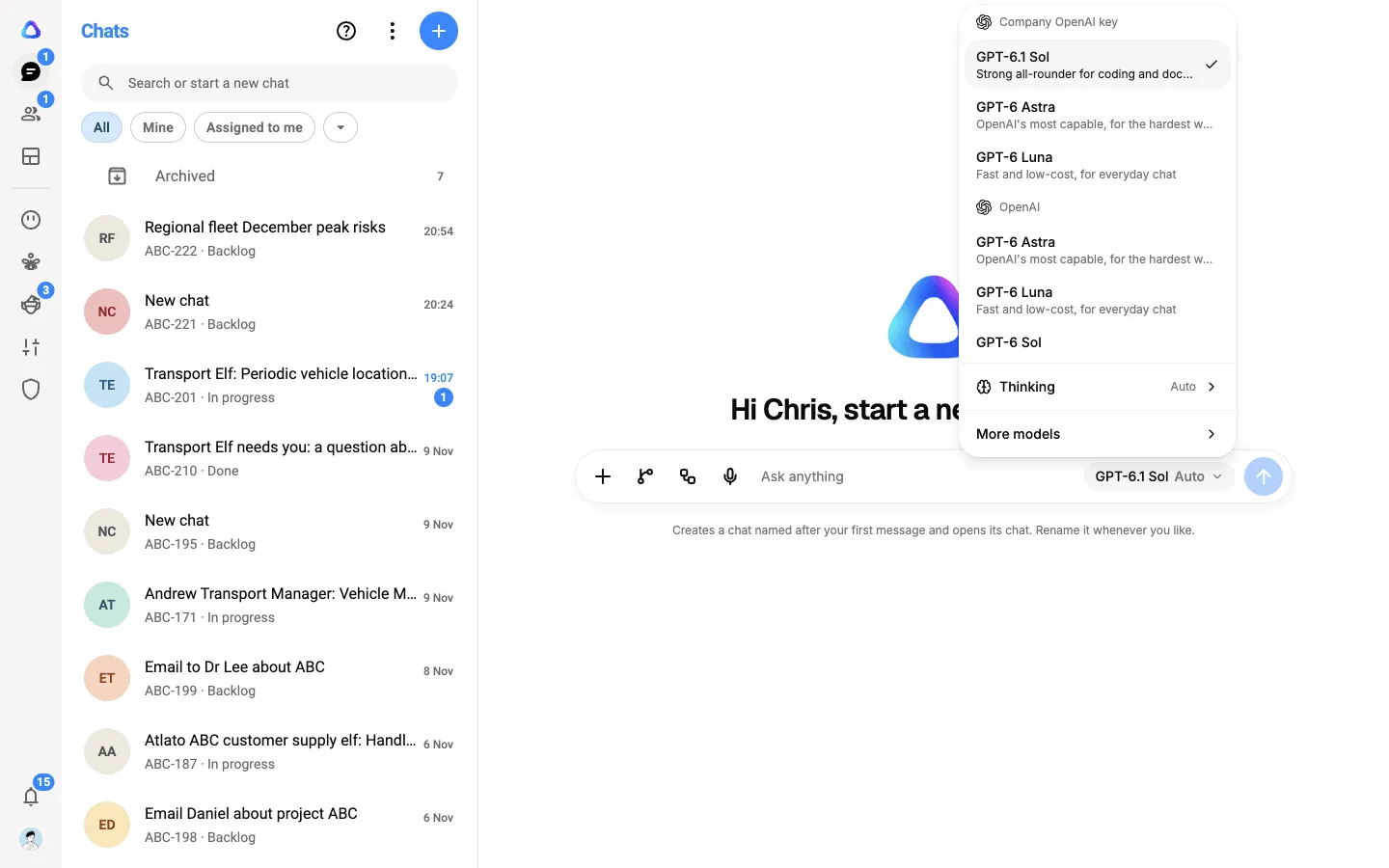
In the message box, select the model button. It shows the name of the current model.
-
Choose a model from the list. Models are grouped under the name of the key or subscription they come from, so you can see which account each one runs on.
-
To find a model that isn’t listed, select More models and search by name.
The menu shows each provider’s newest models first. Every other model they offer is under More models.
Switch models mid-chat
Section titled “Switch models mid-chat”Open the model button at any time and pick another model. Your next message goes to the new model, along with the conversation so far and the files in the chat.
Once a chat has started, the top of the menu shows the model it is on. Pick any other model from More models.
Set how much the AI thinks
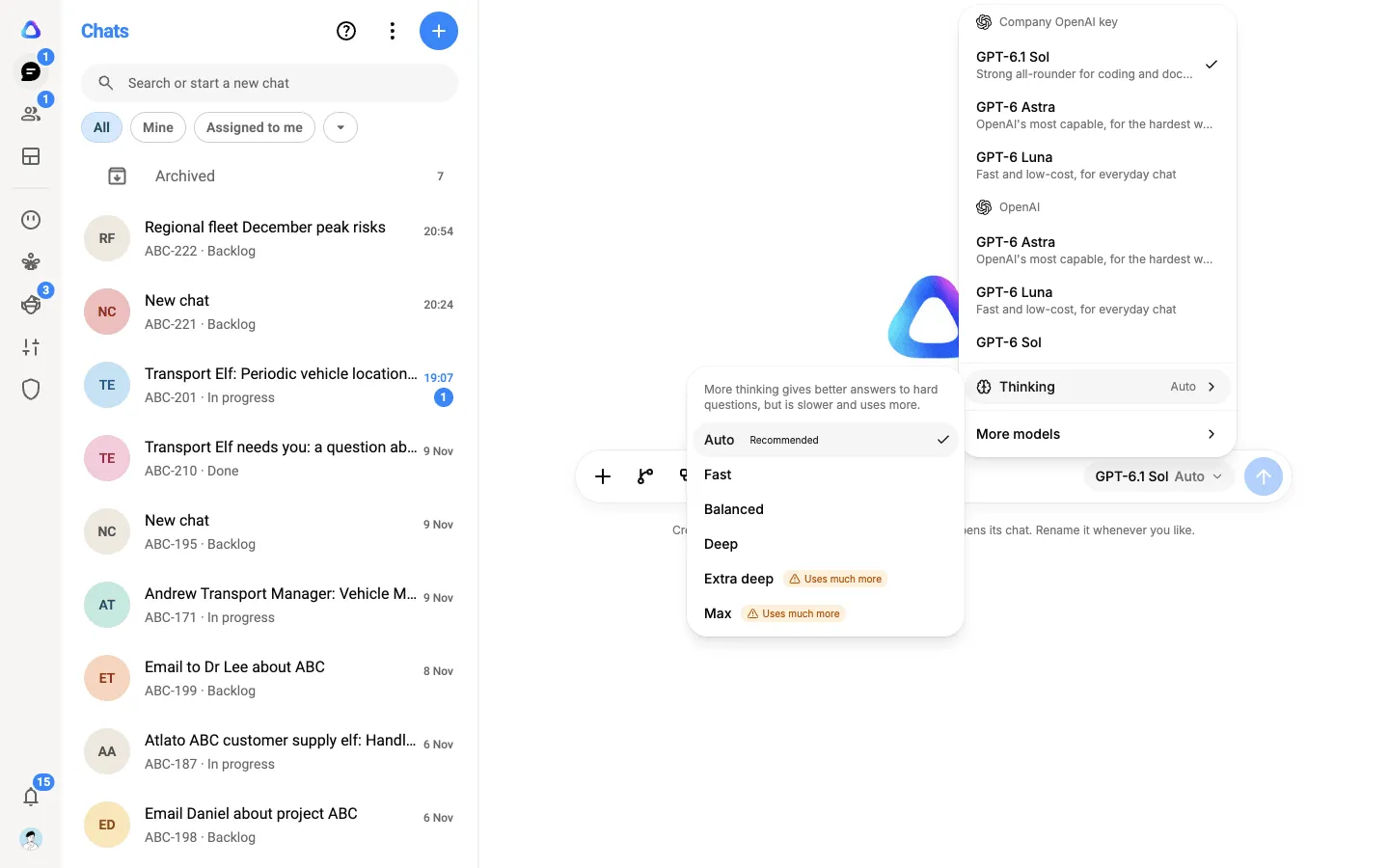
Section titled “Set how much the AI thinks”Some models can think harder before they answer. For those, the menu has a Thinking row.
- Auto (recommended) lets the AI decide.
- Higher levels, such as Deep, give better answers to hard questions, but are slower and use more of your provider’s allowance. The highest levels are marked Uses much more.
- Lower levels, such as Fast, answer more quickly.
The levels on offer depend on the model.
Set your default model
Section titled “Set your default model”New chats open on your default model.
-
Select your profile photo at the bottom of the left rail, then Settings.
-
Select Preferences, then Default model.
-
Choose a model. You can search by name.
If you haven’t set a default, a new chat opens on the model you used last. Changing the default never changes chats that have already started.
How full the chat is
Section titled “How full the chat is”Each model can only read so much at once. Once a chat is under way, a small ring beside the model button shows roughly how much of the model’s limit the conversation uses (in a narrow window it moves into the model menu, as Chat context). Point at it for the detail. When the chat gets close to the limit, older messages are summarized automatically so it can carry on. To do it yourself, type /compact and send it.
If no models are listed
Section titled “If no models are listed”- The button says Connect a provider. You have no working AI provider yet. Select it to connect one. When you finish, you are offered a way back to your chat, with your message still in the box.
- The model name shows “(unavailable)”. The key or subscription the chat was using has been removed, or is no longer shared with you. Pick another model.
- “Compatible model not found”. See Troubleshooting.
If a reply says your subscription is signed out
Section titled “If a reply says your subscription is signed out”Your AI provider has ended the sign-in for the subscription the chat runs on. The message names the subscription and its account. Connect it again in Settings → AI providers, signing in with the same account, then send your message again. See When a subscription is signed out.