
Call breakaways
A call breakaway hands a phone call to a pixie from the chat or team you are working in. You say who to call and what the call should achieve. The pixie rings them when you start the call, and hands the breakaway back with the outcome, the transcript and the recording, right where you asked.
Before you begin
Section titled “Before you begin”- You need to be an owner, admin or editor to place calls.
- The pixie must have a phone number, and it must be shared with you if someone else made it. See Create a pixie.
- If the person is in the phone book, the pixie can call them by name. See Phone book.
Create a call breakaway
Section titled “Create a call breakaway”-
In a chat, select Create breakaway.
-
On Select member or agent, select Pixies to narrow the list, then pick the pixie.
-
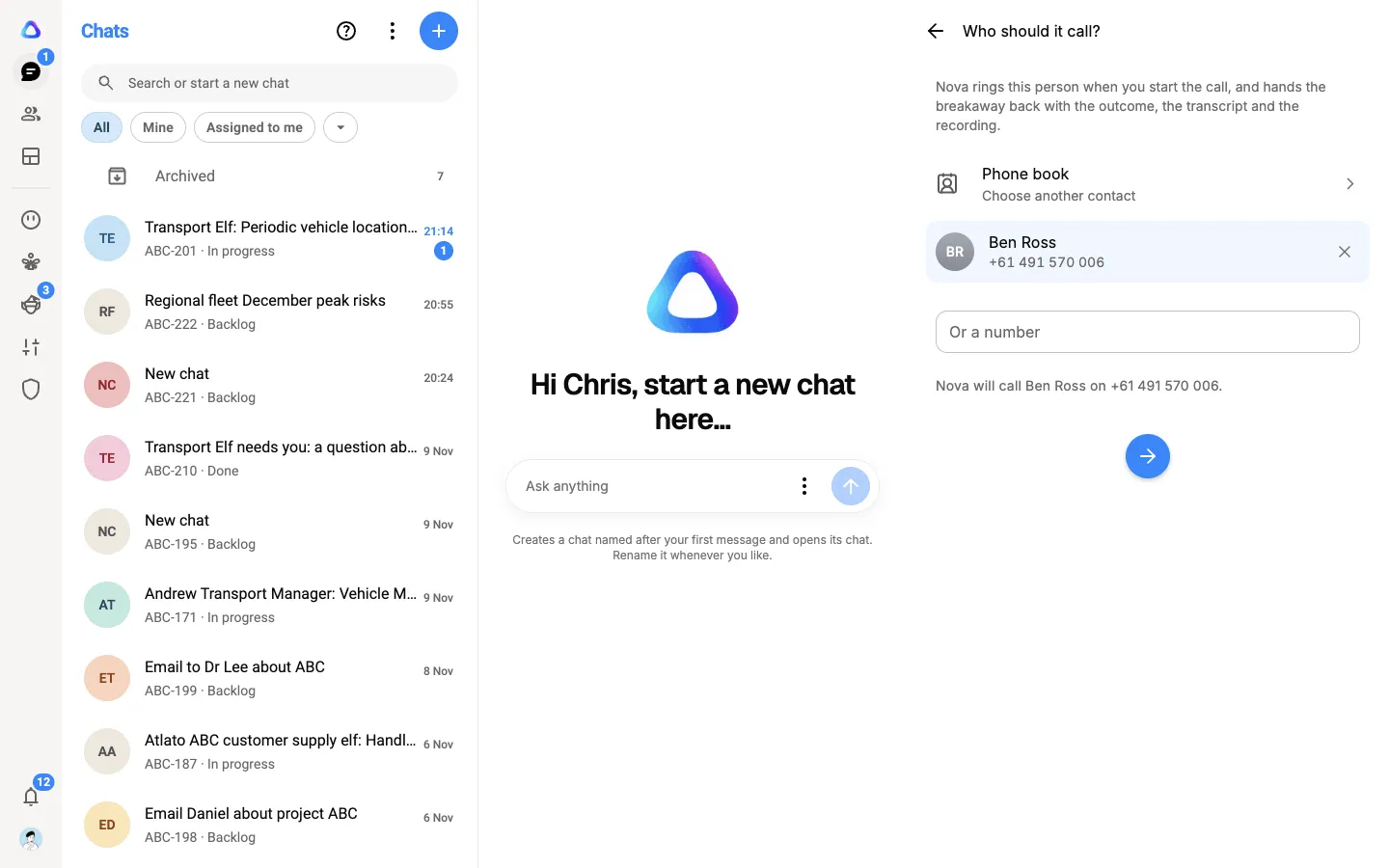
On Who should it call?, choose a contact from the Phone book, or type a number under Or a number, with its country code. If the contact has more than one number, choose the one the pixie should call.
-
On Add call aim, write the Call Aim: what the call is for, what a good outcome looks like, and any background the pixie needs before it rings.
-
Select Create breakaway.
The chat’s Approvals & Submissions panel opens on a card for the call, titled with the pixie’s name and who it calls. Nothing is dialled yet.
You can start a call breakaway from a team too. Tick the messages the call is about, as for any task from a team, and pick the pixie on Select member or agent. The card appears in the team’s Approvals & Submissions, and only you, as the person who created it, can start the call from it.
Call now or later
Section titled “Call now or later”On the call’s card:
- Select Call now to ring them straight away.
- Select Schedule it later, pick a date and time under When should it call? Your time., and select Schedule. The time must be at least 2 minutes from now and at most 30 days ahead. If it falls outside the pixie’s calling hours, the card offers the next allowed time instead.
A scheduled call shows Scheduled for and the time, with Cancel, Change time and Call now.
Watch the call live
Section titled “Watch the call live”The card shows how the call is going: Calling now, Ringing, On the call, then Call ended.
Select the card to open Call details. While the call is on, the Live section shows its status, how long it has run, who spoke last, and what is being said, line by line as the call goes on.
Owners, admins and editors can also step in during the call:
- Hold and Resume put the caller on hold and back.
- Transfer passes the caller to a person. See Transfers and routing.
- Hang up ends the call. The other person hears the call end.
When nobody answers
Section titled “When nobody answers”An unanswered call is tried again automatically. The card shows No answer, trying again at a time, with the attempt number. How many times it tries, and how long it waits between tries, are set in the pixie’s Calling rules. A call that is answered is never tried again.
If an answering machine picks up, the pixie does what its Calling rules say: hang up, leave a message, leave a message and send a text, or send a text only. When it leaves a message, the card says A voice note was left. Open the call to hear it.
After the last try, the card reads Unanswered and lists each attempt. Select Call again now, or Schedule again to pick a new time.
Get the result
Section titled “Get the result”When the call ends, the pixie hands the breakaway back automatically. A result card appears in Approvals & Submissions with a summary of how it went, the first few lines of the conversation, and the recording. If the panel is closed, the Approvals & Submissions button at the top of the chat shows a count when something new arrives.
Select the card to open Call details, which shows:
- What the call is for and How it went.
- What the pixie knows: earlier calls, memories and documents it used.
- The script it follows, if it had one.
- Conversation: the full transcript. Select Play from here on a line to hear that moment.
- Attempts, for a call that took more than one try.
- The recording, with playback speed and Download the recording.
Download the transcript
Section titled “Download the transcript”In Call details, select Transcript, then PDF, Text (TXT) or Markdown (MD).