
Run and schedule a workflow
Once a workflow is published, anyone it is shared with can run it. You can start a run yourself, start it from a chat so it gets its own chat, or set a schedule so it runs on its own. Every run has a page where you can follow each step.
Before you begin
Section titled “Before you begin”- The workflow must have a published version. A draft cannot run. See Publish a version.
- A run always uses the published version. Changes still in the draft are not included.
Run a workflow by hand
Section titled “Run a workflow by hand”-
Select Personalization → Workflows, then the workflow’s ⋮ menu → Run. You can also select Run on its Run history page, or ⋮ → Run in the editor.
-
The Run a workflow panel asks for each of the workflow’s inputs, one at a time. For a file input, select Choose a file (or Choose files) and wait for the upload to finish.
-
Select Start Workflow.
The run starts right away and keeps going if you close the panel. Open it from the workflow’s Run history.
Run from a chat
Section titled “Run from a chat”Starting a run from a chat gives the run a chat of its own, where you can watch its steps and answer anything it asks.
-
In any chat, select the Trigger workflow button in the message box. You can also use the chat’s ⋮ menu → Run a workflow, or start from New chat.
-
Select the workflow to run. Only published workflows you can see are listed.
-
Fill in the workflow’s inputs.
-
Under Name this chat, give the run’s chat a name, or keep the suggested one.
-
Choose whether to Notify me on completion. It is on by default.
-
Select Start Workflow.
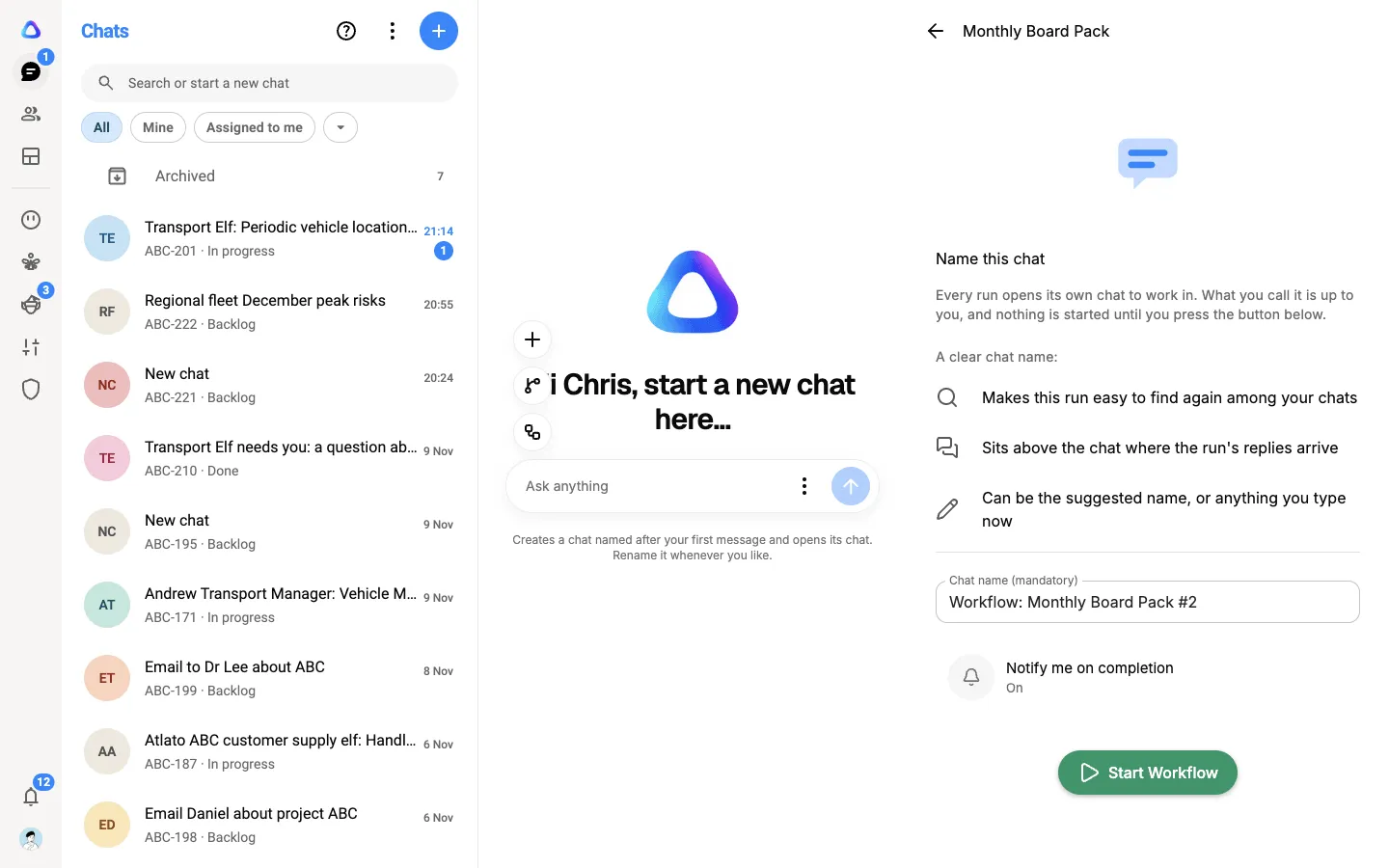
A card appears in the chat you started from. Select it to open the Workflow status panel, which shows each step’s status and who an approval is waiting on. From there, Open workflow chat shows the run step by step, and Open the full run view opens the run page.
With Notify me on completion on, when the run finishes its chat moves to the top of your Chats, is marked unread and shows how the run ended. With it off, the run finishes quietly: the chat is still there, it just will not come and find you.
Let an elf run a workflow
Section titled “Let an elf run a workflow”You can give an elf workflows it may start as part of its own work. Add the workflow in the elf’s Resources, under Workflows, and say when and why it should be used. See Resources and knowledge.
Schedule a workflow
Section titled “Schedule a workflow”A schedule starts the published version on its own, for example every weekday at 08:00. Owners and admins can add schedules.
-
Open the workflow in the editor, then select ⋮ → Schedules.
-
Select New schedule (the plus sign).
-
Give it a Name that says what it is for, such as “Nightly sweep”. You cannot rename a schedule later.
-
Under How often, choose Every few minutes, Hourly, Daily, Weekly or Monthly, then set the details: the Interval, On these days, the Day of the month or the time it runs At.
-
Check the Time zone. It starts as your computer’s time zone.
-
Select Add schedule.
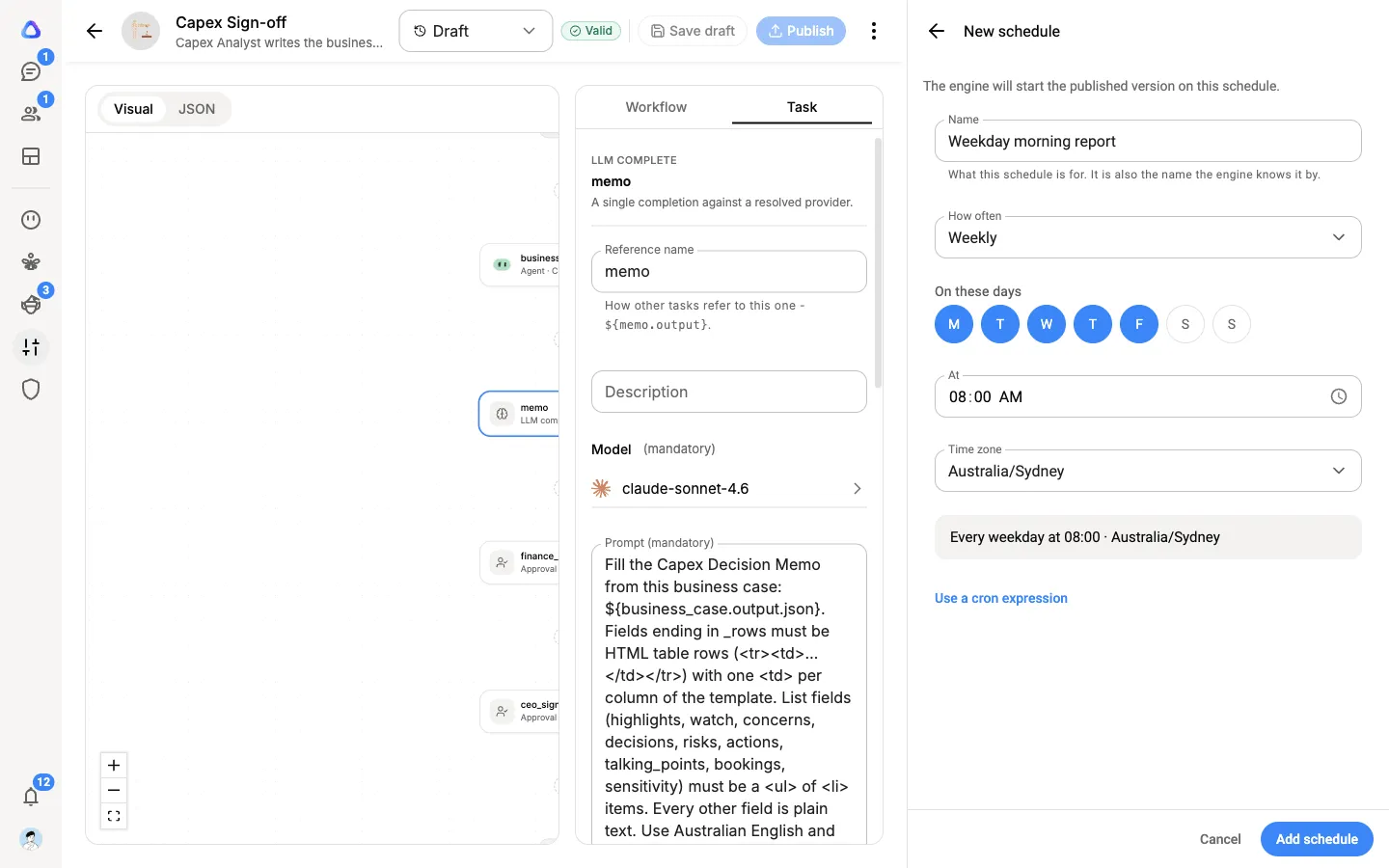
Each schedule in the list shows when it runs Next. Use its ⋮ menu to Pause or Resume it, or to Delete it. Deleting a schedule does not affect runs it already started.
For timing the presets cannot express, select Use a cron expression and enter one. Most people never need this.
Follow a run
Section titled “Follow a run”Open Run history from the workflow’s ⋮ menu to see every run, with when it Started, its Status, the Version it used, its Duration and who Started by. Select a run to open its page.
A run’s status is one of Running, Paused, Completed, Failed, Timed out or Terminated.
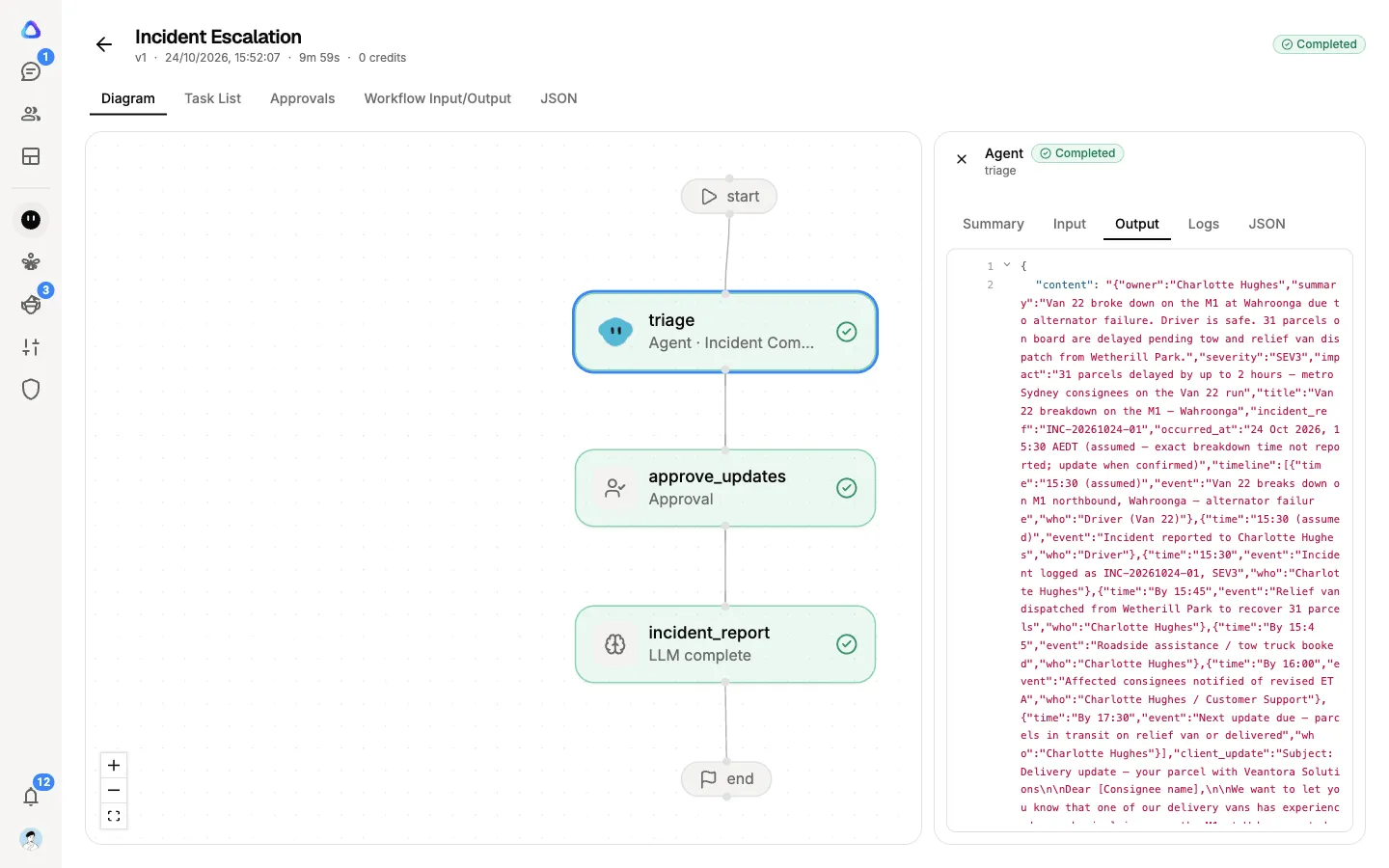
The run page has these tabs:
- Diagram: the workflow, with each step colored by its status.
- Task List: every step with its status, retries and duration.
- Approvals: any approvals in the run, and who they are waiting on.
- Workflow Input/Output: what the run started with and what it produced.
Select any step to see its Summary, its Input, its Output and its Logs. If a run failed, open the failed step to read its error.
Pause, retry or stop a run
Section titled “Pause, retry or stop a run”If your role lets you edit workflows, you can control a run from the top of its page:
| Button | When | What it does |
|---|---|---|
| Pause / Resume | While the run is going | Holds the run before its next step, then carries on |
| Retry | After it Failed, Timed out or was Terminated | Runs it again from where it stopped |
| Terminate | While the run is going | Cancels every step still in progress. A terminated run cannot be resumed |
A step that is waiting for a signal shows Release wait. Select it to let the run continue.