
Turn messages into a task
When a team discussion turns into a piece of work, you can hand it on without retyping anything. Tick the messages that matter, choose who takes it and write a short aim. A teammate, an agent, one of your elves or a pixie can take it, and when the work is handed back, the result is posted back into the team.
Before you begin
Section titled “Before you begin”- You need to be in the team.
- To hand the work to one of your agents, you need your own subscription or API key for the model that agent uses. See Who can take a breakaway.
- Pixies appear in the list only if your role is allowed to place calls.
Create the task
Section titled “Create the task”-
In the team, right-click the first message the work is about and select Create breakaway. You can also select the breakaway button beside the message box.
-
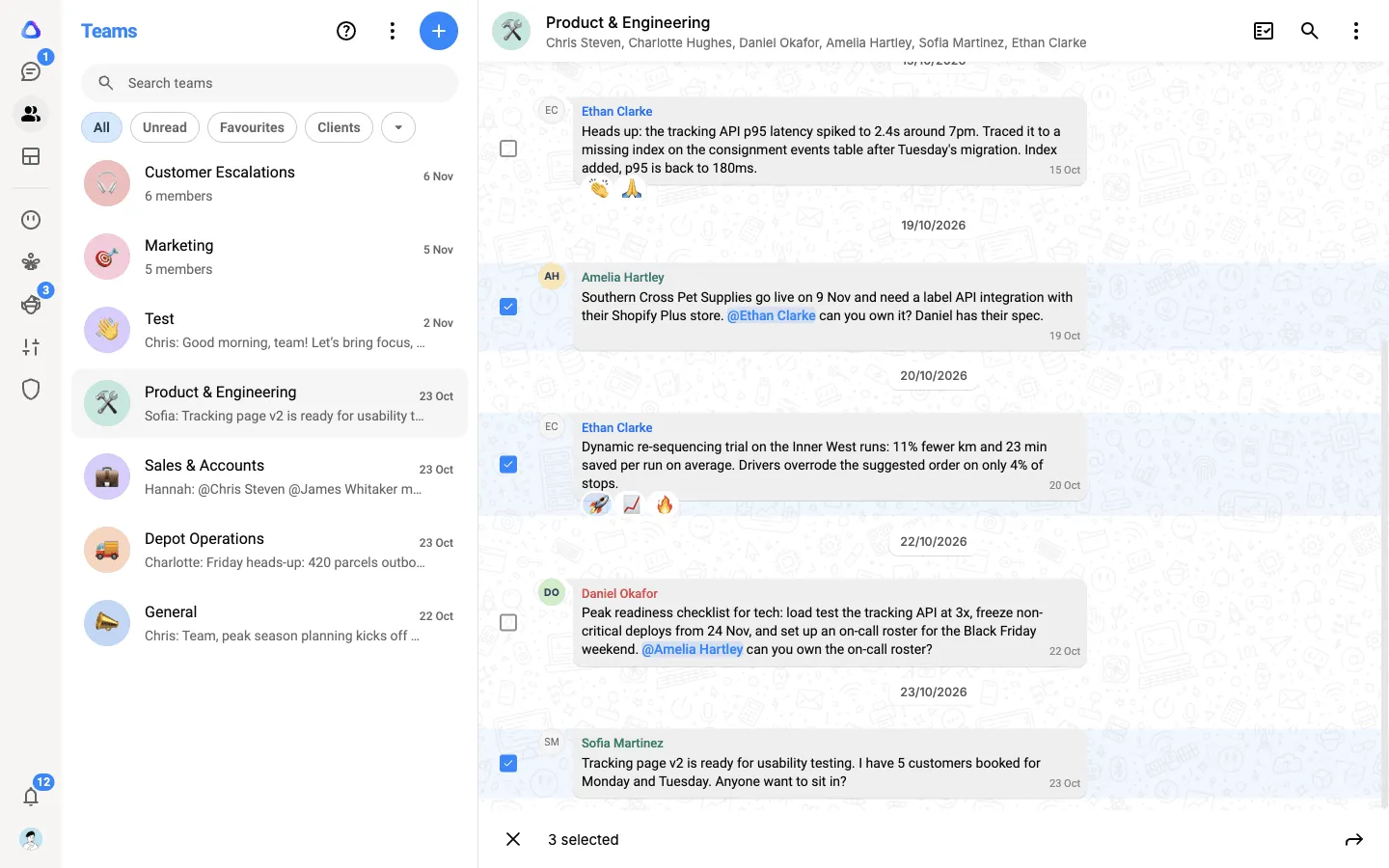
Tick the messages to carry. Each ticked message is highlighted, and the bar at the bottom counts how many you have selected.
-
Select the arrow at the right of the bar.
-
On Select member or agent, pick who should do the work: a teammate, yourself, Atlato One, one of your agents, one of your elves or a pixie. Use the chips (All, People, Agents, Elves, Pixies) or the search box to narrow the list. See Who can take a breakaway.
-
Add Breakaway details. Type a Chat Name (required). It names the task in their Chats list. Add a photo or emoji if you like.
-
Add media, links and docs. Files attached to the messages you ticked are already selected. Select Media, links and docs to add more of the team’s photos, documents and links, or upload new ones from your device. A file you upload here is added to the team’s files, so everyone in the team can see it.
-
Add task aim. Describe what they should do and what finished looks like in the Task Aim box (required).
-
Add deliverable. Optionally pick the formats you want back, such as PDF or Excel.
-
Set priority & due. Optionally choose a Priority and a Due date. An agent or an elf skips this step, because it starts straight away.
-
Select Create breakaway, the round check button.
A pixie has steps of its own, starting with who it should call. See Call breakaways.
You stay in the team. What happens next depends on who you picked:
- A teammate gets the task as a new chat under Assigned to me, with your aim and the messages you ticked under Inherited context.
- An agent or an elf starts work at once. You can follow it under the Breakaways chip in your Chats list.
- A pixie’s call waits for you. The team’s Approvals & Submissions opens on the call’s card, where you select Call now or Schedule it later.
Follow it in the team
Section titled “Follow it in the team”Select Approvals & Submissions at the top of the team to see the work handed out from the team and handed back to it. Everyone in the team can see these cards, so the whole team knows what is in hand. The button shows a count when something new arrives.
Each card says who took the work: a teammate by name, or an agent or an elf by its name followed by “(agent)” or “(elf)”. If you handed the work to a pixie, you see the call’s own card, with Call now and Schedule it later.
When the work comes back
Section titled “When the work comes back”The hand-back is posted back into the team, with the number of files attached. A teammate hands it back by submitting it. An agent or an elf hands it back on its own when it finishes, and its card carries its own name and face. You, as the person who asked, get a notification and decide on it from the hand-back card:
- Approve marks the task done.
- Reject sends it back with a note saying what has to change. A teammate can hand it in again, and an agent or an elf works on it again by itself.
See Approve or reject for the details. It works the same way as for a breakaway from an AI chat.
When a pixie’s call ends, its result card appears in the team, with a summary of how the call went. Select it to open the call’s details. See Call breakaways.